

Menu & Navigation Configuration
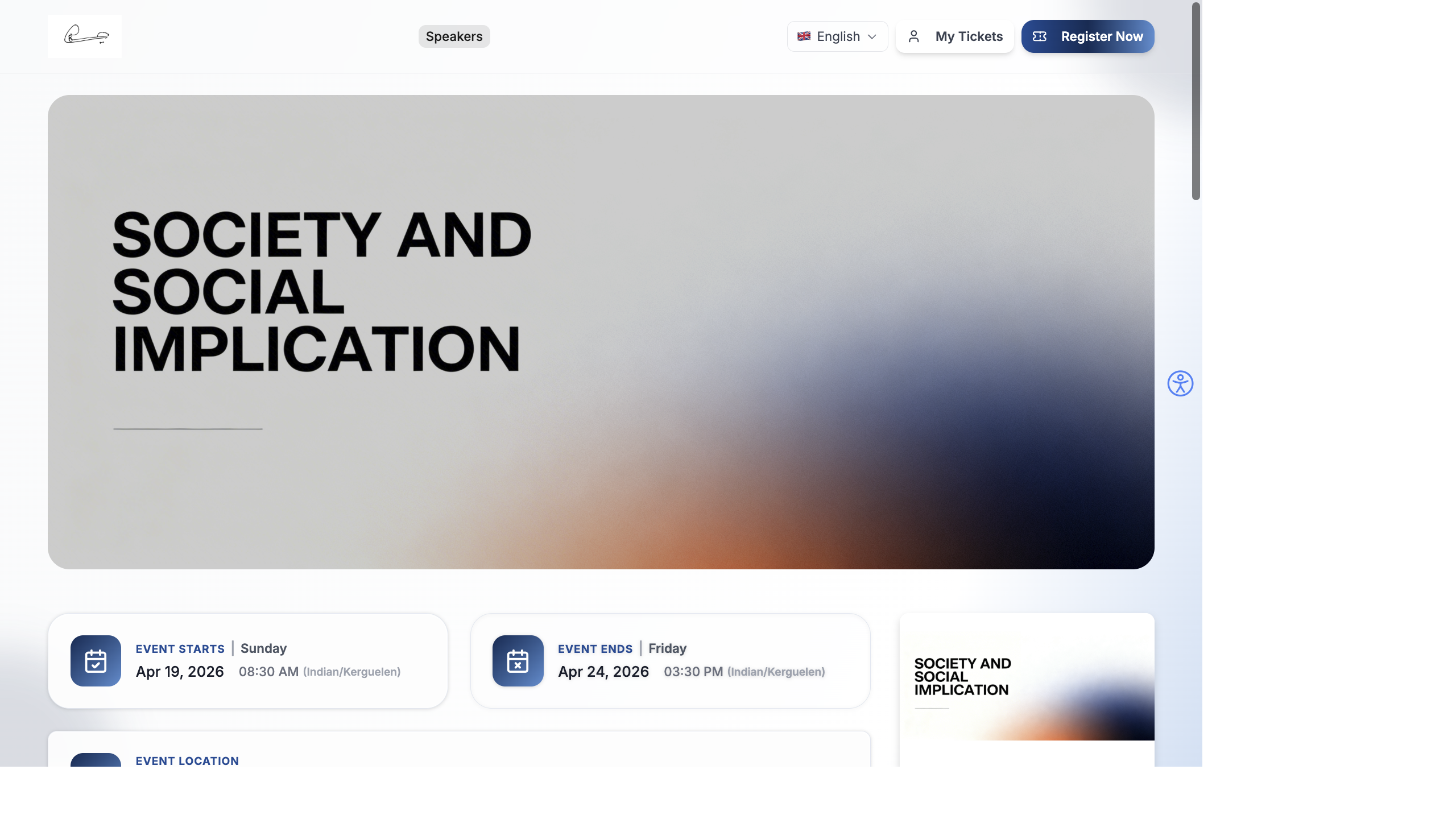
The navigation menu is how attendees move between pages on your event website. Configure which pages appear in the menu, their order, custom links, and the Register Now button — all from the Website Builder’s Header settings.
Where to Configure the Menu
Section titled “Where to Configure the Menu”The menu is managed in two places:
| Location | What It Controls |
|---|---|
| Design → Website Pages | Toggle the Menu switch per page to show/hide it in the navigation |
| Website Builder → Header module | Full control over menu items, order, labels, custom links, and button text |
Quick Menu Toggle (Website Pages)
Section titled “Quick Menu Toggle (Website Pages)”The fastest way to show or hide a page in the menu:
- Go to Design → Website Pages.
- Find the page (Speakers, Sessions, Sponsors, Exhibitors, Gallery).
- Toggle the Menu switch:
- On — page appears in the website’s top navigation
- Off — page is hidden from the navigation (but still accessible via direct URL)
Full Menu Configuration (Header Module)
Section titled “Full Menu Configuration (Header Module)”For complete control over the menu, use the Header module in the Website Builder:
- Go to Design → Website Pages.
- Click Website Builder on the Home page.
- In the Modules panel on the right, find the Header module.
- Click the edit icon (pencil) to open Header settings.
Menu Items
Section titled “Menu Items”The Header settings show a list of menu items. You can:
- Add a content page — select from Speakers, Sessions, Sponsors, Exhibitors, or Gallery
- Add a custom link — enter any URL and label (e.g., “Blog” →
https://yourblog.com) - Reorder — drag menu items to change their order
- Rename — edit the label text for any menu item (e.g., change “Speakers” to “Presenters”)
- Toggle visibility — show or hide individual menu items
- Remove — delete a menu item from the navigation
Register Now Button
Section titled “Register Now Button”The primary call-to-action button in the header:
- Toggle — show or hide the Register Now button
- Text — change the button text (e.g., “Book Tickets”, “Sign Up”, “Get Passes”)
The button scrolls to the Tickets section on the page (anchor link #tickets).
My Tickets Button
Section titled “My Tickets Button”For returning attendees who already registered:
- Toggle — show or hide the My Tickets button
- Text — customize the button text
Clicking it navigates to the /my-tickets page where attendees can view their tickets.
Header Logo
Section titled “Header Logo”Upload a custom event logo that appears in the top-left corner of the navigation:
- Open the Header module settings.
- Upload your logo (PNG, JPG, or SVG).
- Adjust the width (60–300 px) and height (30–150 px) to fit your header.
Language Switcher
Section titled “Language Switcher”If your event supports multiple languages, a language switcher dropdown appears in the header automatically. Attendees can switch between languages, and the website content updates accordingly.
The language switcher shows the current language flag and name (e.g., 🇬🇧 English). Configure available languages in Settings → Language.
Navigation Best Practices
Section titled “Navigation Best Practices”- Keep it short — 3 to 5 menu items is ideal. Too many links overwhelm visitors.
- Prioritize by importance — put the most important pages first (Speakers, Sessions before Gallery, Sponsors).
- Use clear labels — “Speakers” is better than “Our Esteemed Panel of Distinguished Experts.”
- Always show Register Now — it’s the primary action you want visitors to take. Don’t hide it.
- Test on mobile — the menu collapses into a hamburger menu on mobile. Check that all items are accessible.
| Good Menu | Bad Menu |
|---|---|
| Speakers · Sessions · Register Now | Home · About · Speakers · Sessions · Sponsors · Exhibitors · Gallery · FAQ · Contact · Register |
| 3 links + CTA button | 10 items, no clear priority |
What Attendees See
Section titled “What Attendees See”On the event website, the header displays:
- Event logo on the left
- Navigation links in the center (the pages you configured)
- Register Now button on the right (links to ticket checkout)
- Language switcher — if multi-language is enabled, a globe icon lets attendees switch languages
- On mobile, navigation collapses into a hamburger menu with a slide-out drawer
See Event Website — The Attendee Experience for the full attendee view.