

Activity Logs & Audit Trail
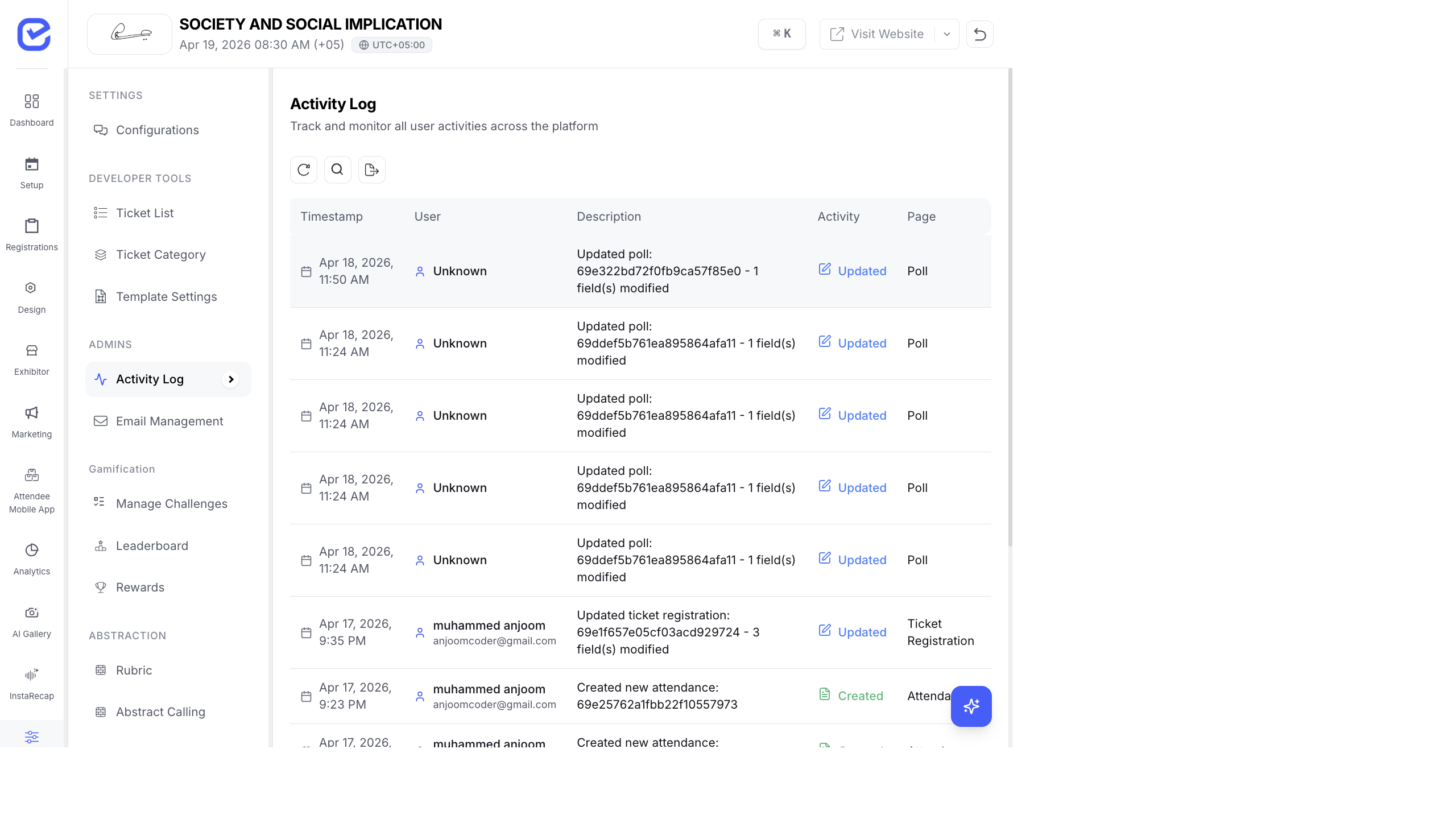
Activity Logs record every action taken in your event — who made a change, what they changed, and when. This is essential for accountability, compliance, and debugging.
Access Activity Logs
Section titled “Access Activity Logs”Go to Settings → Activity Log in the event sidebar.
Log Entry Fields
Section titled “Log Entry Fields”Each activity log entry includes:
| Field | Description |
|---|---|
| Timestamp | When the action happened |
| User | Who performed the action |
| Description | Human-readable summary of what happened |
| Activity Type | Created, Updated, Deleted, Viewed, Exported, or Imported |
| Page | Which CMS page the action was performed on |
| IP Address | The user’s IP address |
Activity Types
Section titled “Activity Types”| Type | Examples |
|---|---|
| Created | New ticket created, new session added, new attendee registered |
| Updated | Ticket price changed, session time modified, attendee details edited |
| Deleted | Ticket type removed, session cancelled, registration deleted |
| Viewed | Sensitive data accessed (attendee details, payment info) |
| Exported | Attendee list exported, report downloaded |
| Imported | Bulk attendee import, data upload |
View Change Details
Section titled “View Change Details”Click any log entry to see the full detail view:
Basic Info
Section titled “Basic Info”- Action description and timestamp
User Info
Section titled “User Info”- User name, email, and role
Technical Info
Section titled “Technical Info”- HTTP Method (GET, POST, PUT, DELETE)
- User Agent (browser and device)
- IP Address
- Resource Type (ticket, session, attendee, etc.)
Changes Diff
Section titled “Changes Diff”The most powerful feature — see exactly what changed:
| Field | Old Value | New Value |
|---|---|---|
price | 99 | 149 |
name | ”Early Bird" | "Early Bird Special” |
endDate | 2026-03-15 | 2026-03-31 |
The diff view resolves internal IDs to human-readable names, so you see “VIP Ticket” instead of a database ObjectId.
Filtering Logs
Section titled “Filtering Logs”Filter activity logs by:
- Date range — see activity for a specific period
- User — filter by team member
- Activity type — show only creates, updates, or deletes
- Page — filter by CMS section (tickets, sessions, etc.)
Use Cases
Section titled “Use Cases”Debugging Issues
Section titled “Debugging Issues”“Why did the ticket price change?” Search the activity log for ticket updates. You’ll see who changed the price, when, and what the old price was.
Compliance & Accountability
Section titled “Compliance & Accountability”For regulated industries (healthcare, finance events), activity logs provide an audit trail proving who accessed what data and when.
Team Oversight
Section titled “Team Oversight”If multiple team members manage the event, activity logs show who’s making changes. This prevents confusion when two people edit the same settings.
Post-Event Review
Section titled “Post-Event Review”After the event, review the activity log to understand the timeline of changes — when sessions were added, when ticket prices were adjusted, when marketing campaigns triggered import activity.
Best Practices
Section titled “Best Practices”- Check logs when something seems wrong — if settings changed unexpectedly, the activity log tells you exactly what happened and who did it.
- Review before major events — scan recent activity to make sure no unintended changes were made in the days before your event.
- Use for training — show new team members the activity log so they understand that all actions are tracked. This promotes careful, deliberate changes.