

Adding Sessions to Your Event Agenda
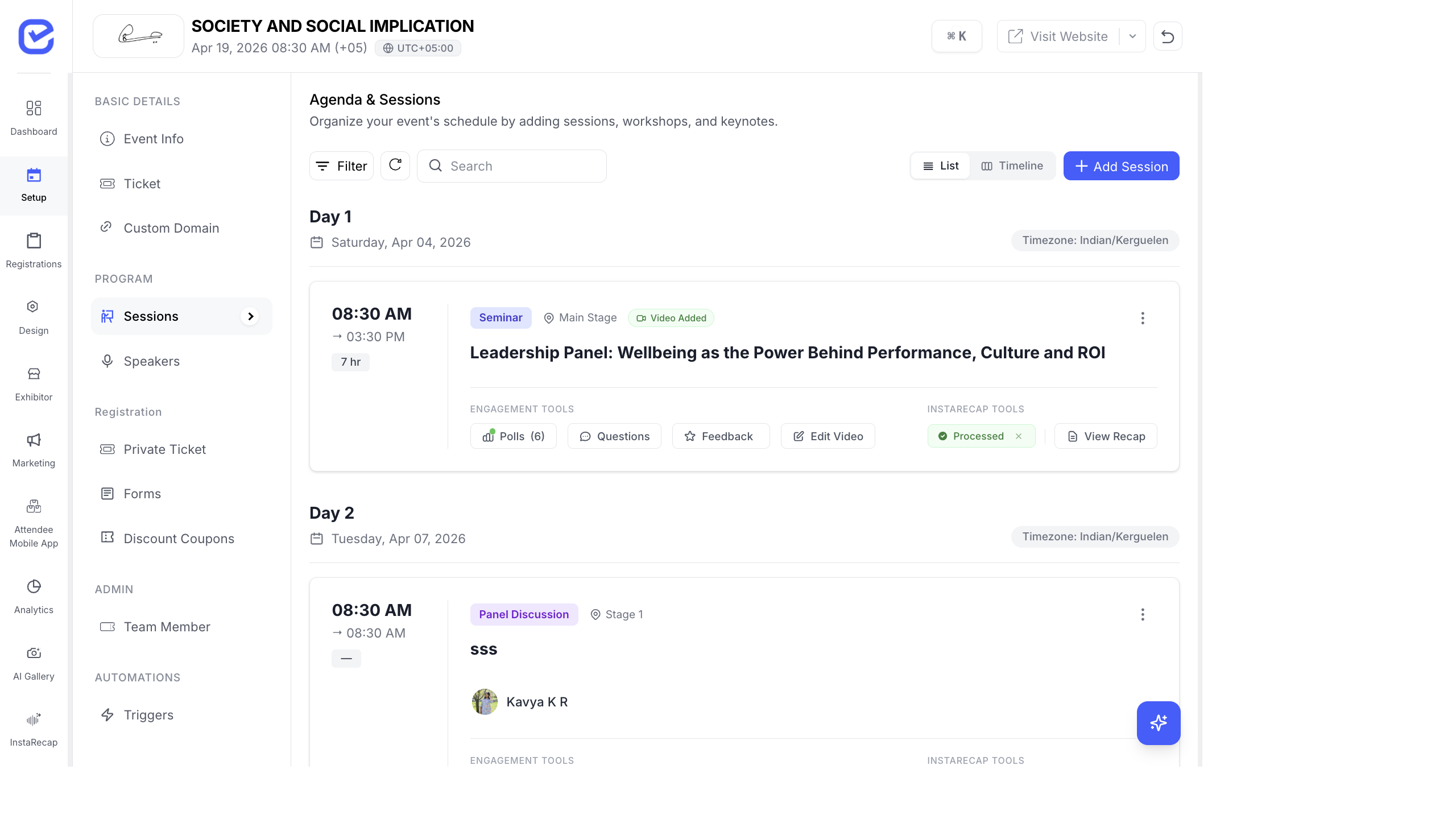
Sessions form the agenda of your event. Add talks, panels, workshops, keynotes, and other program items with dates, times, stages, and speaker assignments.
Access Sessions
Section titled “Access Sessions”Go to Setup → Sessions in the left sidebar.
The sessions page shows your agenda organized by day. Each session card displays:
- Time — start and end time with duration
- Type badge — color-coded session type (Seminar, Panel Discussion, Workshop, etc.)
- Stage — which stage/track the session is on
- Title — session name
- Speakers — assigned speaker avatars
- Engagement Tools — Polls, Questions (Q&A), Feedback, Edit Video
- InstaRecap Tools — processing status and View Recap link
Create a Session
Section titled “Create a Session”- Go to Setup → Sessions.
- Click + Add Session in the top-right corner.
- Fill in the session details:
- Title Required — session name
- Session Type — select from your configured types (Seminar, Panel, Workshop, Keynote, etc.) or add a new type inline
- Start Date & Time Required — when the session begins
- End Date & Time — when the session ends
- Stage — which stage/track this session belongs to
- Speakers — assign one or more speakers from your speakers list
- Description — detailed session description (rich text editor)
- Capacity — maximum attendees for this session (optional)
- Click Save.
Session Types
Section titled “Session Types”Session types help categorize your agenda items. Each type gets a color-coded badge:
| Type | Color | Typical Use |
|---|---|---|
| Seminar | Green | Educational talks and presentations |
| Panel Discussion | Teal | Multi-speaker discussion format |
| Workshop | Orange | Hands-on, interactive sessions |
| Keynote | Blue | Featured headline presentations |
| Networking | — | Informal meetup slots |
| Break | — | Coffee, lunch, or transition breaks |
To manage session types: Go to Settings → Session Types. You can create, edit, or delete types. Each type supports multi-language titles.
Stages (Tracks)
Section titled “Stages (Tracks)”Stages represent physical rooms, virtual rooms, or thematic tracks where sessions happen simultaneously.
To manage stages: Go to Settings → Stages. Create stages like:
- Main Stage, Stage 1, Workshop Room A
- Or thematic tracks: Business Track, Technical Track, Design Track
Edit or Delete a Session
Section titled “Edit or Delete a Session”Click the three-dot menu (⋮) on any session card to:
- Edit — modify session details
- Delete — remove the session
- Duplicate — create a copy with the same settings
Session Engagement Tools
Section titled “Session Engagement Tools”Each session card shows engagement buttons:
| Tool | Purpose |
|---|---|
| Polls | Create and manage live polls for the session |
| Questions | Q&A system — attendees submit questions |
| Feedback | Star-rating feedback from attendees |
| Edit Video | Add or edit session recording video |
These tools are covered in detail in the Session Polls, Q&A & Feedback article.
List View vs Timeline View
Section titled “List View vs Timeline View”Toggle between two views using the buttons at the top:
- List — vertical list of sessions grouped by day, showing full details
- Timeline — horizontal Gantt-style chart showing sessions across stages and time slots
The Timeline view is especially useful for spotting scheduling conflicts and visualizing parallel sessions.
Sessions on the Event Website
Section titled “Sessions on the Event Website”All published sessions automatically appear on the event website at /sessions. Attendees can:
- Browse sessions grouped by day with date tabs
- Filter by stage/track and session type
- View session cards with title, time, stage, and speaker photos
- Click into a session to see the full description, speaker bios, and engagement tools
Sessions also appear in the Attendee Mobile App under the Sessions tab, where attendees can bookmark sessions and receive reminders.
See Event Website — The Attendee Experience and Event App Walkthrough for details.