

Ticket Notifications — Email & WhatsApp Setup
EventHex automatically sends notifications to attendees when they register, get approved, or are rejected. You can configure these notifications globally or customize them per ticket.
Notification Channels
Section titled “Notification Channels”EventHex supports two notification channels:
| Channel | What It Sends |
|---|---|
| HTML confirmation email with event details, ticket info, and optional badge attachment | |
| Template-based message with registration confirmation and optional badge image |
Global vs Per-Ticket Notifications
Section titled “Global vs Per-Ticket Notifications”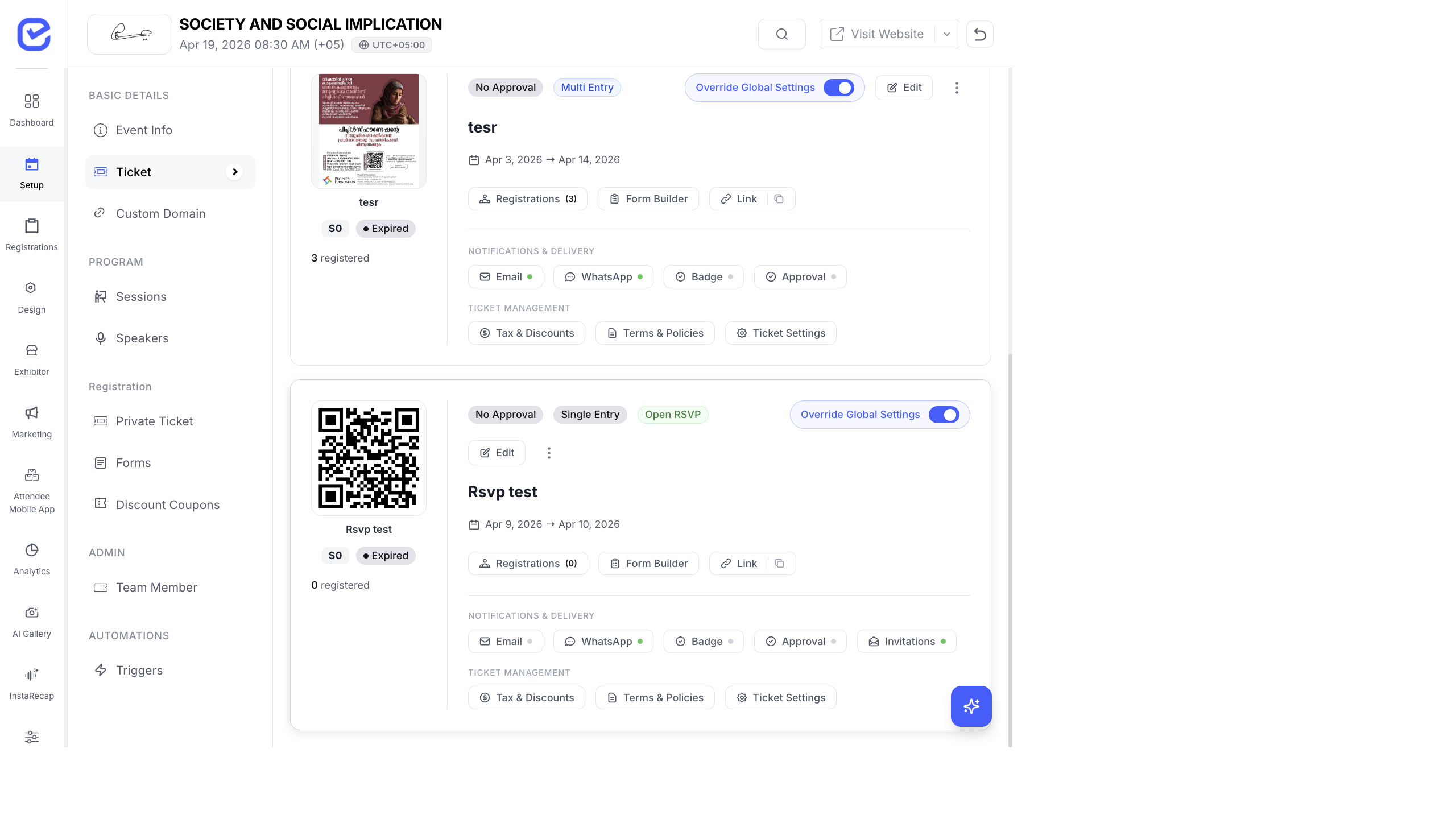
By default, all tickets use Global Settings for notifications. To customize for a specific ticket:
- Go to Setup → Ticket → Ticket List.
- Find the ticket you want to customize.
- Toggle on Override Global Settings.
- The ticket card expands to show NOTIFICATIONS & DELIVERY buttons:
- Email — configure email notifications
- WhatsApp — configure WhatsApp notifications
- Badge — configure badge attachment settings
- Approval — configure approval workflow notifications
- Invitations — manage invitation sending (private tickets only)
Email Notification Settings
Section titled “Email Notification Settings”Click the Email button on a ticket card to configure:
| Setting | Description |
|---|---|
| Enable Email | Turn email notifications on/off for this ticket |
| Confirmation Email | Sent when registration is confirmed |
| Purchase Notification | Sent on successful payment (paid tickets) |
| Attach Badge | Include the ticket badge as a PDF attachment in the email |
| Email Template | Click to open the email template editor and customize the content |
Customize the Email Template
Section titled “Customize the Email Template”The email template editor lets you:
- Edit the subject line
- Customize the email body with a rich text editor
- Insert dynamic variables like attendee name, event name, ticket type
- Add your organization’s branding and logo
- Preview the email before saving
WhatsApp Notification Settings
Section titled “WhatsApp Notification Settings”Click the WhatsApp button on a ticket card to configure:
| Setting | Description |
|---|---|
| Enable WhatsApp | Turn WhatsApp notifications on/off for this ticket |
| WhatsApp Template | Select from your approved WhatsApp Business templates |
| Attach Badge | Send the ticket badge as an image via WhatsApp |
Badge Attachment Settings
Section titled “Badge Attachment Settings”Click the Badge button to configure how badges are attached to notifications:
| Setting | Description |
|---|---|
| Attach Badge to Email | Include badge PDF in the confirmation email |
| Attach Badge to WhatsApp | Send badge image via WhatsApp |
| Custom Badge Styling | Use custom colors and branding for this ticket’s badge |
| Primary Color | Badge background or accent color |
| Secondary Color | Badge secondary color |
| Badge Fields | Choose which fields appear on the badge (name, company, ticket type, QR code) |
| Series Prefix | Prefix for badge numbering (e.g., “ATT-”) |
| Starting Number | First number in the badge series |
Notification Types Summary
Section titled “Notification Types Summary”| Event | ||
|---|---|---|
| Registration confirmed | ✅ Confirmation email | ✅ Confirmation message |
| Payment successful | ✅ Purchase receipt | — |
| Approval granted | ✅ Approval email | ✅ Approval message |
| Registration rejected | ✅ Rejection email | ✅ Rejection message |
| Invitation sent | ✅ Invitation email | ✅ Invitation message |
Bulk Update Notifications
Section titled “Bulk Update Notifications”If you have many tickets and want to apply the same notification settings to all of them:
- Go to Setup → Ticket → Global Ticket Settings.
- Click Notifications in the right sidebar.
- Configure the default email and WhatsApp settings.
- All tickets without overrides will use these global settings.
You can also use the Bulk Update feature to push specific settings to multiple tickets at once — select the tickets, choose the setting group (messaging, approval, badge, etc.), and apply.