

AV Team Access & Live Transcription Setup
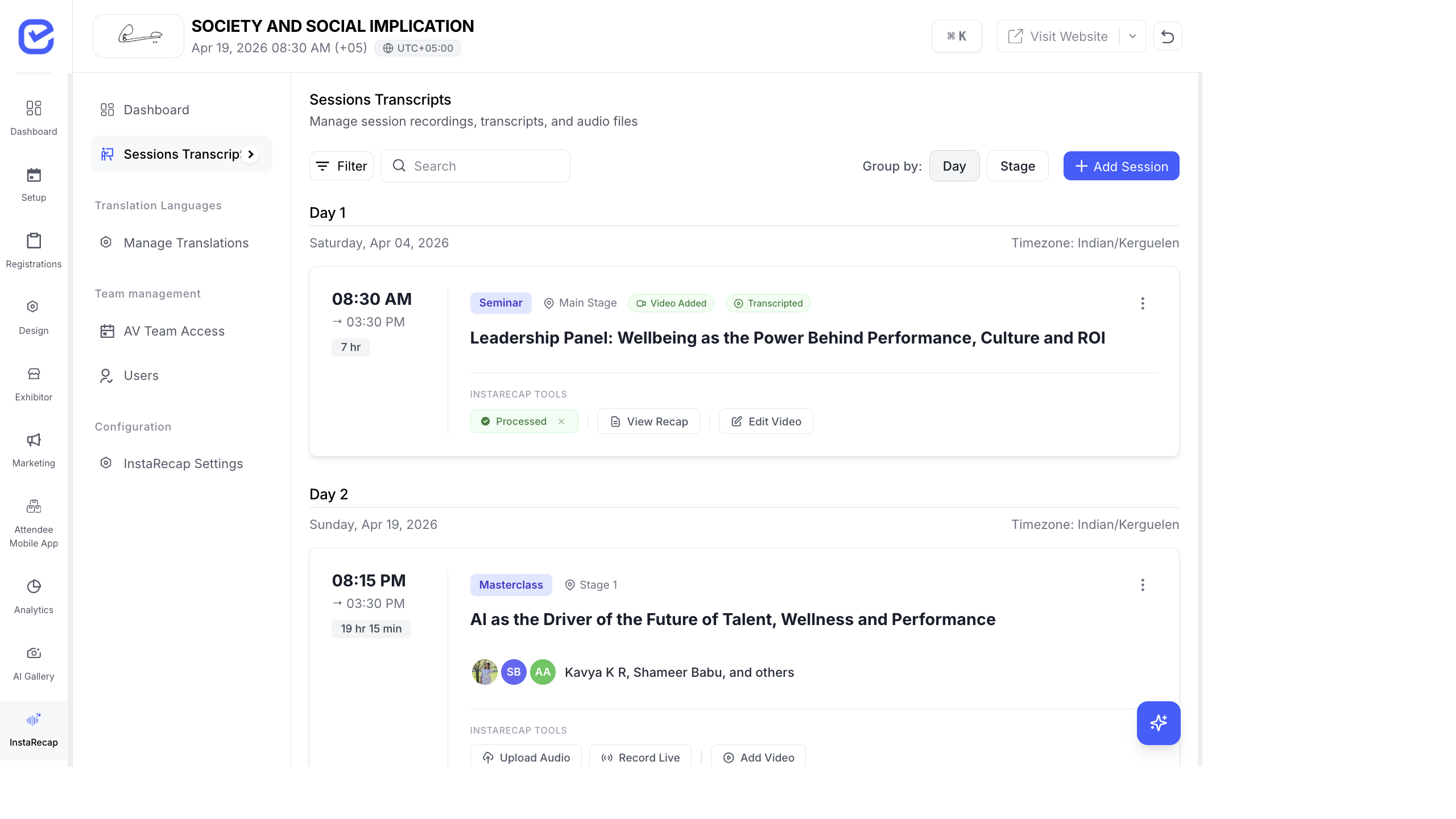
AV (audio-visual) team access lets you delegate recording responsibilities to your AV operators. Generate unique access codes so they can upload session recordings without needing full CMS access.
AV Team Portal
Section titled “AV Team Portal”The AV Team Portal is a simplified interface for AV operators:
- URL:
https://your-event.eventhex.ai/av-team - Operators enter their access code to log in
- They see only the sessions or stages assigned to them
- They can upload recordings and monitor processing status
Create AV Access Codes
Section titled “Create AV Access Codes”- Go to InstaRecap → AV Team Access.
- Click + Add Code.
- Fill in:
- Title — descriptive name (e.g., “Hall A Operator”, “Main Stage AV”)
- Type — Session or Stage
- Assign Sessions — select specific sessions this code can access (if type = Session)
- Assign Stages — select specific stages/halls (if type = Stage)
- An access code is auto-generated.
- Click Save.
Session vs Stage Assignment
Section titled “Session vs Stage Assignment”| Type | What It Means |
|---|---|
| Session | The AV operator can upload recordings for specific selected sessions |
| Stage | The AV operator can upload recordings for all sessions on the assigned stage/hall |
Share Access Codes
Section titled “Share Access Codes”After creating an access code:
- Copy Code — copy the raw code to send via email or message
- Copy URL — copy the full login URL with the code pre-filled:
https://your-event.eventhex.ai/av-team?code=ABC123 - Share — use the Web Share API to share via any app
- QR Code — generate a QR code for the AV team URL
The code is masked by default (shown as dots) for security. Click the eye icon to reveal it.
What AV Operators Can Do
Section titled “What AV Operators Can Do”Once logged in with their code, AV operators can:
- See their assigned sessions (or all sessions on their stage).
- Upload audio recordings for each session.
- Monitor the processing pipeline (queued → transcribing → processed).
- Re-upload if a recording has issues.
AV operators cannot:
- Access other sessions outside their assignment
- Edit transcripts or summaries
- Access the organizer’s CMS
- View attendee data
Live Transcription Setup
Section titled “Live Transcription Setup”For real-time transcription during sessions:
Prerequisites
Section titled “Prerequisites”- Stable internet connection at the venue
- Audio input from the session’s microphone system (line-in or USB interface)
- A laptop or tablet running a modern browser (Chrome recommended)
Start Live Transcription
Section titled “Start Live Transcription”- Go to InstaRecap → Sessions & Transcripts.
- Click Live Transcription on the target session.
- Select the transcription language (the language the speaker will use).
- Run the Sound Check — verify that audio is being captured clearly.
- Click Start to begin transcription.
- The transcript appears word-by-word in real-time.
- Click Stop when the session ends.
Live Transcription Features
Section titled “Live Transcription Features”| Feature | Description |
|---|---|
| Sound check | Pre-transcription audio verification |
| Language selection | 100+ languages supported |
| Speaking indicator | Visual indicator showing when speech is being detected |
| Real-time display | Transcript appears as the speaker talks |
| Auto-save | Transcript is saved continuously |
Managing Multiple AV Operators
Section titled “Managing Multiple AV Operators”For large events with multiple stages:
| Stage | AV Operator | Code Type |
|---|---|---|
| Main Hall | AV Team Lead | Stage: Main Hall |
| Workshop Room A | Workshop AV | Stage: Workshop A |
| Workshop Room B | Workshop AV | Stage: Workshop B |
| VIP Lounge | Freelance Videographer | Session: specific sessions only |
Each operator gets their own code and sees only their assigned content.
Best Practices
Section titled “Best Practices”- Create codes before the event — generate and share AV team codes at least 3 days before the event so operators can test the portal.
- Use stage assignment for simplicity — if one operator handles all sessions in a hall, assign by stage rather than listing every session.
- Test the sound check — have each AV operator run the sound check before the first session to catch audio issues early.
- Assign backup operators — create an extra access code for each stage in case of personnel changes.
- Keep codes secure — treat AV access codes like passwords. Don’t post them publicly. Share them directly with the assigned operators.
The AV Team Portal
Section titled “The AV Team Portal”AV operators access a dedicated portal at /av-team on the event website. This portal provides:
- Login — authenticate using the access code (no full account needed)
- Transcription Controls — start, stop, and monitor live transcription
- Audio Upload — upload session recordings for post-event processing
- Session/Stage Assignment — view which sessions or stages they’re responsible for
For a detailed guide to the AV Team Portal interface, see AV Team Portal.