

Discount Coupons — Creating & Managing Promo Codes
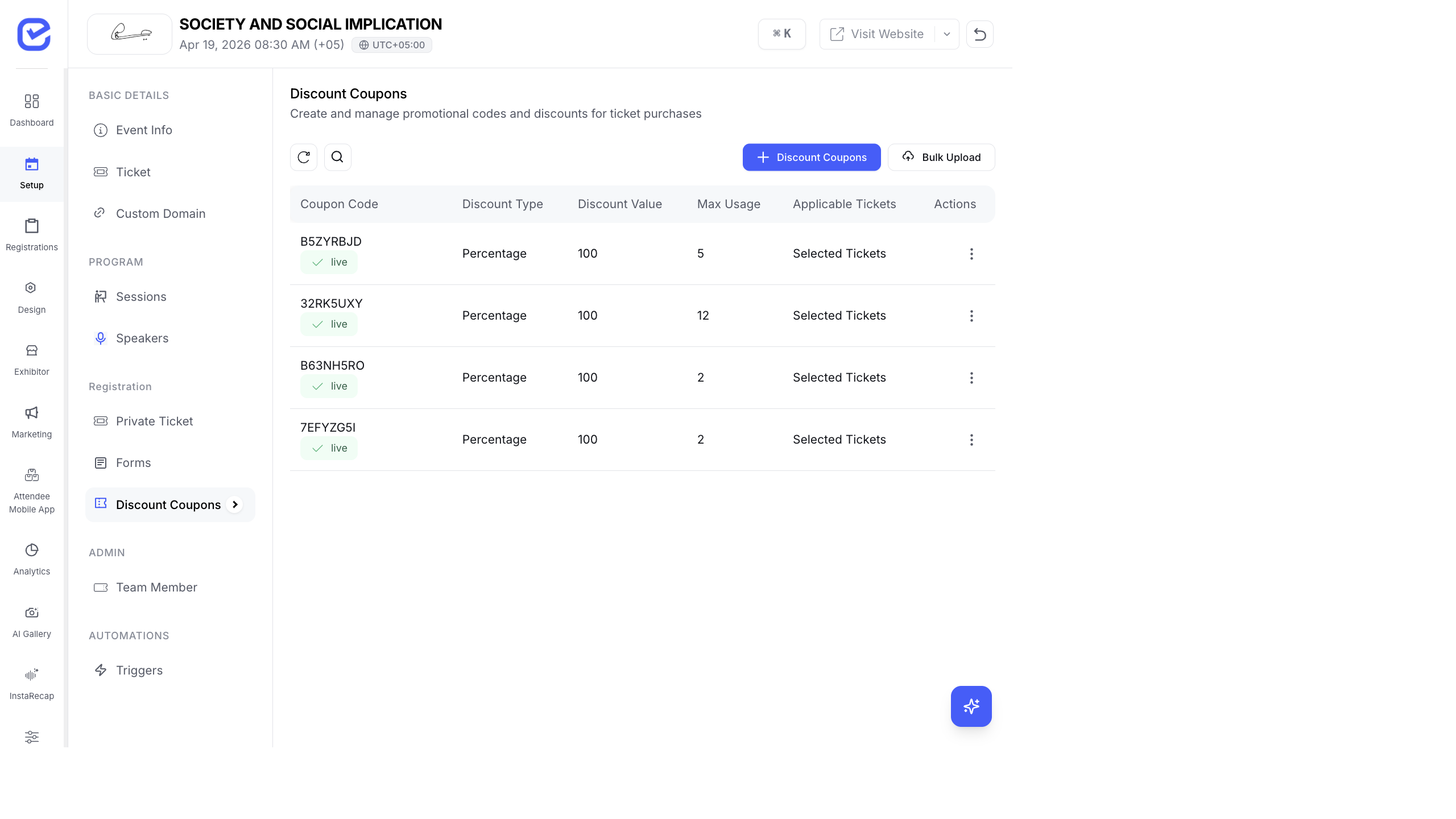
Discount coupons let you offer promotional pricing to specific attendees. Create coupon codes that give a percentage or fixed-amount discount, target specific tickets, and set usage limits.
Access Discount Coupons
Section titled “Access Discount Coupons”Go to Setup → Discount Coupons in the left sidebar.
The page shows all your coupons with:
- Coupon Code — the code attendees enter at checkout
- Discount Type — Percentage or Fixed Amount
- Discount Value — the amount off (e.g., 100% or $50)
- Max Usage — how many times the coupon can be used
- Applicable Tickets — which tickets the coupon works with
- Status — Live or Expired
Create a Coupon
Section titled “Create a Coupon”- Go to Setup → Discount Coupons.
- Click + Discount Coupons in the top-right corner.
- Fill in the coupon details:
- Coupon Code Required — the code attendees will enter (auto-generated or custom)
- Discount Type — choose Percentage or Fixed Amount
- Discount Value Required — the discount amount (e.g., 20 for 20% or 50 for $50 off)
- Max Usage — total number of times this coupon can be redeemed (leave empty for unlimited)
- Applicable Tickets — select All Tickets or choose specific ticket types
- Click Save.
Discount Types Explained
Section titled “Discount Types Explained”| Type | How It Works | Example |
|---|---|---|
| Percentage | Reduces the ticket price by a percentage | 20% off a $100 ticket = $80 |
| Fixed Amount | Reduces the ticket price by a set amount | $25 off a $100 ticket = $75 |
Bulk Upload Coupons
Section titled “Bulk Upload Coupons”For large batches of unique coupon codes:
- Click Bulk Upload on the Discount Coupons page.
- Download the CSV template.
- Fill in the template with your coupon codes, types, values, and limits.
- Upload the completed CSV file.
- Review and confirm the import.
This is useful when distributing unique codes to sponsors, partners, or specific attendee groups.
Manage Existing Coupons
Section titled “Manage Existing Coupons”Click the three-dot menu (⋮) on any coupon to:
- Edit — modify the discount value, limits, or applicable tickets
- Delete — remove the coupon permanently
- Duplicate — create a copy with a new code
How Attendees Use Coupons
Section titled “How Attendees Use Coupons”- The attendee goes to the checkout page
- They enter the coupon code in the Discount Code field
- The discount is applied and the updated price is shown
- They complete the registration with the discounted amount
Quantity-Based Discounts
Section titled “Quantity-Based Discounts”In addition to coupon codes, EventHex supports automatic quantity-based discounts that apply without a code. These are configured per-ticket:
- Go to Setup → Ticket and find the ticket.
- Toggle on Override Global Settings.
- Click Tax & Discounts.
- Enable Discount and set the discount type to Tiered.
- Add discount tiers:
- Min Quantity — minimum tickets to qualify
- Max Quantity — maximum tickets in this tier
- Discount Type — percentage or fixed
- Discount Value — the discount amount
- Tier Label — description shown to buyers (e.g., “Group of 5+: 10% off”)
| Tier Example | Min | Max | Discount |
|---|---|---|---|
| Standard | 1 | 4 | 0% |
| Small Group | 5 | 9 | 10% off |
| Large Group | 10 | 50 | 20% off |
How Attendees Apply Coupons
Section titled “How Attendees Apply Coupons”On the checkout page, attendees see a “Have a coupon code?” input field. They enter the code and click Apply — the discount is immediately reflected in the Order Summary panel, showing the original price, discount amount, and new total.
If the coupon is invalid, expired, or fully redeemed, an error message appears inline.