

Enabling Multi-Language Support
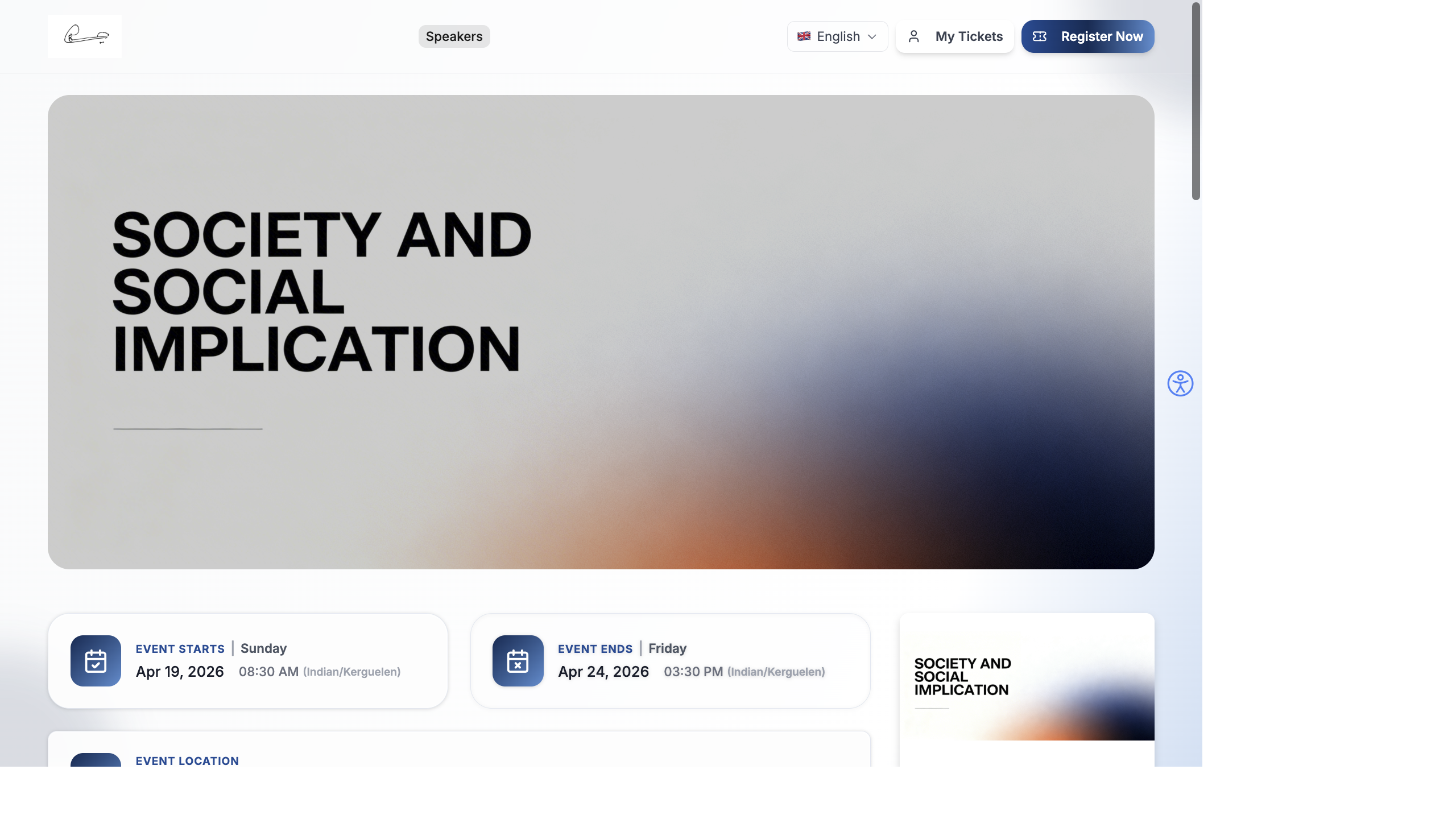
EventHex supports multi-language events with automatic right-to-left (RTL) layout handling for Arabic.
Supported Languages
Section titled “Supported Languages”| Language | Code | RTL | Notes |
|---|---|---|---|
| English | en | No | Default language |
| Arabic | ar | Yes | Full RTL layout support |
| German | de | No | — |
Setting the Event Language
Section titled “Setting the Event Language”- Go to your event settings.
- Select the Language for the event.
- The CMS interface and public-facing pages update to the selected language.
RTL Support for Arabic
Section titled “RTL Support for Arabic”When Arabic is selected, the entire layout automatically mirrors:
| Element | LTR (English) | RTL (Arabic) |
|---|---|---|
| Sidebar | Left side | Right side |
| Text alignment | Left-aligned | Right-aligned |
| Navigation | Left-to-right | Right-to-left |
| FAB button | Bottom-right | Bottom-left |
| Toast notifications | Right side | Left side |
The RTL transformation is automatic — you don’t need to manually adjust any layout settings. The system detects Arabic and applies the correct direction throughout.
How RTL Detection Works
Section titled “How RTL Detection Works”EventHex uses a useIsRTL hook that checks the current language. When the language is Arabic:
- CSS
direction: rtlis applied globally - Sidebar margins switch (from left to right)
- All interactive elements mirror their positions
- Forms and inputs read right-to-left
Multi-Language Form Fields
Section titled “Multi-Language Form Fields”Registration forms and custom forms support multi-language content:
- Field labels can be set in multiple languages
- Placeholder text adapts to the selected language
- Validation messages display in the attendee’s language
- Dropdown options can have translations for each supported language
Best Practices
Section titled “Best Practices”- Choose language early — set the event language before building forms and content. Changing language later requires reviewing all content for translation.
- Test RTL thoroughly — if using Arabic, test every page in the CMS and public site. Some custom content may need manual RTL adjustments.
- Use Arabic for Middle East events — EventHex’s Arabic RTL support is production-ready. Don’t force English on Arabic-speaking attendees.
- Keep content consistent — if you switch languages, make sure all sections (tickets, sessions, emails) are translated. Partial translations look unprofessional.
Language Switcher on the Event Website
Section titled “Language Switcher on the Event Website”When multi-language is enabled, a language switcher (globe icon) appears in the event website header. Attendees can switch languages to see all content in their preferred language.
The same language support extends to:
- Attendee Mobile App — app language switcher in the profile section
- InstaRecap — session summaries available in multiple translated languages
- AI Gallery — gallery interface supports RTL for Arabic
See Event Website — The Attendee Experience for how the language switcher appears to attendees.