

Upload & Photo Management
Upload event photos in bulk and manage them with folders, filtering, and organization tools. The system processes faces automatically as photos are uploaded.
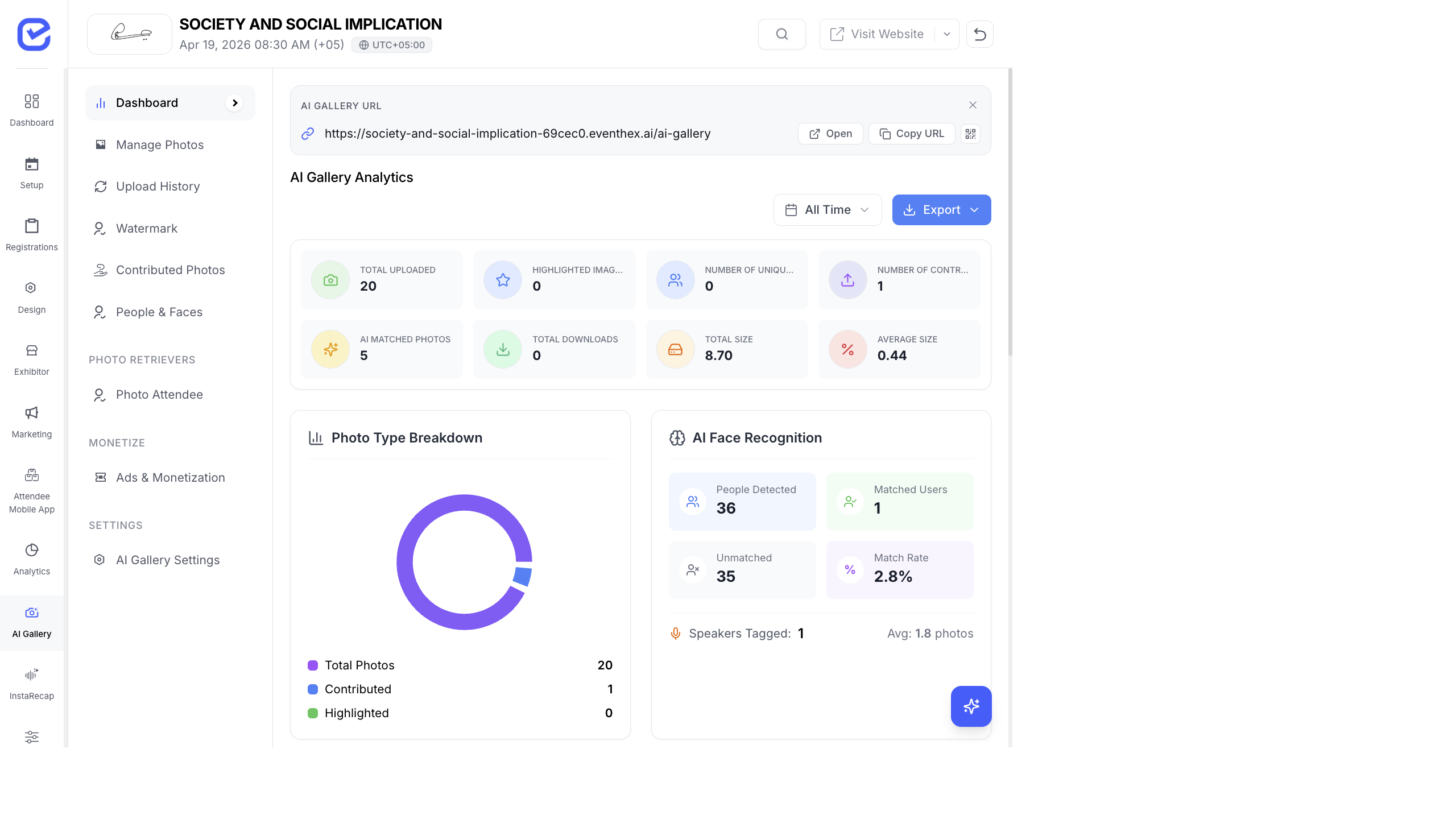
Upload Photos
Section titled “Upload Photos”- Go to AI Gallery → Photos.
- Click Upload or drag and drop photos onto the page.
- Select multiple photos at once (hundreds or thousands supported).
- The upload starts with a progress indicator.
- Face processing begins automatically in the background.
Supported Formats
Section titled “Supported Formats”| Format | Support |
|---|---|
| JPG / JPEG | Full support |
| PNG | Full support |
| HEIC | Auto-converted to JPG on upload (common iPhone format) |
| WebP | Full support |
Photo Grid & Views
Section titled “Photo Grid & Views”Photos display in a grid view with lazy loading — images load as you scroll down, so even galleries with thousands of photos remain fast.
Grid Actions
Section titled “Grid Actions”| Action | How |
|---|---|
| Select | Click the checkbox on a photo |
| Multi-select | Click multiple checkboxes or use “Select All” |
| Star / Highlight | Click the star icon to mark a photo as featured |
| Delete | Select photos → click Delete |
| Download | Select photos → click Download |
Organize with Folders
Section titled “Organize with Folders”Create folders to organize photos by session, day, or area:
- Click + New Folder (or use album creation).
- Name the folder (e.g., “Day 1 - Keynotes”, “Networking Dinner”, “Exhibition Hall”).
- Upload photos directly into the folder, or move existing photos into it.
Folders appear as albums in the attendee-facing gallery, making it easy for attendees to browse by event section.
Face Processing Status
Section titled “Face Processing Status”After upload, photos go through AI face processing. A banner at the top shows the current processing status:
| Status | Meaning |
|---|---|
| Processing | AI is scanning photos for faces (may take a few minutes for large batches) |
| Complete | All faces detected and grouped |
| Partial | Some photos processed, some still in queue |
Duplicate Detection
Section titled “Duplicate Detection”The system detects duplicate photos during upload:
- If you upload the same photo twice, it flags it as a duplicate
- You can choose to skip duplicates or replace existing copies
- This prevents the gallery from having identical photos
Starred / Highlighted Photos
Section titled “Starred / Highlighted Photos”Mark your best photos as highlighted (starred):
- Click the star icon on a photo.
- Starred photos appear in the “Highlights” section of the attendee gallery.
- Use this for professional photographer shots, key moments, and group photos.
Highlighted photos get priority placement in the gallery, making sure your best event moments are seen first.
Bulk Actions
Section titled “Bulk Actions”Select multiple photos to perform bulk operations:
| Bulk Action | What It Does |
|---|---|
| Delete | Remove selected photos from the gallery |
| Move to Folder | Move selected photos into a folder/album |
| Download | Download selected photos as a ZIP file |
| Star | Mark selected photos as highlighted |
Best Practices
Section titled “Best Practices”- Upload as you go — don’t wait until after the event. Upload photos throughout each day so attendees can find their photos while excitement is still high.
- Quality over quantity — curate your uploads. Remove blurry, dark, or duplicate photos before uploading. A gallery of 500 great photos beats 5,000 mediocre ones.
- Use folders — organize by session, day, or area. “Day 1 Keynote” is much easier to browse than one giant unorganized gallery.
- Star the best — highlight 50–100 of your best professional photos. These appear first and set the tone for the gallery experience.
- Check processing — after uploading a large batch, verify the face processing status completes before sending attendees the gallery link.