

Floor Plans & Booth Assignment
Floor plans help exhibitors find their booth location and help attendees navigate the exhibition hall. Upload your venue map and assign booth numbers to each exhibitor.
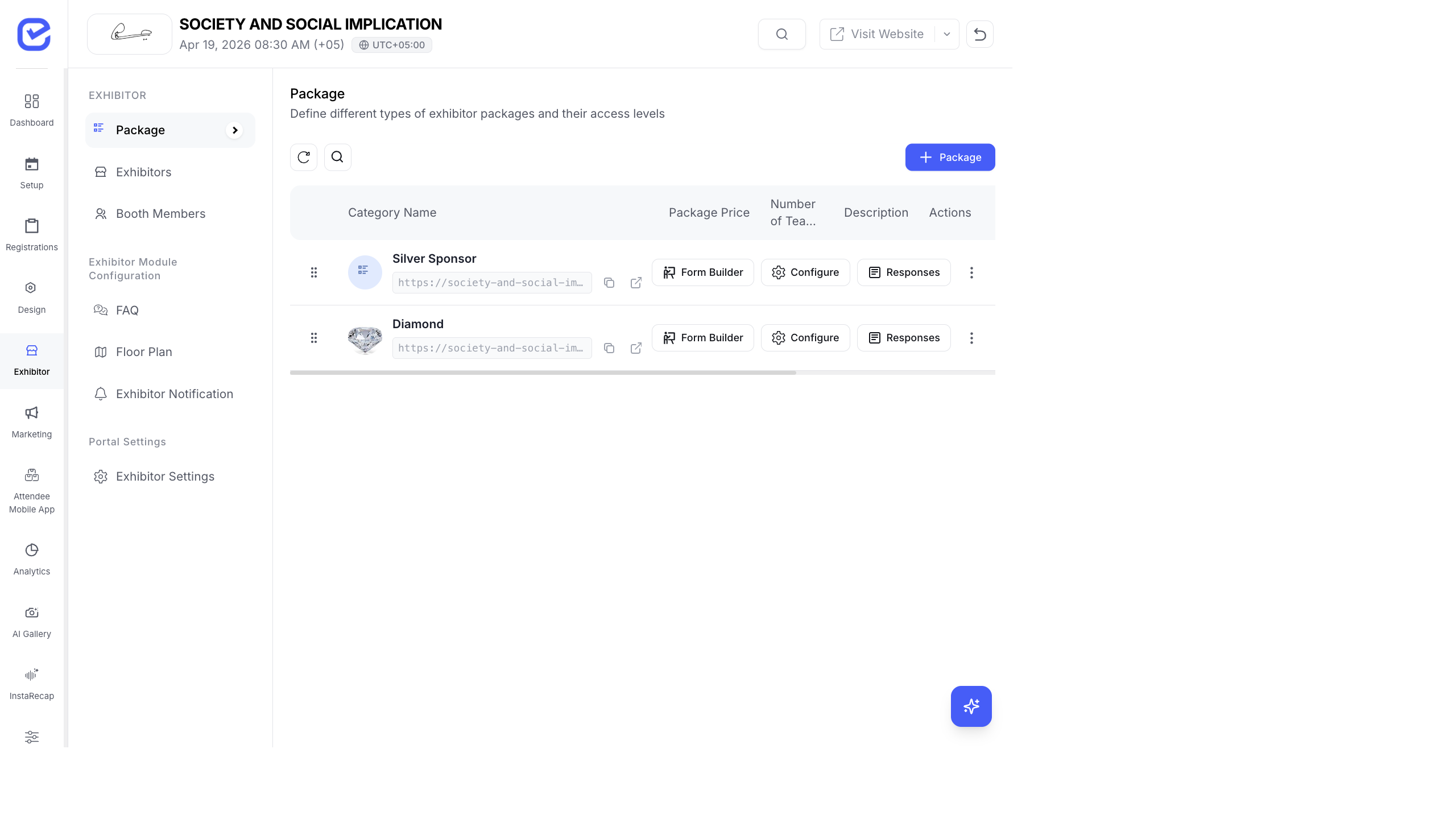
Access Floor Plans
Section titled “Access Floor Plans”Go to Exhibitor → Floor Plans.
Upload a Floor Plan
Section titled “Upload a Floor Plan”- Go to Exhibitor → Floor Plans.
- Click + Add New.
- Enter a Title — e.g., “Hall A”, “Exhibition Floor”, “Ground Floor”
- Upload the floor plan file — image (PNG, JPG) or PDF.
- Click Save.
You can upload multiple floor plans for different halls, floors, or zones.
Assign Booths to Exhibitors
Section titled “Assign Booths to Exhibitors”After uploading your floor plan, assign booth numbers:
- Go to Exhibitor → Exhibitor Management.
- Edit an exhibitor.
- Enter the Booth Number (e.g., “A-12”, “B-05”, “Hall 2 - Booth 15”).
- Click Save.
- Repeat for all exhibitors.
The booth number appears:
- In the exhibitor list on your management page
- In the exhibitor’s portal
- On the event website’s exhibitor listing (if enabled)
Floor Plan Best Practices
Section titled “Floor Plan Best Practices”- Label booths clearly — use a consistent numbering system (A-01, A-02, B-01, B-02) that matches the physical venue.
- Include landmarks — mark entrances, exits, restrooms, food areas, and registration desks on the plan.
- Create separate plans for large venues — upload one floor plan per hall or zone instead of cramming everything onto one image.
- Update when assignments change — if exhibitor locations shift, update both the booth number on the exhibitor record and the floor plan image.
- High resolution — upload high-resolution images so booth numbers and labels are readable when zoomed in on mobile screens.
Floor Plans in the Exhibitor Portal
Section titled “Floor Plans in the Exhibitor Portal”Approved exhibitors can view the floor plan from their Exhibitor Portal at /exhibitor-portal/floor-plans. This helps them:
- Find their assigned booth location
- Understand the venue layout before setup day
- Share the floor plan with their team