

Website Integrations — Analytics, Pixels & Chat
EventHex supports plug-and-play integrations for analytics, advertising, accessibility, and customer support. Enable them with a toggle and enter your tracking IDs — no code changes needed.
Access Integrations
Section titled “Access Integrations”Go to Design → Website Integrations.
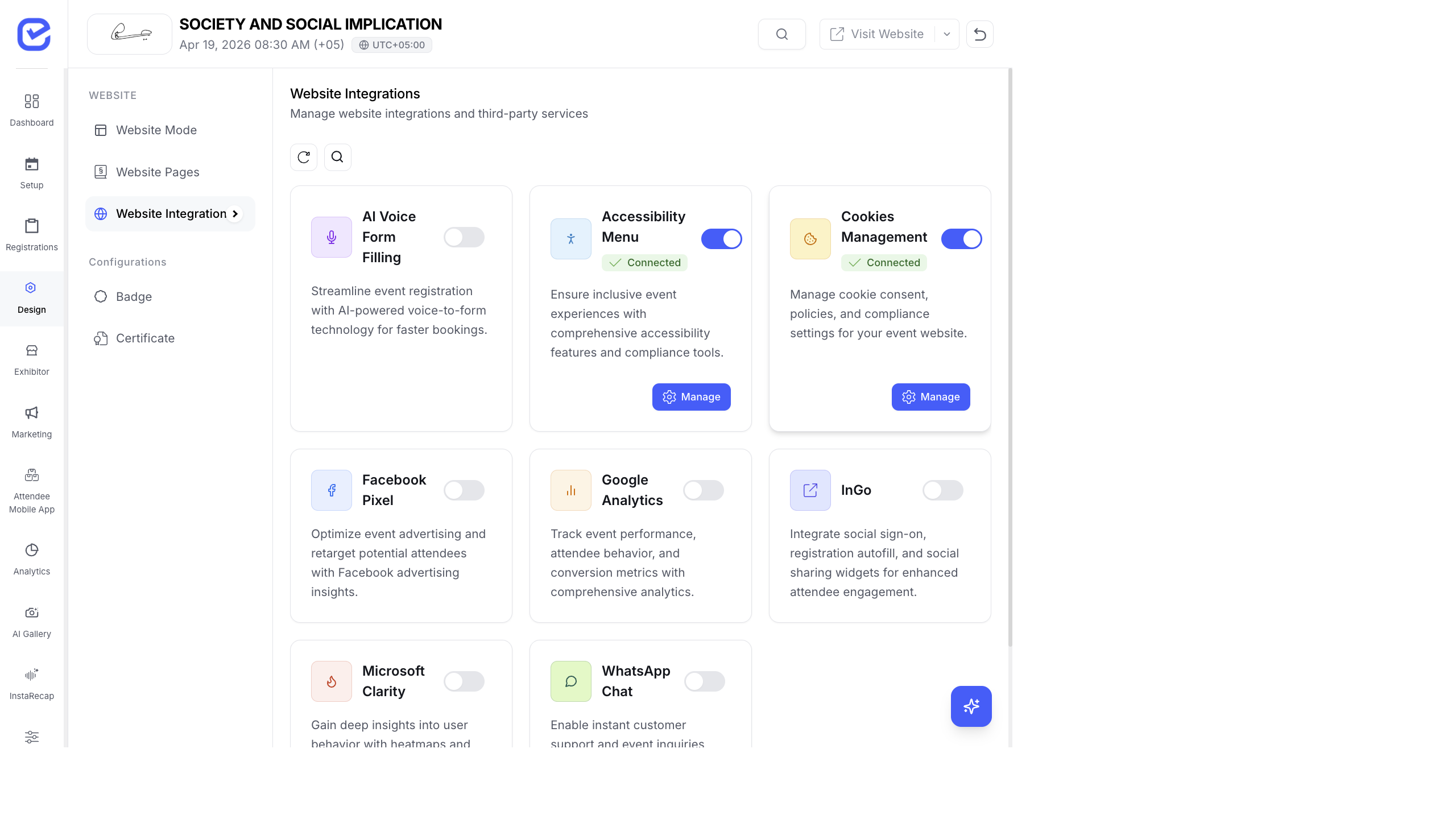
Each integration is a card with a toggle switch, description, and connection status. Enable an integration by turning on its toggle, then click Manage to configure it.
Available Integrations
Section titled “Available Integrations”Google Analytics
Section titled “Google Analytics”Track visitor behavior, page views, and conversion metrics on your event website.
- Toggle Google Analytics on.
- Click Manage.
- Enter your Tracking ID (e.g.,
UA-XXXXXXX-XorG-XXXXXXXXXX). - Enter your Property ID (from Google Analytics 4).
- Click Save.
Once connected, Google Analytics tracks all page views, button clicks, and registration conversions on your event website.
Facebook Pixel
Section titled “Facebook Pixel”Retarget website visitors with Facebook and Instagram ads. Track which visitors registered and which didn’t — then run ads targeting the non-registrants.
- Toggle Facebook Pixel on.
- Click Manage.
- Enter your Pixel ID (found in Facebook Events Manager).
- Enter your Access Token (for server-side tracking).
- Click Save.
Microsoft Clarity Pro
Section titled “Microsoft Clarity ”Understand how visitors interact with your event website through heatmaps and session recordings. See exactly where people click, how far they scroll, and where they drop off.
- Toggle Microsoft Clarity on.
- Click Manage.
- Enter your Project ID (from Clarity dashboard).
- Enter your Tracking Code.
- Click Save.
WhatsApp Chat
Section titled “WhatsApp Chat”Add a WhatsApp chat button to your event website so visitors can message you directly with questions.
- Toggle WhatsApp Chat on.
- Click Manage.
- Enter the Phone Number (with country code, e.g.,
+91 9876543210). - Click Save.
A floating WhatsApp button appears on your website. Clicking it opens a WhatsApp chat to your number.
Accessibility Menu
Section titled “Accessibility Menu”Make your event website accessible to people with disabilities. Adds an accessibility toolbar with options for high contrast, screen reader support, keyboard navigation, and font size adjustments.
- Toggle Accessibility Menu on.
- The accessibility icon appears on your website.
- Visitors can click it to adjust the website display for their needs.
Configuration options include toggling individual accessibility features: High Contrast Mode, Screen Reader Support, Keyboard Navigation, and Font Size Options.
Cookies Management
Section titled “Cookies Management”Comply with GDPR and cookie consent regulations by showing a cookie banner on your event website.
- Toggle Cookies Management on.
- Click Manage.
- Enable Cookies Banner — a consent banner appears on the first visit.
- Edit the Cookies Policy text (rich HTML editor).
- Click Save.
AI Voice Form Filling Pro
Section titled “AI Voice Form Filling ”Let attendees fill out registration forms using their voice instead of typing. Especially useful for mobile users and accessibility.
Configuration: Language (English, Spanish, French, German), Voice Recognition Sensitivity (1–10), and Auto-save Interval (seconds).
Social sign-on, registration autofill, and social sharing widgets. InGo uses attendees’ social connections to promote your event through word-of-mouth.
Configuration: Login Widget, Registration Widget, Social Widget, and Confirmation Widget fields (paste the embed code provided by InGo).
Integration Status
Section titled “Integration Status”Each integration card shows its connection status:
| Status | Meaning |
|---|---|
| Connected (green checkmark) | Integration is active and working |
| Not Connected | Toggle is on but configuration is incomplete |
| Off (grey toggle) | Integration is disabled |