

Orders, Refunds & Cancelled Payments
Every ticket purchase creates an order. The Orders section lets you track all payments, view order details, process refunds, and manage cancellations.
Access Orders
Section titled “Access Orders”Go to Registrations in the left sidebar, then click Orders under the ORDERS section.
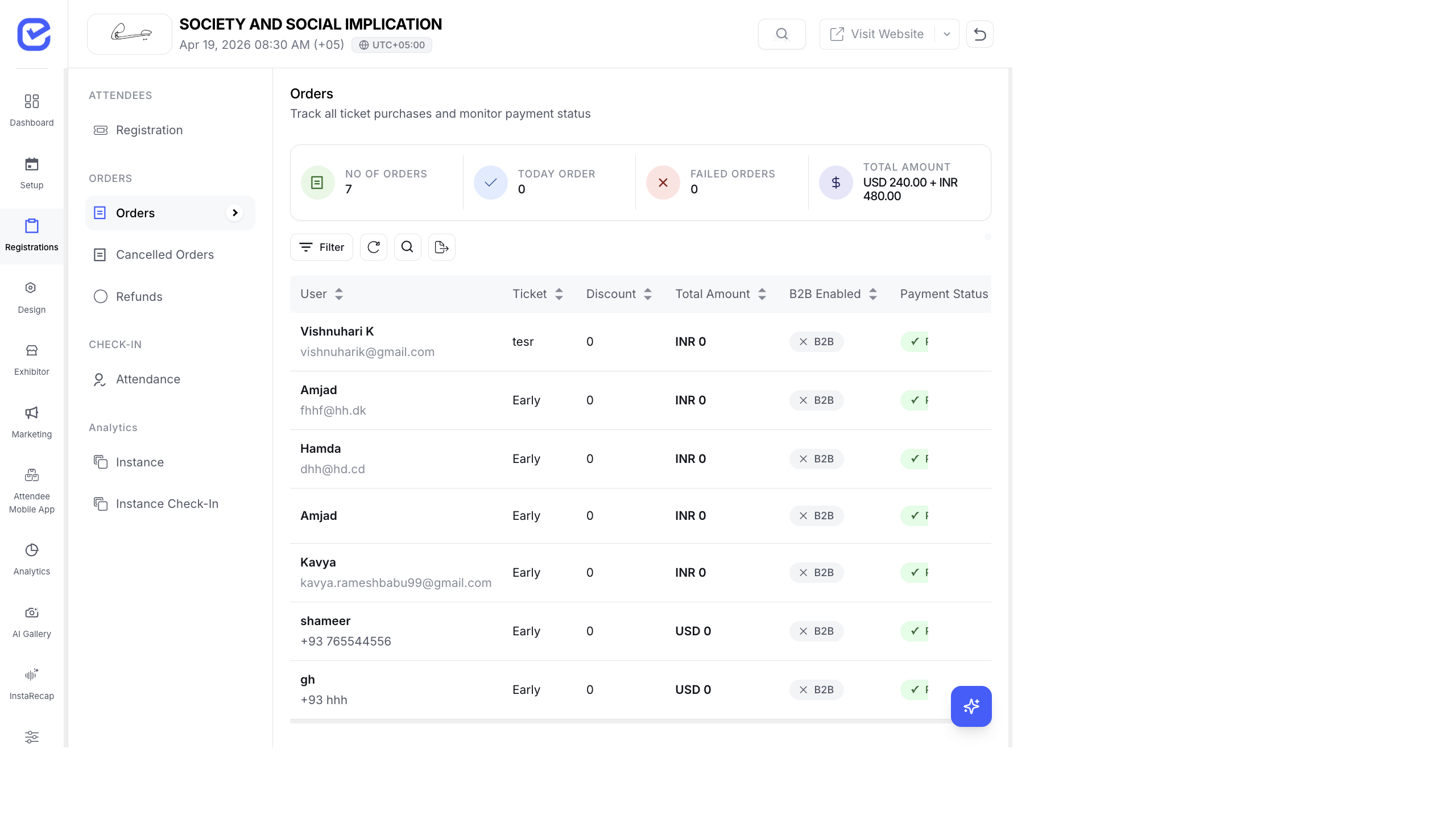
Orders Overview
Section titled “Orders Overview”The top stats bar shows:
| Metric | Description |
|---|---|
| No of Orders | Total number of orders placed |
| Today Order | Orders placed today |
| Failed Orders | Orders that failed payment |
| Total Amount | Total revenue across all currencies (e.g., USD 240.00 + INR 480.00) |
Order Table Columns
Section titled “Order Table Columns”| Column | Description |
|---|---|
| User | Buyer’s name and email/phone |
| Ticket | Which ticket type was purchased |
| Discount | Discount amount applied (if any) |
| Total Amount | Final amount charged (with currency) |
| B2B Enabled | Whether business invoicing was used |
| Payment Status | Current payment status |
Payment Status Reference
Section titled “Payment Status Reference”| Status | Meaning |
|---|---|
| ✅ Paid | Payment received and confirmed |
| ⏳ Pending | Payment initiated but not completed |
| ❌ Failed | Payment attempt failed |
| 🔄 Refunded | Full refund processed |
| 🔄 Partially Refunded | Partial refund processed |
View Order Details
Section titled “View Order Details”Click on any order row to open the detail view. This shows:
- Buyer information — name, email, phone
- Ticket details — ticket type, quantity, individual prices
- Attendees list — if attendee collection is enabled, shows each attendee
- Cart items — breakdown of all items in the order
- Payment status — current status with transaction details
- Currency — the currency used for this specific order
Filter and Search Orders
Section titled “Filter and Search Orders”Use the toolbar to find specific orders:
- Filter — filter by ticket type, payment status, date range, currency
- Search — search by buyer name, email, or order ID
- Refresh — reload the latest order data
- Export — download orders as CSV
Process a Refund
Section titled “Process a Refund”- Go to Registrations → Orders.
- Find the order you want to refund.
- Click on the order to open the detail view.
- Click the Refund button.
- Choose the refund type:
- Full Refund — refund the entire order amount
- Partial Refund — enter a specific amount to refund
- Confirm the refund amount (the system validates against the maximum refundable amount).
- Click Process Refund.
Cancelled Orders
Section titled “Cancelled Orders”Click Cancelled Orders in the sidebar to view orders that were cancelled. An order may be cancelled when:
- The buyer abandons the checkout before completing payment
- The payment fails after multiple attempts
- An admin manually cancels the order
- The order expires due to a payment timeout
Cancelled orders do not count toward your revenue totals.
Refunds Section
Section titled “Refunds Section”Click Refunds in the sidebar to see a dedicated view of all refund requests and their statuses:
| Column | Description |
|---|---|
| User | The buyer who received the refund |
| Original Amount | The original order total |
| Refund Amount | The amount refunded |
| Refund Status | Processing, Completed, or Failed |
| Date | When the refund was initiated |
Multi-Currency Support
Section titled “Multi-Currency Support”EventHex supports multiple currencies across orders. If your event accepts payments in different currencies (e.g., USD and INR), the Orders page shows:
- Individual order amounts in their original currency
- Total Amount aggregated by currency (e.g., “USD 240.00 + INR 480.00”)
Common Tasks
Section titled “Common Tasks”| Task | Steps |
|---|---|
| Find a specific order | Use Search with buyer name or email |
| Check failed payments | Filter by Payment Status → Failed |
| Export revenue report | Click Export icon → download CSV → open in Excel |
| Refund a partial amount | Order detail → Refund → select Partial → enter amount |
| View all refunds | Click Refunds in the left sidebar |