

Setting Up Multi-Ticket (Group) Registration
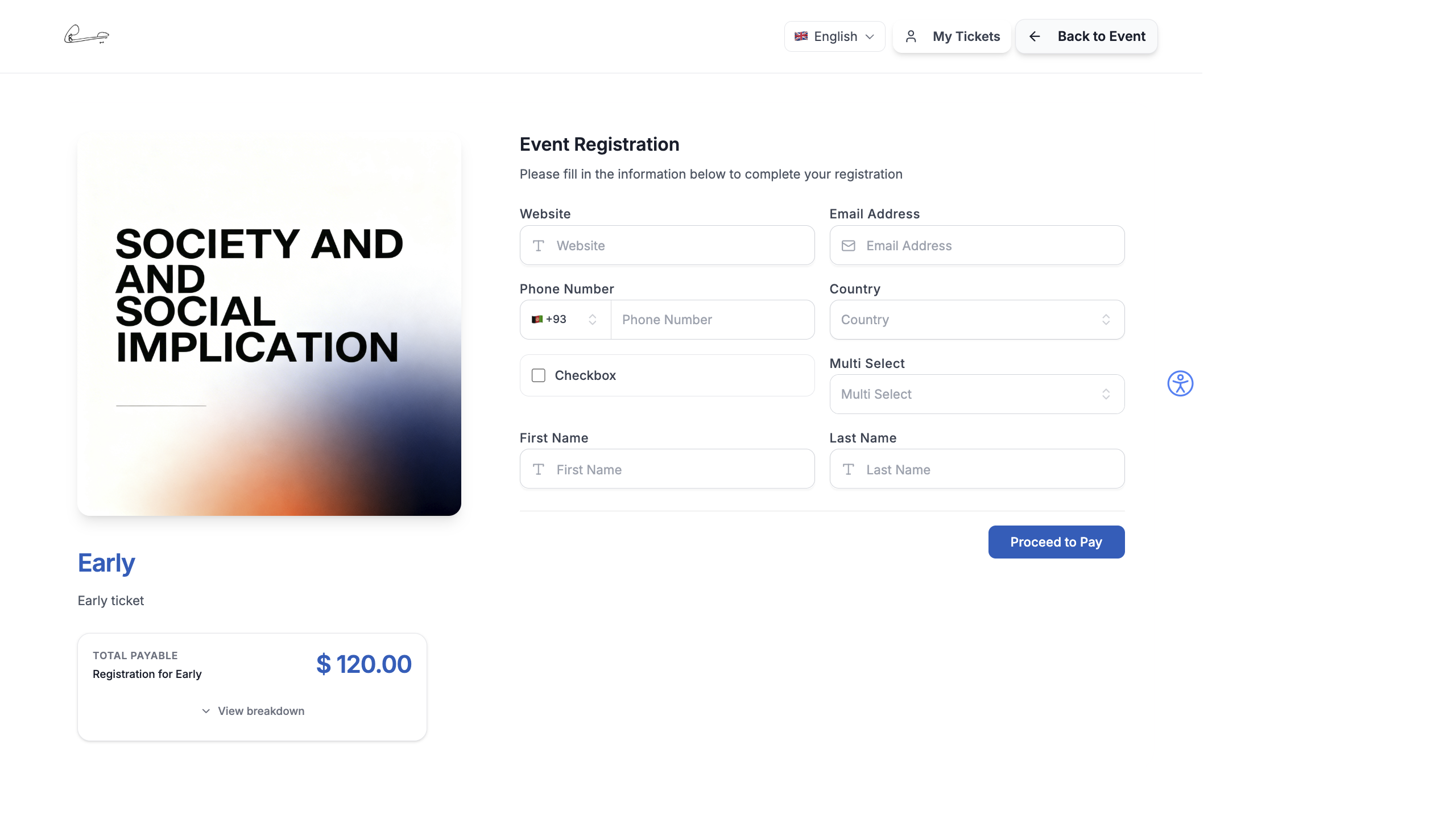
Multi-ticket registration allows attendees to book more than one ticket in a single checkout. This is useful for corporate groups, families, or any scenario where one person registers on behalf of others.
How It Works
Section titled “How It Works”By default, each checkout allows only one ticket per purchase. When you enable multi-ticket registration, the checkout page displays a quantity selector so buyers can add multiple tickets to their cart.
EventHex supports two levels of configuration:
- Global settings — apply to all tickets at once
- Per-ticket overrides — customize limits for individual ticket types
Enable Multi-Ticket Checkout
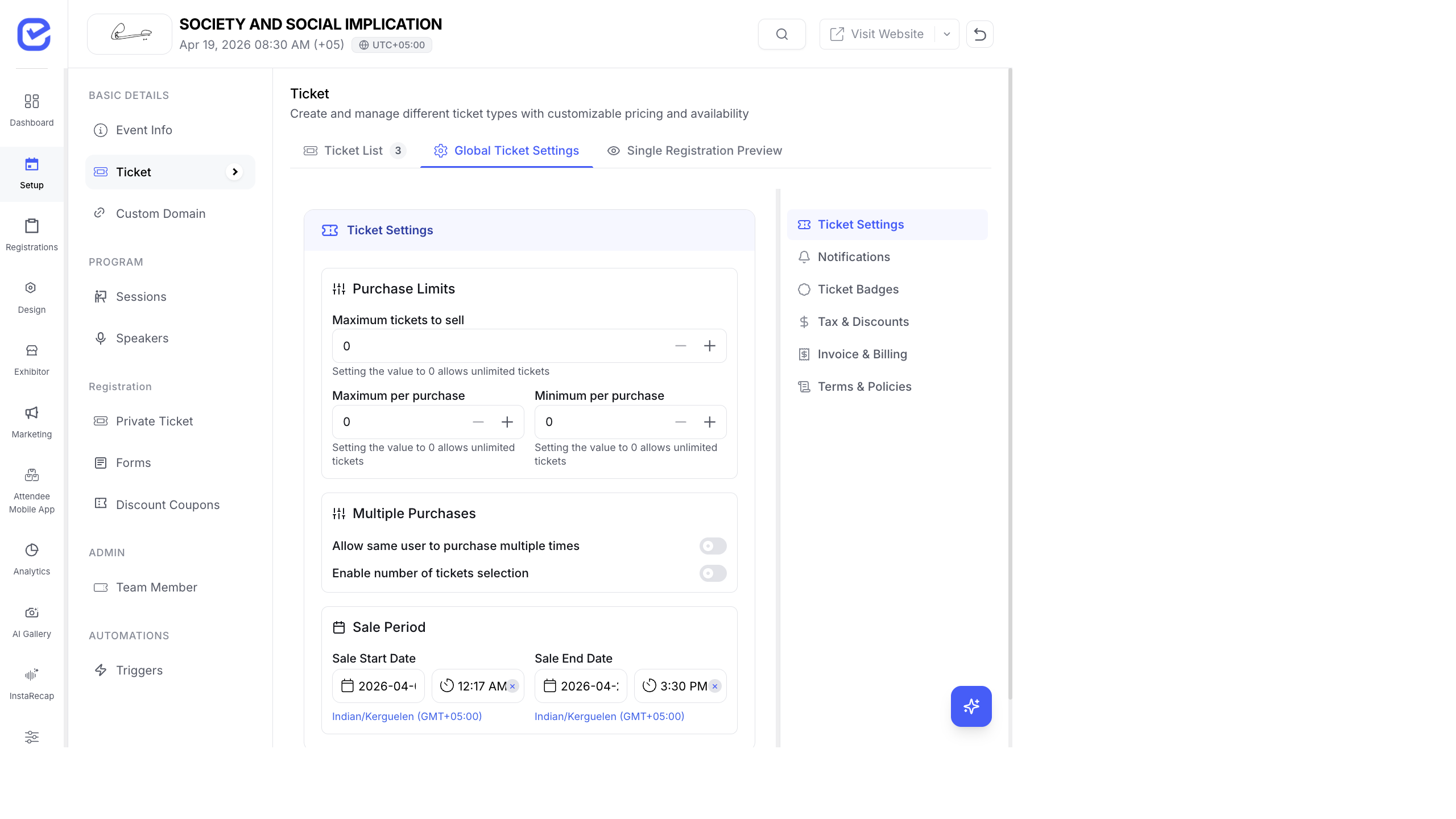
Section titled “Enable Multi-Ticket Checkout”- Open your event and go to Setup → Ticket.
- Click the Global Ticket Settings tab.
- Under Multiple Purchases, toggle on:
- Allow same user to purchase multiple times — lets the same email buy again
- Enable number of tickets selection — adds the quantity selector to checkout
- Click Save.
Configure Purchase Limits
Section titled “Configure Purchase Limits”In the Purchase Limits section of Global Ticket Settings, you can set:
| Setting | Description |
|---|---|
| Maximum tickets to sell | Total capacity across all orders. Set to 0 for unlimited. |
| Maximum per purchase | Max tickets a buyer can add in one checkout. Set to 0 for unlimited. |
| Minimum per purchase | Minimum tickets required to complete a checkout. Set to 0 for no minimum. |
Collect Attendee Details for Each Ticket
Section titled “Collect Attendee Details for Each Ticket”When a buyer purchases multiple tickets, you may want to collect individual details (name, email, phone) for each attendee — not just the buyer.
- Go to Setup → Ticket → Global Ticket Settings.
- In the checkout settings, enable Collect attendee details.
- The checkout form will now show separate fields for each ticket in the order.
Per-Ticket Override
Section titled “Per-Ticket Override”If you want different limits for specific tickets (e.g., VIP limited to 2 per order, General unlimited):
- Go to Setup → Ticket → Ticket List.
- Find the ticket you want to customize.
- Toggle on Override Global Settings in the ticket card.
- Click Ticket Settings to open the per-ticket configuration.
- Adjust the purchase limits for that specific ticket.
Common Use Cases
Section titled “Common Use Cases”| Scenario | Configuration |
|---|---|
| Corporate group booking | Max per purchase: 20, Collect attendee details: ON |
| Family tickets | Min per purchase: 2, Max per purchase: 6 |
| One ticket per person | Max per purchase: 1, Multiple purchases: OFF |
| Unlimited general admission | Max tickets to sell: 0, Max per purchase: 0 |
What Buyers See
Section titled “What Buyers See”When multi-ticket is enabled, the checkout page shows:
- A quantity selector (+ / −) next to each ticket type
- An order summary showing each ticket and its price
- If attendee collection is on, separate form sections for each attendee
- A combined total at the bottom
The buyer receives a single order confirmation, and each attendee receives their individual ticket and badge.
For the full attendee checkout experience with multi-ticket selection, see The Registration Experience.