

Email Template Editor
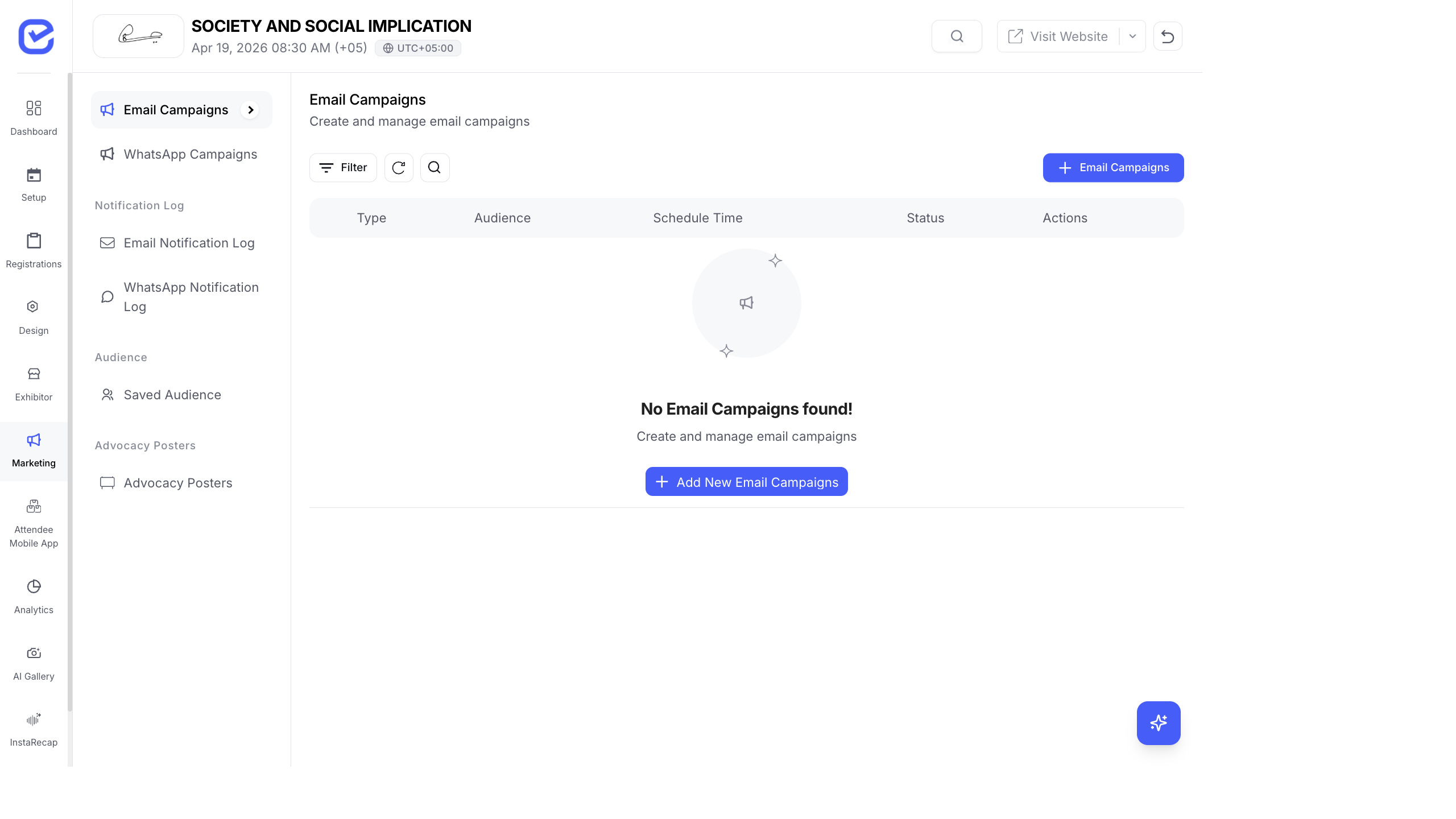
The Email Template Editor lets you create and customize the HTML templates used for campaigns and system notifications. Write or paste your HTML, preview the result, and insert attendee variables for personalization.
Access the Template Editor
Section titled “Access the Template Editor”Go to Marketing → Email Templates.
Create or Edit a Template
Section titled “Create or Edit a Template”- Click + New Template or edit an existing one.
- The editor opens with two modes:
- Preview — see the rendered email as it will appear in inboxes
- Code — edit the raw HTML source
- Toggle between modes using the tabs at the top of the editor.
Insert Template Variables
Section titled “Insert Template Variables”Place your cursor where you want the variable, then insert:
| Variable | Output |
|---|---|
{firstName} | Recipient’s first name |
{lastName} | Recipient’s last name |
{email} | Recipient’s email address |
{event} | Event name |
{ticketName} | Ticket type name |
{registrationId} | Registration ID |
{qrCode} | QR code image for check-in |
Variables are replaced with actual data when the email is sent. In Preview mode, they show sample values so you can see how the layout looks.
Default Email Wrapper
Section titled “Default Email Wrapper”The default email wrapper adds your event branding around the template content:
- Header — event logo and name
- Footer — event details, unsubscribe link, social media links
- Styling — consistent fonts, colors, and spacing
When creating a campaign, you can toggle Use Default Wrapper:
| Setting | Result |
|---|---|
| Wrapper On | Your template content appears inside the branded header and footer |
| Wrapper Off | Your template is sent exactly as-is (you control the full HTML) |
HTML Tips for Email
Section titled “HTML Tips for Email”Email HTML is different from web HTML. Here are the key constraints:
- Use tables for layout — CSS Grid and Flexbox don’t work reliably in email clients. Use
<table>for structure. - Inline your CSS — most email clients strip
<style>tags. Put styles directly on elements:<p style="color: #333;">. - Avoid JavaScript — email clients block all scripts.
- Use web-safe fonts — Arial, Helvetica, Georgia, Times New Roman. Custom fonts may not render.
- Set image widths — always include
widthandheighton<img>tags. Some clients don’t auto-size images. - Test across clients — Gmail, Outlook, Apple Mail, and Yahoo all render HTML differently.
Best Practices
Section titled “Best Practices”- Start simple — a single-column layout with a header image, text block, and CTA button works for 90% of event emails.
- Mobile-first — over 60% of emails are opened on phones. Keep your layout under 600px wide and use large, tappable buttons.
- Test before sending — always send a test email to yourself and check it on desktop and mobile before blasting to your audience.
- Reuse templates — create a set of templates (announcement, reminder, thank you, certificate) and reuse them across events. Update the content, keep the layout.
- Keep file size small — heavy HTML with large inline images may be clipped by Gmail (truncated after 102KB). Host images externally and reference them with
<img src="URL">.