

Managing Speakers — Profiles, Bios & Photos
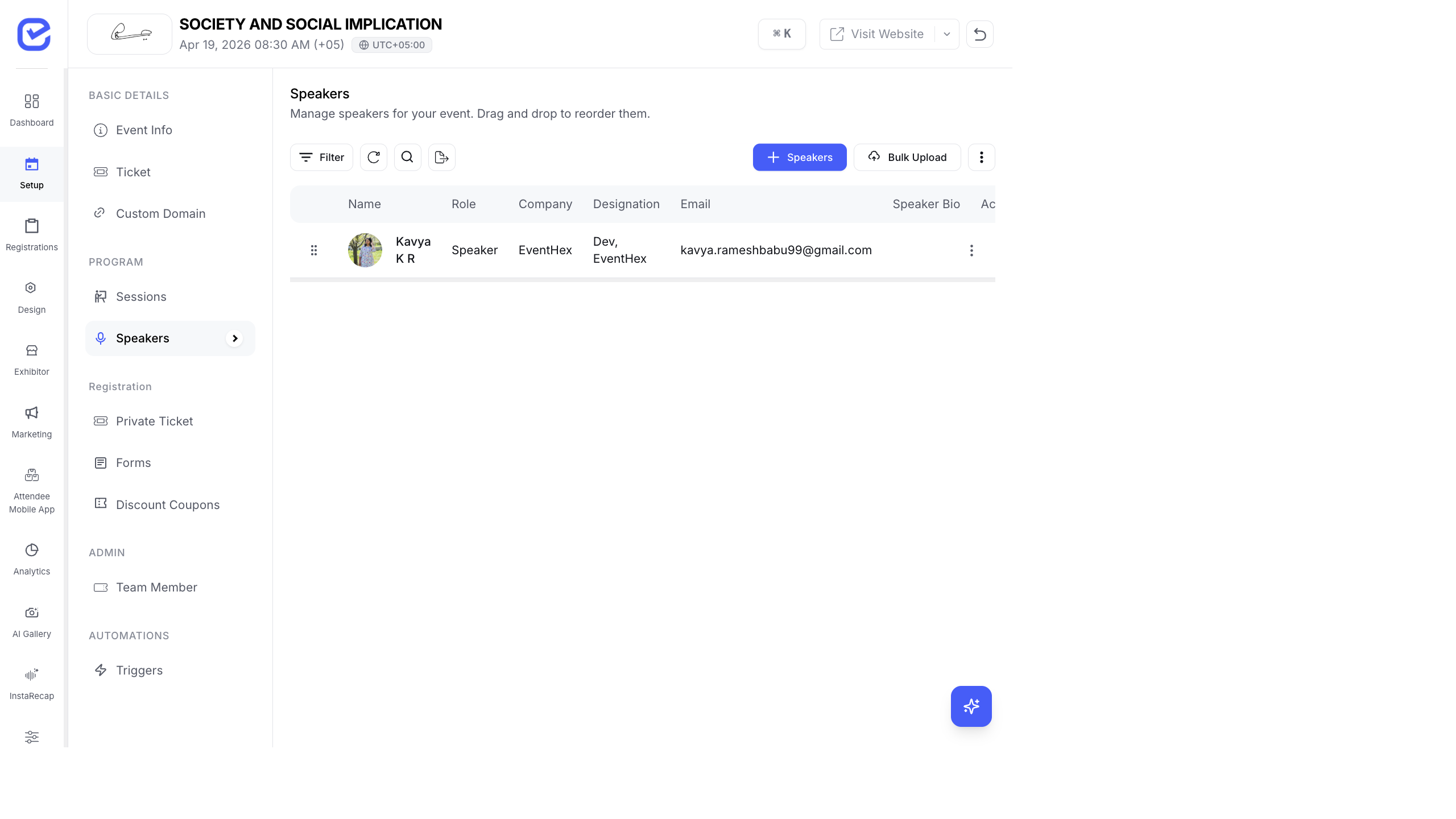
Speakers are the people presenting at your event. Add their profiles with photos, bios, and social links. Assign them to sessions and display them on your event website.
Access Speakers
Section titled “Access Speakers”Go to Setup → Speakers in the left sidebar.
The speakers table shows all speakers with their key information. Drag and drop rows to reorder how speakers appear on your event website.
Add a Speaker
Section titled “Add a Speaker”- Go to Setup → Speakers.
- Click + Speakers in the top-right corner.
- Fill in the speaker profile:
- Name Required — full name (supports split first/last name mode)
- Role — Speaker, Keynote, Panelist, or Moderator
- Company — organization name
- Designation — job title
- Email — contact email
- Description / Bio — speaker biography (rich text editor)
- Photo — profile picture (drag-and-drop upload)
- Social Links — LinkedIn, Twitter/X, website, etc.
- Click Save.
Speaker Roles
Section titled “Speaker Roles”| Role | Typical Use |
|---|---|
| Speaker | Standard presenter for a talk or seminar |
| Keynote | Featured or headline speaker |
| Panelist | Participant in a panel discussion |
| Moderator | Facilitates panel discussions or Q&A sessions |
You can filter the speaker list by role to quickly find specific types of speakers.
Speaker Categories
Section titled “Speaker Categories”For large events with many speakers, organize them into categories:
- Go to Settings → Speaker Categories.
- Click + Speaker Category to create categories like “Day 1 Speakers”, “International”, “Industry”, etc.
- When adding or editing a speaker, assign them to a category.
Categories help organize the speakers widget on your event website.
Bulk Upload Speakers
Section titled “Bulk Upload Speakers”For events with many speakers, use bulk upload:
- Go to Setup → Speakers.
- Click Bulk Upload.
- Download the CSV template.
- Fill in speaker details: name, role, company, designation, email, bio.
- Upload the completed CSV.
- Review and confirm the import.
Reorder Speakers
Section titled “Reorder Speakers”The order of speakers on your event website matches the order on this page. To reorder:
- Click and hold the drag handle (⋮⋮) on the left of a speaker row
- Drag the speaker to the desired position
- Release to drop
Edit or Delete a Speaker
Section titled “Edit or Delete a Speaker”Click the three-dot menu (⋮) on any speaker row to:
- Edit — modify speaker details
- Delete — remove the speaker from the event
Assign Speakers to Sessions
Section titled “Assign Speakers to Sessions”After adding speakers, assign them to sessions:
- Go to Setup → Sessions.
- Edit a session.
- In the Speakers field, select one or more speakers from the dropdown.
- Click Save.
A speaker can be assigned to multiple sessions. Their profile photo appears on the session card in the agenda.
Speakers on the Event Website
Section titled “Speakers on the Event Website”Speakers are automatically available as a widget on your event website:
- Go to Design → Page Builder
- Add a Speakers Widget to any page
- Configure the display style (grid, list, carousel)
- Speaker photos, names, roles, and bios are displayed
- Clicking a speaker shows their full profile
Speakers on the Public Website
Section titled “Speakers on the Public Website”On the event website, speakers appear at /speakers with:
- A searchable grid of speaker cards with photos, names, and roles
- A detail modal showing full bio, social links, and assigned sessions
- Speaker photos also appear on session cards in the agenda
See Event Website — The Attendee Experience for the full attendee view.