

App Branding — Colors, Logo & Appearance
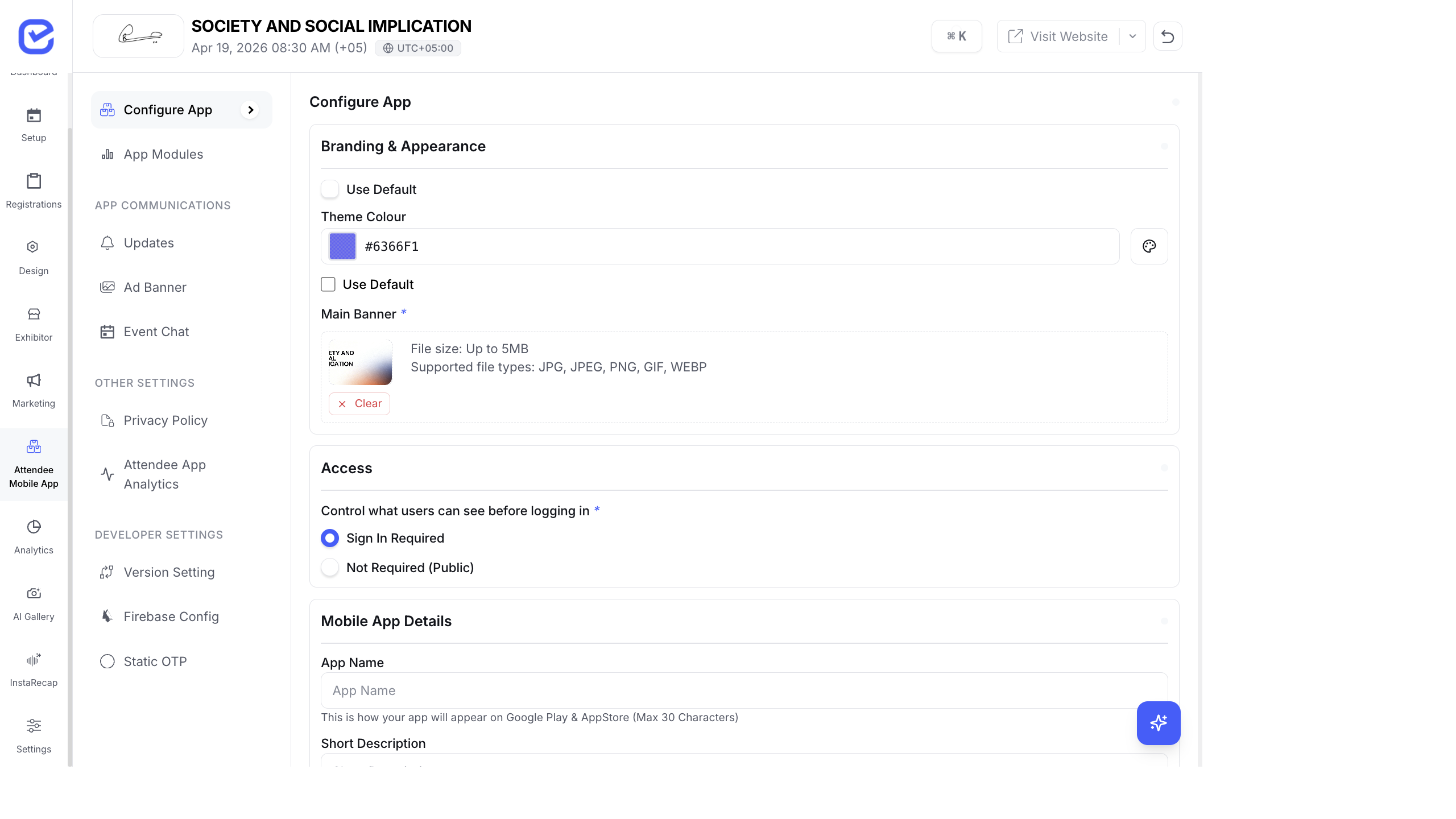
Make the mobile app look like your event — match your brand colors, logo, and visual style so attendees feel the app is a natural extension of your event.
Theme Color
Section titled “Theme Color”The theme color is applied throughout the app — headers, buttons, navigation, links, and active states.
- Go to Attendee Mobile App → Configure App.
- Toggle Use Default Theme Color off to set a custom color.
- Click the color picker to choose your brand color.
- Enter a hex code directly for precision (e.g.,
#375DFB). - The phone preview updates instantly.
Color Palette Generation
Section titled “Color Palette Generation”The app generates a full color palette from your theme color:
| Shade | Use |
|---|---|
| Primary Darker | Dark backgrounds, pressed states |
| Primary Dark | Secondary backgrounds, hover states |
| Primary Base | Main brand color — buttons, links, headers |
| Primary Lighter | Subtle highlights, tags, badges |
| Primary Lightest | Backgrounds, card accents |
Smart Color Extraction
Section titled “Smart Color Extraction”The system can auto-extract colors from your event banner:
- Upload your event banner (or use the default).
- The system analyzes the image and suggests dominant colors.
- Click a suggested color to apply it as your theme color.
- Fine-tune with the color picker if needed.
You can also use the Eyedropper tool to pick a color from anywhere on your screen — useful for matching colors from your event website or design files.
App Logo
Section titled “App Logo”The app logo appears on app store listings and the app’s splash screen.
| Specification | Requirement |
|---|---|
| Size | 1024×1024 or 512×512 pixels |
| Format | PNG or JPEG |
| Max file size | 1 MB |
| Background | Solid or transparent |
- Toggle Use Event Logo to auto-fill from your event settings.
- Or upload a custom logo specifically designed for the app icon.
- Download the uploaded logo using the Download button to verify it looks correct.
Main Banner
Section titled “Main Banner”The main banner appears at the top of the app’s home screen, below the welcome message.
- Toggle Use Default Main Banner to use your event’s cover image.
- Or upload a custom banner for the app.
- Preview the result in the phone mockup.
Feature Graphic
Section titled “Feature Graphic”The feature graphic is used on Google Play Store listings:
| Specification | Requirement |
|---|---|
| Size | 1024×500 pixels |
| Format | PNG or JPEG |
| Content | Event branding, key visual, event name |
This graphic appears at the top of your app’s Play Store page.
Branding Checklist
Section titled “Branding Checklist”Before publishing your app, verify:
- Theme color matches your event brand
- App logo is clear at small sizes (test on a phone screen)
- Main banner looks good in the phone preview
- Feature graphic is uploaded (for Play Store)
- App name is correct and within 30 characters
- Short description accurately describes your event
- Full description includes event details and features