

Self Check-In Kiosks
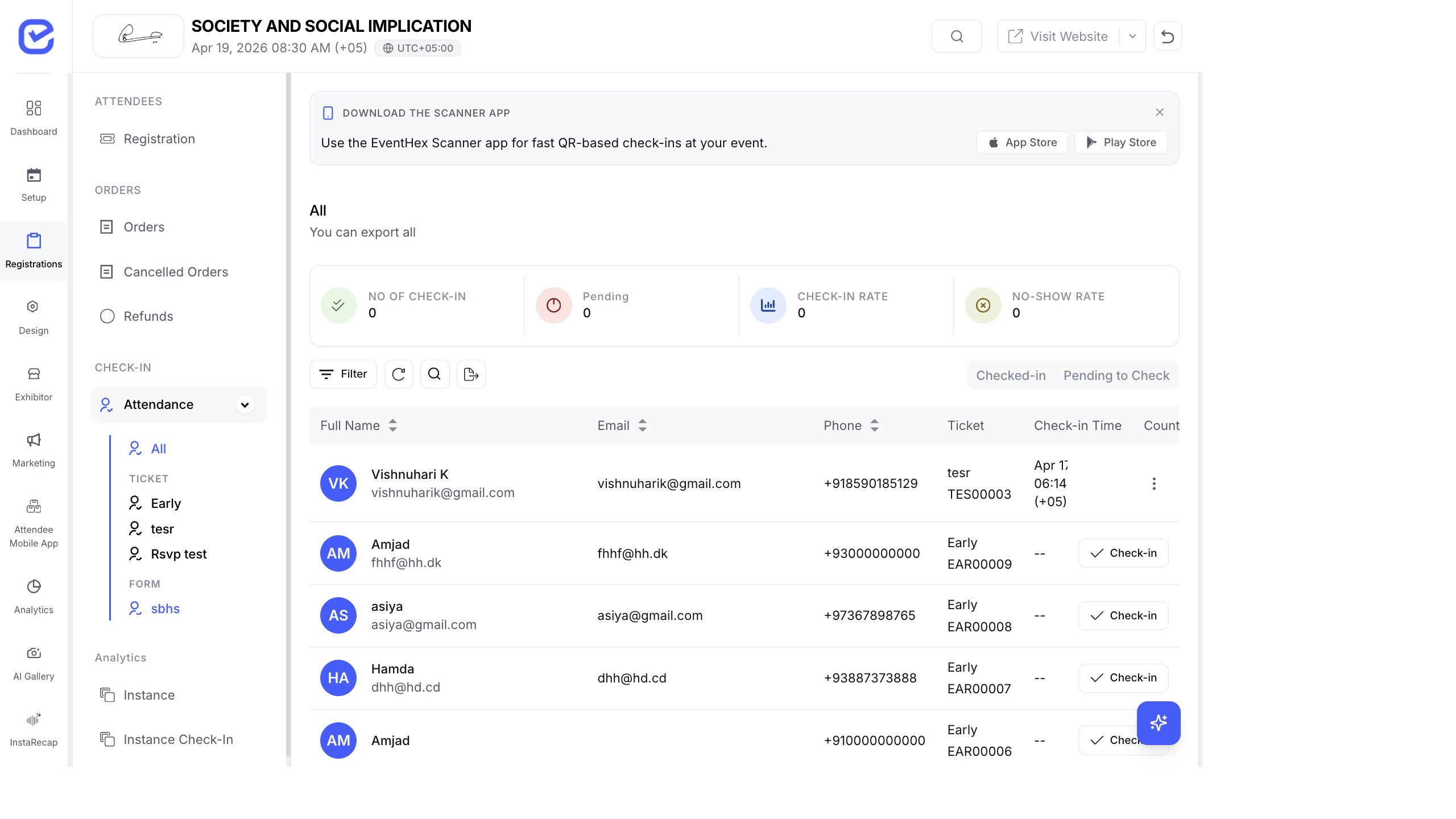
Self check-in kiosks let attendees scan their own QR code, verify their details, and print their badge — no staff needed. This reduces queue times and frees up your team.
How Self Check-In Works
Section titled “How Self Check-In Works”- Place a tablet or touchscreen at the venue entrance.
- Open the Kiosk Mode in the EventHex check-in interface.
- Attendees approach the kiosk and scan their QR code (from email or mobile).
- The kiosk displays their name and details for verification.
- Their badge prints automatically from the connected printer.
- Attendee takes their badge and enters the event.
Set Up Kiosk Mode
Section titled “Set Up Kiosk Mode”- Go to Attendance → Check-in on the kiosk device.
- Click Kiosk Mode to enter the self-service interface.
- The screen shows a large QR scanner window.
- Connect a badge printer to the kiosk device.
- Configure auto-print so badges print immediately after scanning.
Hardware Requirements
Section titled “Hardware Requirements”| Component | Recommendation |
|---|---|
| Device | iPad, Android tablet, or touchscreen laptop |
| Camera | Front-facing camera for QR scanning |
| Printer | Thermal badge printer connected via USB or Wi-Fi |
| Stand | Tablet floor stand or counter mount |
| Internet | Wi-Fi connection (offline mode available as fallback) |
Kiosk Display
Section titled “Kiosk Display”The kiosk interface shows:
- Welcome screen — event branding with “Scan Your QR Code” prompt
- Scanner — live camera view with QR code detection
- Confirmation — attendee name, photo, and ticket type after successful scan
- Error screen — message if QR code is invalid or already used
The interface is designed for simplicity — large fonts, clear buttons, and minimal text so attendees can use it without assistance.
Multiple Kiosks
Section titled “Multiple Kiosks”For large events, deploy multiple kiosks:
- Set up each kiosk device with its own check-in instance.
- Assign a badge printer to each kiosk.
- All kiosks connect to the same event data — any kiosk can check in any attendee.
- Track check-in volume per kiosk in the analytics dashboard.
Recommended Kiosk Count
Section titled “Recommended Kiosk Count”| Event Size | Kiosks |
|---|---|
| 100–300 attendees | 1–2 kiosks |
| 300–1,000 attendees | 3–5 kiosks |
| 1,000–5,000 attendees | 5–10 kiosks |
| 5,000+ attendees | 10+ kiosks with staff-assisted lanes |
Fallback: Name Search
Section titled “Fallback: Name Search”If an attendee doesn’t have their QR code, the kiosk supports manual lookup:
- Attendee taps “Can’t find your QR code?” on the kiosk screen.
- They type their name or email.
- The kiosk finds their registration.
- Staff verifies their identity (ID check).
- Check-in and badge print proceed normally.
Best Practices
Section titled “Best Practices”- Clear signage — place signs directing attendees to the kiosk area
- Test before doors open — run through the entire flow: scan, display, print
- Power management — ensure kiosk devices are plugged in or fully charged
- Standby staff — position one staff member near kiosks to assist if needed
- Printer paper — load extra badge stock before the event starts