

Creating an Email Campaign
Email campaigns let you reach attendees before, during, and after your event — send announcements, reminders, session updates, or post-event thank-you messages.
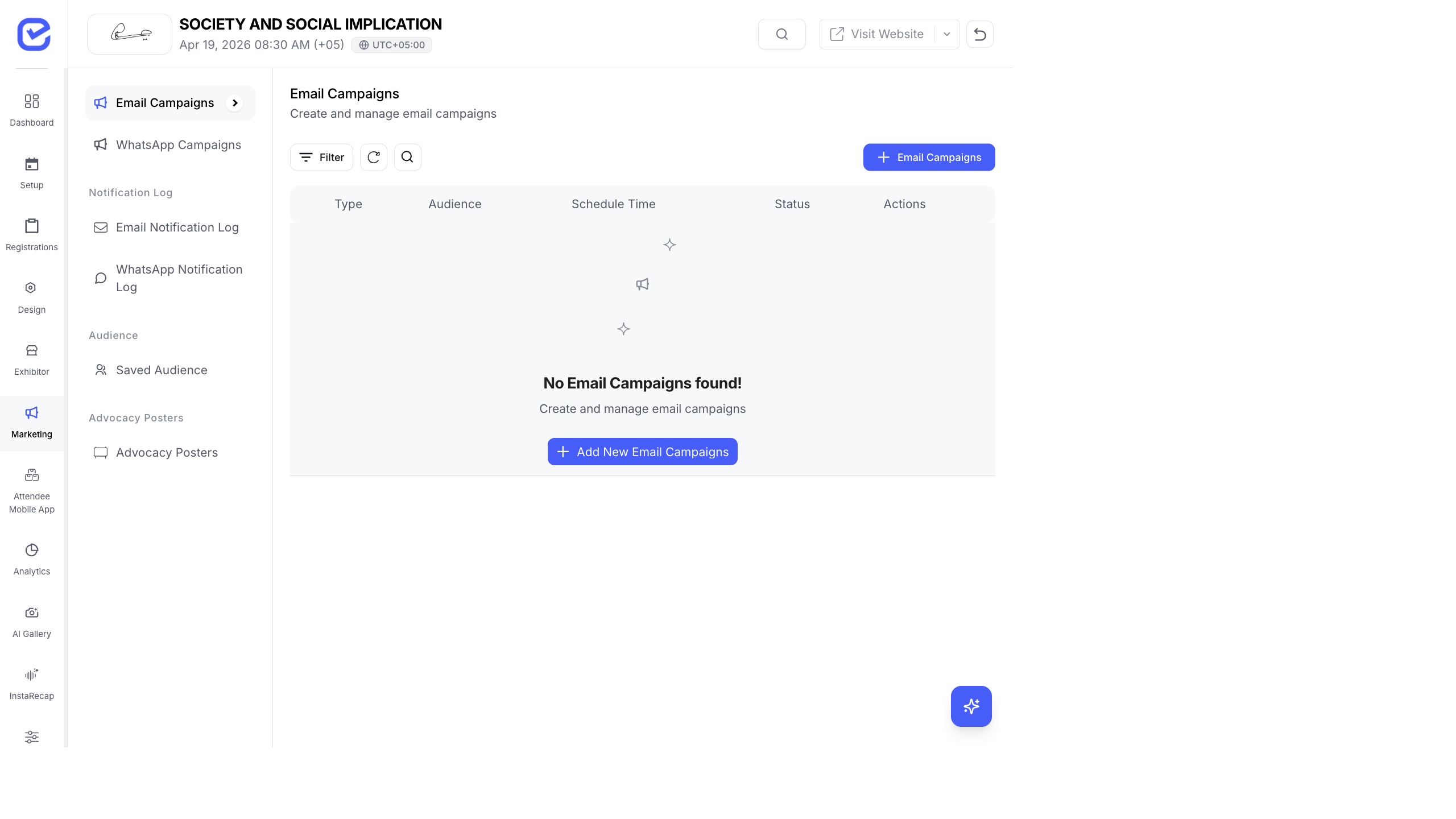
Create an Email Campaign
Section titled “Create an Email Campaign”The campaign wizard has 3 steps: Audience → Content → Review & Schedule.
Step 1: Select Your Audience
Section titled “Step 1: Select Your Audience”- Go to Marketing → Campaigns.
- Click + New Campaign.
- Choose your audience source:
- Saved Audience — select a previously created audience segment
- Inline Builder — build an audience on the fly
- For the inline builder:
- Choose Current Event or Previous Events as the source.
- Select one or more events (if using previous events).
- Pick specific ticket types — only registrants of those tickets will be included.
- Toggle Exclude Already Registered to avoid sending to people who’ve already signed up for the current event.
- The system shows the audience count (unique emails in this segment).
- Click Next.
Step 2: Channel & Content
Section titled “Step 2: Channel & Content”- Select Email as the channel.
- Enter a Campaign Name — internal name for tracking (e.g., “Early Bird Reminder - Week 2”).
- Enter the Subject Line — what recipients see in their inbox.
- Write your email content in the HTML Editor:
- Preview mode — see the rendered email as recipients will see it
- Code mode — edit the raw HTML directly
- Insert template variables at the cursor position:
{firstName}— recipient’s first name{lastName}— recipient’s last name{email}— recipient’s email address{event}— event name{ticketName}— name of the ticket they purchased- And more (custom fields from your registration form)
- Optionally attach files (PDFs, images).
- Toggle Use Default Email Wrapper to wrap your content in the standard event-branded email template (header, footer, unsubscribe link).
- Click Next.
Step 3: Review & Schedule
Section titled “Step 3: Review & Schedule”- Review the campaign summary:
- Audience count
- Subject line preview
- Content preview
- Choose when to send:
- Send Now — delivers immediately
- Schedule for Later — set a date and time for delivery
- Click Send or Schedule.
Campaign Status & Tracking
Section titled “Campaign Status & Tracking”After sending, the campaign dashboard shows:
| Metric | Meaning |
|---|---|
| Audience Count | Total recipients |
| Success | Emails delivered |
| Pending | Emails still in the queue |
| Failed | Emails that bounced or failed |
Email Status Details
Section titled “Email Status Details”Each recipient’s email has a detailed status:
| Status | What It Means |
|---|---|
| Sent | Email left the server |
| Delivered | Email reached the inbox |
| Opened | Recipient opened the email |
| Clicked | Recipient clicked a link in the email |
| Bounced | Email address doesn’t exist or inbox is full |
| Failed | Technical failure (server error, blocked) |
| Spam | Recipient’s email provider marked it as spam |
Duplicate & Resend
Section titled “Duplicate & Resend”For campaigns that had failures:
- Open the campaign from the campaign list.
- Click Resend to Failed to retry only the failed recipients.
- Or click Duplicate Campaign to create a copy with the same content and audience for a fresh send.
Email Best Practices
Section titled “Email Best Practices”- Subject lines matter — keep them under 50 characters and make them specific. “Your early bird discount expires Friday” beats “Event update”.
- Personalize with variables — use
{firstName}in the subject and body. Personalized emails get 26% higher open rates. - Send at the right time — Tuesday through Thursday, 9–11 AM in your audience’s timezone.
- Test before sending — send a test email to yourself first. Check formatting, links, and variable rendering.
- Segment your audience — send targeted content to specific ticket types. VIP attendees should get different messaging than free ticket holders.
- Don’t over-send — 2–3 emails per week maximum. More than that and your unsubscribe rate will climb.