

Managing Transcripts & Translations
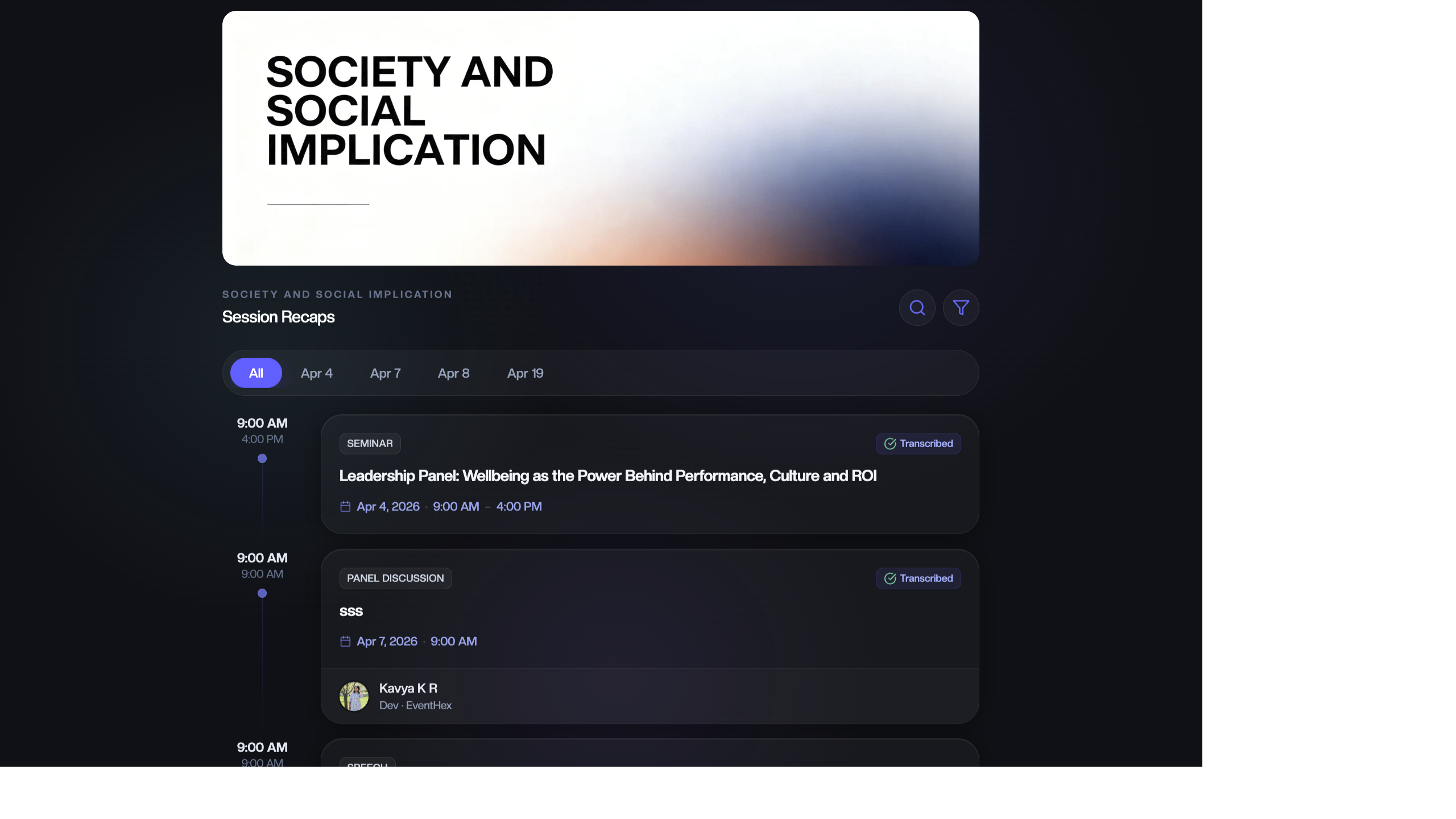
Once audio is processed, InstaRecap generates full transcripts, key takeaways, and social media posts. You can review them, enable translations, and let attendees consume content in their preferred language.
View a Transcript
Section titled “View a Transcript”- Go to InstaRecap → Sessions & Transcripts.
- Click View Transcript on a processed session.
- The transcript view shows:
- Full transcript — timestamped speech-to-text with speaker labels
- Key takeaways — AI-extracted main points
- Summary — concise session summary
- LinkedIn post — AI-generated professional post ready to share
- Twitter/X post — AI-generated short-form post
AI-Generated Content
Section titled “AI-Generated Content”For each transcribed session, InstaRecap generates:
| Content Type | Description |
|---|---|
| Full Transcript | Complete speech-to-text with timestamps |
| Key Takeaways | Bullet-point highlights of the most important points |
| Session Summary | Concise paragraph summarizing the session |
| LinkedIn Post | Professional social media post attendees can share |
| Twitter/X Post | Short-form social post (under 280 characters) |
Enable Translations
Section titled “Enable Translations”InstaRecap supports translation into 100+ languages, letting international attendees read recaps in their language.
Configure Translation Languages
Section titled “Configure Translation Languages”- Go to InstaRecap → Settings (or Manage Translations).
- Toggle Enable Translation for InstaRecap to On.
- Select up to 4 translation languages from the language picker:
- Languages appear as cards — click to select
- Search to find specific languages
- Selected languages appear highlighted
- Click Save.
How Translation Works
Section titled “How Translation Works”When translation is enabled:
- The AI processes the original transcript.
- It generates translations for each selected language.
- Attendees see a language switcher on the recap page.
- They select their preferred language to read the full transcript and summaries in that language.
Translation happens automatically after transcription completes — no manual intervention needed.
Manage Translations Page
Section titled “Manage Translations Page”Go to InstaRecap → Manage Translations for a dedicated view:
- See which languages are enabled
- Check translation status per session (processed / pending)
- The page shows the same language picker and controls as Settings
Translation Settings
Section titled “Translation Settings”| Setting | Description |
|---|---|
| Enable Translation | Master toggle for multilingual support |
| Translation Languages | Select up to 4 target languages |
The info text explains: “AI-powered real-time translation for InstaRecap sessions. Attendees can view live transcription in their preferred language.”
What Attendees See
Section titled “What Attendees See”When attendees access InstaRecap on the event website or mobile app:
- They browse available sessions.
- They select a session to view.
- They see the transcript, takeaways, and summary.
- A language dropdown lets them switch to any enabled translation language.
- The entire page updates to show content in the selected language.
- They can share the AI-generated LinkedIn or Twitter/X post.
Best Practices
Section titled “Best Practices”- Choose languages strategically — check your registration data to see which nationalities are most represented, then enable those languages.
- Review key sessions — for high-profile keynotes, review the AI-generated summaries and takeaways to ensure accuracy. Fix any obvious errors before attendees see them.
- Promote translated content — send multilingual attendees a targeted campaign: “Session recaps are now available in Arabic — read the highlights in your language.”
- Use social posts — the AI-generated LinkedIn and Twitter/X posts are ready to copy-paste. Encourage speakers to share them with their audience.
What Attendees See
Section titled “What Attendees See”On the InstaRecap page, attendees browse a session detail view with 5 tabs:
- Overview — AI-generated session summary
- Summary — detailed transcript summary
- Takeaways — key points and action items
- Resources — attached files and links
- Social — ready-to-share LinkedIn/Twitter posts
See InstaRecap — The Attendee Experience for the full walkthrough.