

Face Recognition & Matching
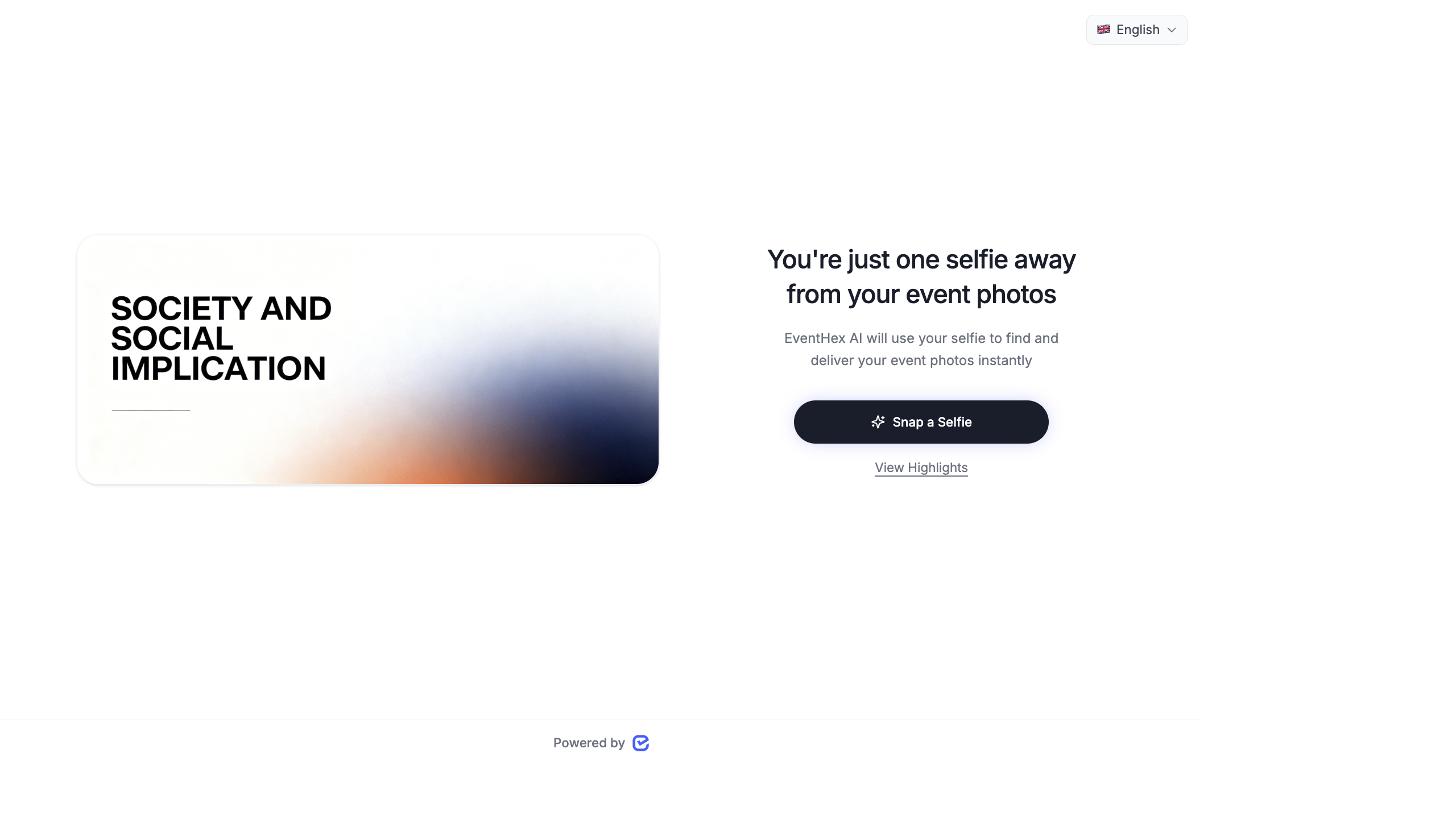
The AI Photo Gallery’s core feature is face recognition — the system detects every face in your event photos, groups them by person, and lets attendees find all their photos with a single selfie.
How Face Recognition Works
Section titled “How Face Recognition Works”- Detection — AI scans each uploaded photo and identifies individual faces.
- Grouping — Detected faces are compared and clustered. Faces that look like the same person are placed in the same group.
- Matching — when an attendee takes a selfie, the system compares it against all face groups.
- Results — the attendee sees every photo where their face appears.
Face Recognition Stats
Section titled “Face Recognition Stats”Go to AI Gallery → Dashboard to see face recognition metrics:
| Metric | What It Shows |
|---|---|
| Total Groups | Number of unique people detected across all photos |
| Matched Groups | Groups where the person has been identified (selfie matched) |
| Unmatched Groups | Groups where the person hasn’t been identified yet |
| Total Faces | Total individual face detections across all photos |
| Average Photos Per Person | How many photos the average attendee appears in |
| Match Rate | Percentage of groups that have been successfully matched |
Managing Face Groups
Section titled “Managing Face Groups”Go to AI Gallery → Face Groups (or the face management section):
View Face Groups
Section titled “View Face Groups”Each group shows:
- Thumbnail — a representative face from the group
- Photo count — how many photos this person appears in
- Status — matched (identified) or unmatched
- Attendee name — if matched, shows the attendee’s registration name
Merge Duplicate Groups
Section titled “Merge Duplicate Groups”Sometimes the AI creates two groups for the same person (e.g., different lighting or angles). To merge:
- Select the duplicate groups.
- Click Merge.
- All photos from both groups are combined under one identity.
Split Incorrect Groups
Section titled “Split Incorrect Groups”If the AI grouped two different people together:
- Open the group.
- Select the incorrectly grouped photos.
- Click Split to create a new group from the selected photos.
Selfie-Based Photo Retrieval
Section titled “Selfie-Based Photo Retrieval”Attendees find their photos using a selfie:
- Attendee opens the AI Photo Gallery link (from email, WhatsApp, or event website).
- They take a selfie or upload a photo of themselves.
- The AI matches their face against all detected groups.
- They instantly see every photo they appear in.
- They can download, share, or save their photos.
Selfie Registration
Section titled “Selfie Registration”For events that collect attendee photos during registration:
- The system can automatically match registration photos against face groups.
- Attendees don’t even need to take a selfie — their photos are ready when they visit the gallery.
- This works best when your registration form includes a photo upload field.
Photo Attendee Management
Section titled “Photo Attendee Management”For each photo, you can see which attendees appear in it:
- Open a photo.
- View the Faces Detected panel — shows all faces found in this photo.
- Each face links to its group (and to the matched attendee, if identified).
This is useful for:
- Verifying that key speakers and VIPs were properly detected
- Checking that group photos correctly identify all participants
- Quality-checking the AI’s face detection accuracy
Improving Recognition Accuracy
Section titled “Improving Recognition Accuracy”Face recognition accuracy depends on photo quality:
| Factor | Impact |
|---|---|
| Lighting | Well-lit photos have much higher detection rates |
| Face angle | Front-facing faces match best; extreme profiles may be missed |
| Resolution | Higher resolution = better face detection |
| Occlusion | Masks, sunglasses, or hands covering faces reduce accuracy |
| Distance | Faces that are too small in the frame (far from camera) may not be detected |
Best Practices
Section titled “Best Practices”- Use professional photographers — well-lit, high-resolution photos dramatically improve face detection accuracy.
- Capture front-facing photos — instruct photographers to capture people facing the camera when possible, not just candid side angles.
- Review face groups — spend 10–15 minutes after processing to merge obvious duplicate groups and split any incorrect groupings.
- Promote selfie retrieval — the gallery is only valuable if attendees use it. Send a WhatsApp campaign with the gallery link right after the event.
- Check VIP coverage — verify that your keynote speakers, sponsors, and VIP guests are correctly detected and grouped. Manually merge groups if needed.
What Attendees See
Section titled “What Attendees See”On the gallery landing page, attendees can:
- Upload a selfie — take or upload a photo to find all their event photos via AI face matching
- Browse People — view all detected people at
/ai-gallery/people - Photos Together — find photos that include both the attendee and a friend at
/ai-gallery/photos-together - Personal Gallery — each matched attendee gets a unique token link to revisit their photos
See AI Gallery — The Attendee Experience for the full journey.