

Badge Printing at Check-In
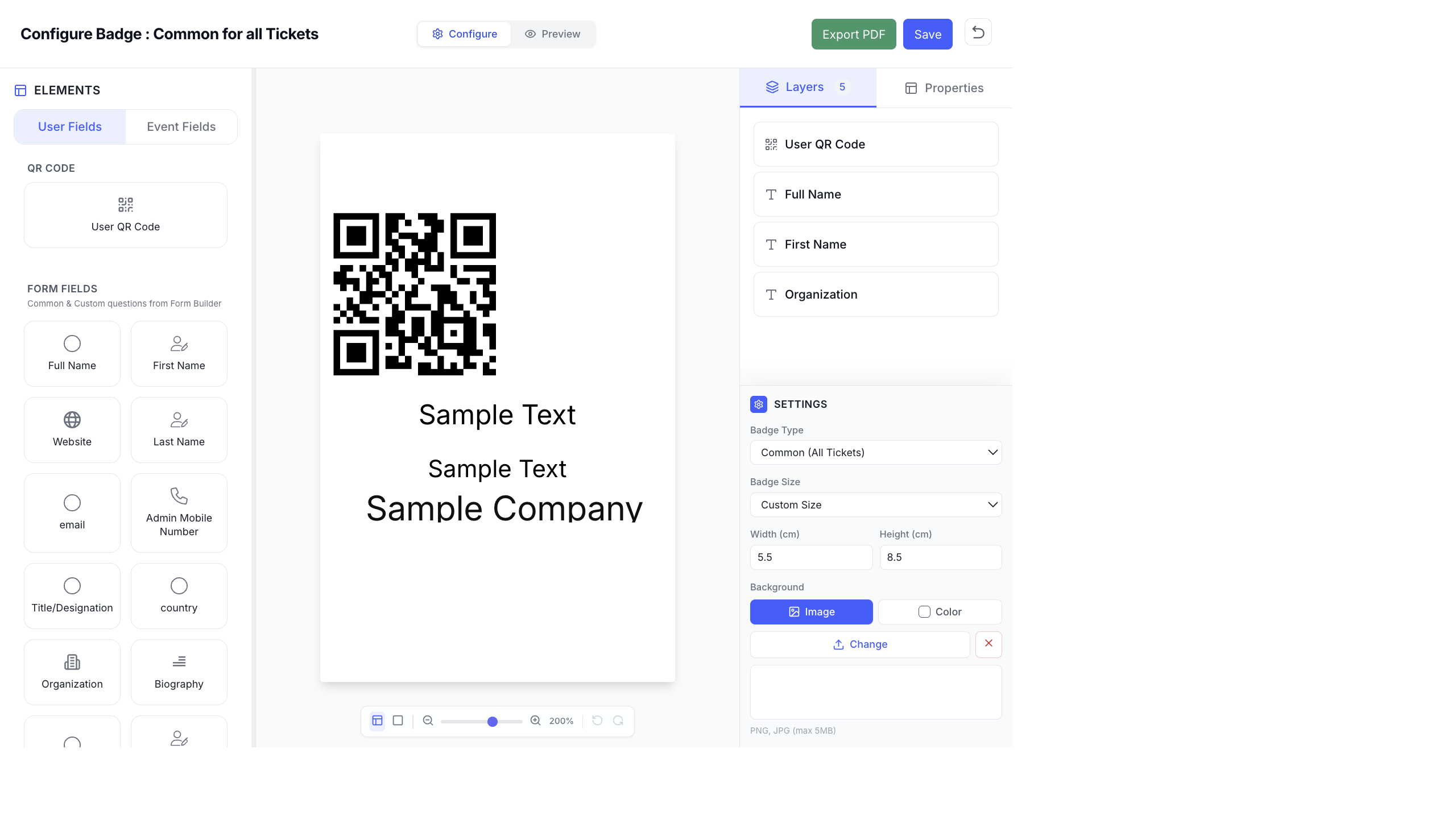
Print professional name badges on-site as attendees check in. EventHex supports automatic badge printing triggered by QR code scanning, with customizable badge templates.
How Badge Printing Works
Section titled “How Badge Printing Works”- Design your badge template in the Badge Designer.
- Connect a badge printer at your check-in desk.
- When an attendee’s QR code is scanned, the badge is automatically printed with their name, company, ticket type, and photo.
- Hand the printed badge to the attendee.
The entire flow — scan to print — takes seconds.
Badge Designer
Section titled “Badge Designer”Create badge templates with the drag-and-drop badge designer:
Access the Badge Designer
Section titled “Access the Badge Designer”- Go to Design → Badge.
- Select a badge size (A4, A5, A6, custom).
- Use the visual editor to design your badge.
Badge Elements
Section titled “Badge Elements”Add these elements to your badge template:
| Element | Description |
|---|---|
| Attendee Name | Dynamic field — auto-populated from registration |
| Company | Organization name from the registration form |
| Designation | Job title from the registration form |
| Ticket Type | Which ticket the attendee purchased |
| QR Code | Unique QR code for the attendee |
| Photo | Attendee’s profile photo (if collected) |
| Event Logo | Your event’s logo |
| Custom Fields | Any custom registration form field |
Badge Sizes
Section titled “Badge Sizes”| Size | Dimensions | Use Case |
|---|---|---|
| Standard | 4” × 3” | Most common conference badge |
| Large | 4” × 6” | Detailed badges with photos |
| Small | 3.5” × 2” | Name tag style |
| Custom | Any size | Match your specific printer stock |
Printer Setup
Section titled “Printer Setup”Supported Printers
Section titled “Supported Printers”EventHex badge printing works with standard thermal and inkjet printers:
- Thermal printers — Brother QL series, DYMO LabelWriter, Boca Systems
- Inkjet/Laser — any printer accessible from the check-in device
- Dedicated badge printers — printers designed for event badges
Connect a Printer
Section titled “Connect a Printer”- Connect the printer to the check-in computer or device.
- Install printer drivers if needed.
- In the EventHex check-in interface, go to Printer Settings.
- Select the connected printer from the list.
- Set the badge size to match your printer stock.
- Run a test print to verify alignment.
Auto-Print Workflow
Section titled “Auto-Print Workflow”Enable automatic printing so badges print immediately when a QR code is scanned:
- In the check-in settings, enable Auto-Print on Check-In.
- Select the badge template to use.
- Select the printer to use.
- When staff scan an attendee’s QR code, the badge prints automatically.
Manual Reprint
Section titled “Manual Reprint”If a badge needs to be reprinted (damaged, lost, or wrong info):
- Find the attendee in the check-in list.
- Click the Print Badge button.
- The badge reprints with their current information.
Multi-Language Badges
Section titled “Multi-Language Badges”For international events, badges support multiple languages:
- Attendee names in their original script (Arabic, Chinese, Hindi, etc.)
- Right-to-left (RTL) text support for Arabic and Hebrew
- Mixed-language layouts (English event name + Arabic attendee name)
Best Practices
Section titled “Best Practices”- Test thoroughly before the event — print test badges with sample data on the actual badge stock.
- Have backup stock — bring extra badge paper/cards in case of jams or misprints.
- Pre-print VIP badges — for speakers and VIPs, consider pre-printing badges so they skip the queue.
- Staff training — ensure check-in staff know how to handle reprints and printer issues.