

Portal Overview
The EventHex portal is where you manage every aspect of your events — from creation to analytics. This guide walks through the main interface areas.
Main Dashboard
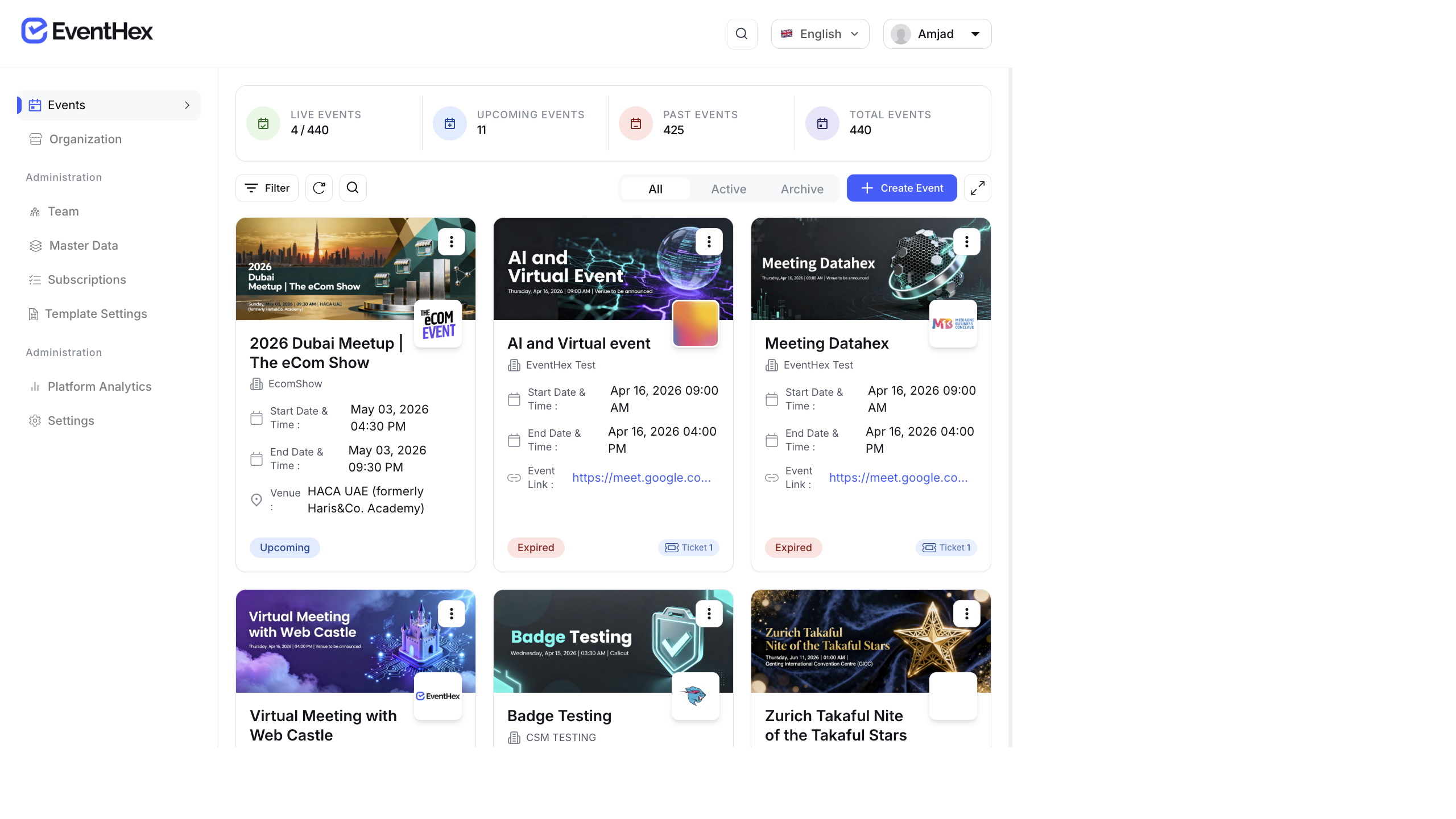
Section titled “Main Dashboard”When you log in, you land on the Events page — the central hub of your portal.
Top Bar
Section titled “Top Bar”| Element | Description |
|---|---|
| EventHex Logo | Click to return to the Events page from anywhere |
| Search (🔍) | Global search across events, attendees, and settings |
| Language Selector | Switch the portal language (English, Arabic, etc.) |
| Profile Menu | Your account name — click to access profile settings or log out |
KPI Cards
Section titled “KPI Cards”Four summary cards appear at the top of the Events page:
- Live Events — events currently in progress / total events
- Upcoming Events — events scheduled in the future
- Past Events — completed events
- Total Events — all events across your organization
Event Filters
Section titled “Event Filters”Use the toolbar to find events quickly:
- Filter — filter by date, status, organization, or category
- Refresh (↻) — reload the event list
- Search (🔍) — search by event name
- All / Active / Archive — toggle between event states
- + Create Event — opens the event creation wizard
Event Cards
Section titled “Event Cards”Each event appears as a card showing:
- Event banner image and logo
- Event name and organization
- Start and end date/time
- Venue or virtual meeting link
- Status badge: Upcoming, Live, Expired, or Draft
- Ticket count indicator
Click any event card to open its Event Detail view.
Left Sidebar Navigation
Section titled “Left Sidebar Navigation”The sidebar is always visible and provides access to all portal sections:
| Menu Item | Description |
|---|---|
| Events | Event list and management (main dashboard) |
| Organization | Manage your organizations |
| Team | Add and manage team members |
| Master Data | Event categories, session types, speaker categories, and other reference data |
| Subscriptions | Subscription plans and billing |
| Template Settings | Email and notification templates |
| Platform Analytics | Cross-event analytics and reporting (admin only) |
| Settings | User roles, permissions, and global configuration |
Event Detail View
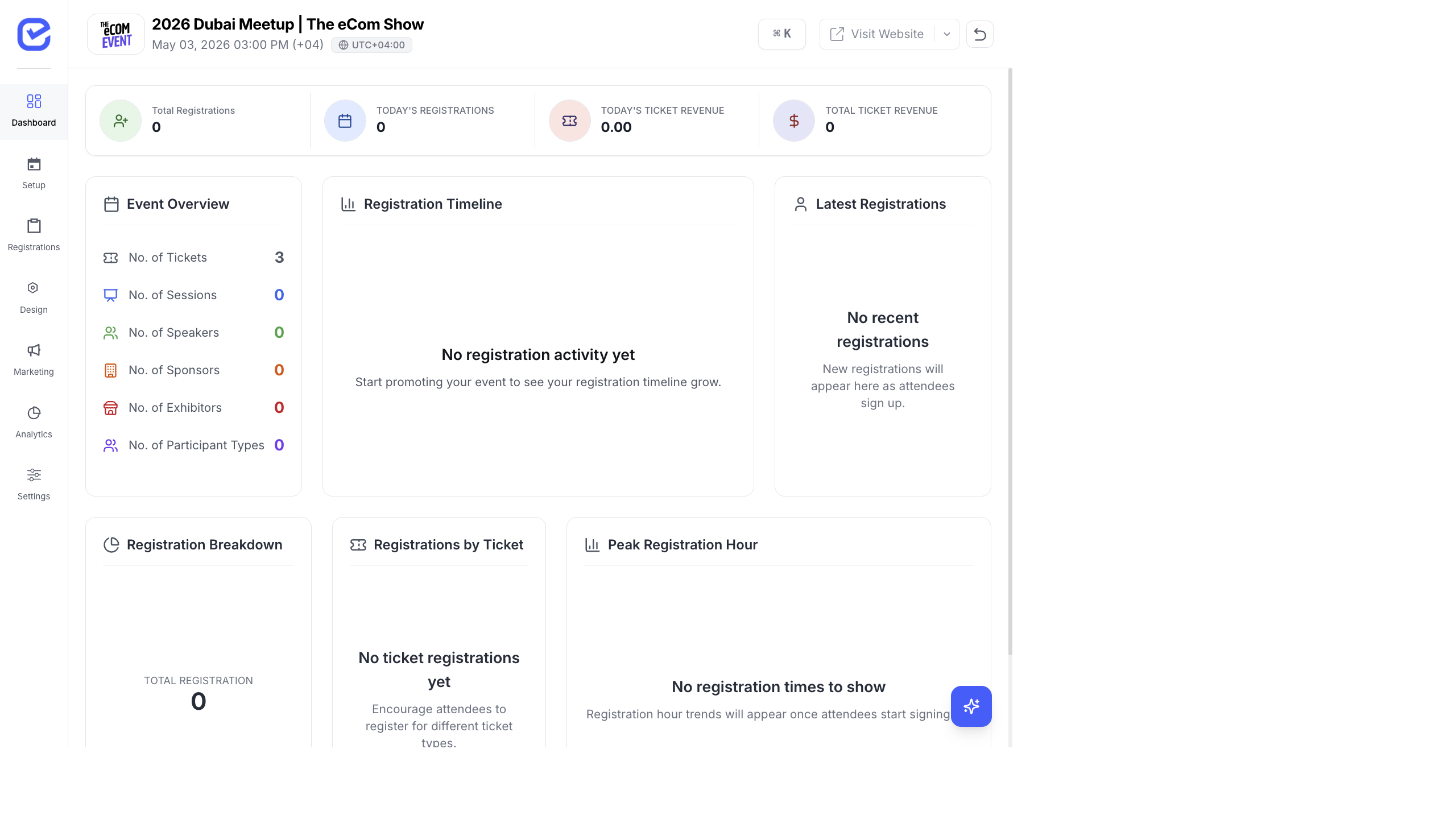
Section titled “Event Detail View”Click an event card to enter the event detail view. This is where you configure and manage a specific event.
Event Header
Section titled “Event Header”The header shows:
- Event logo and name
- Event date and timezone
- Visit Website — open the public event page
- Search (⌘K) — quick search within the event
- Undo — revert recent changes
Event Sidebar Tabs
Section titled “Event Sidebar Tabs”The left sidebar switches to event-level navigation with these tabs:
| Tab | What It Contains |
|---|---|
| Dashboard | Registration KPIs, timeline chart, breakdown, peak hours |
| Setup | Event info, tickets, custom domain, private tickets, forms, discount coupons, team members, automations |
| Registrations | Registration list (per ticket type), orders, cancelled orders, refunds |
| Design | Event website builder, badge designer, certificate designer, website integrations |
| Marketing | Email campaigns, WhatsApp campaigns, notification logs, audiences, advocacy posters |
| Analytics | Event-level analytics and reports |
| Settings | Event settings, checkout configuration, developer tools, ticket categories, email management, gamification, abstracts, activity log, clone event |
Event Dashboard KPIs
Section titled “Event Dashboard KPIs”The dashboard shows four cards:
- Total Registrations — lifetime registration count
- Today’s Registrations — registrations received today
- Today’s Ticket Revenue — revenue earned today
- Total Ticket Revenue — lifetime revenue
Below these, widget cards show:
- Event Overview — counts of tickets, sessions, speakers, sponsors, exhibitors, and participant types
- Registration Timeline — a line chart of registrations over time
- Latest Registrations — most recent signups
- Registration Breakdown — first-time vs returning attendees
- Registrations by Ticket — distribution across ticket types
- Peak Registration Hour — busiest registration times
Keyboard Shortcuts
Section titled “Keyboard Shortcuts”| Shortcut | Action |
|---|---|
| ⌘ K (Mac) / Ctrl K (Windows) | Open global search |
| Alt T | Toggle notifications panel |
Next Steps
Section titled “Next Steps”- How to Create an Event — create your first event