

Managing Translations & Custom Terminology
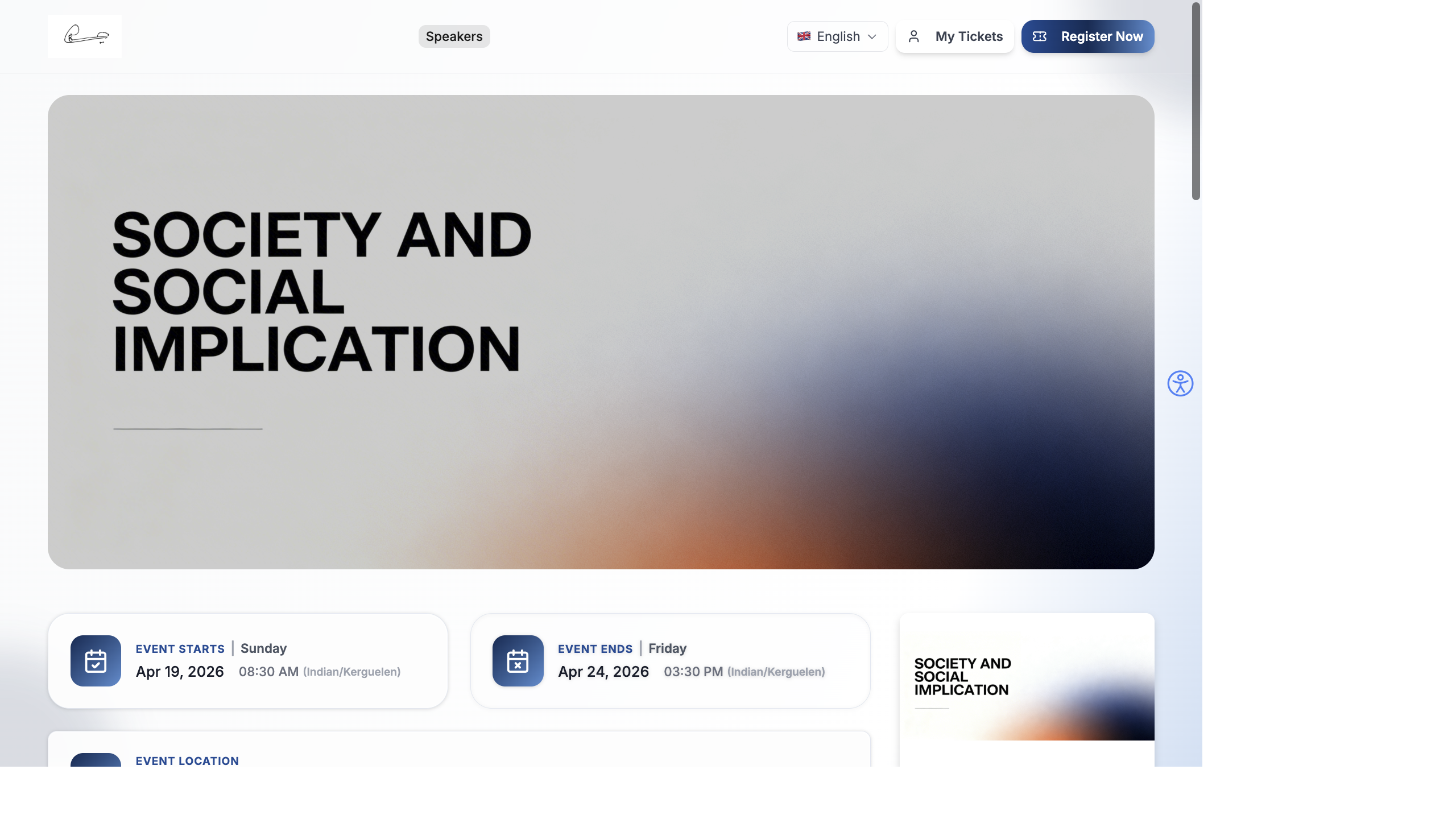
Every event uses different terminology. A trade show calls them “exhibitors” while a university event calls them “departments”. EventHex lets you customize these terms globally.
Custom Terminology
Section titled “Custom Terminology”Go to your organization or franchise settings to customize terms.
Customizable Terms
Section titled “Customizable Terms”| Default Term | What You Can Rename | Examples |
|---|---|---|
| Exhibitors | Companies with booths | ”Vendors”, “Partners”, “Departments”, “Stations” |
| Booth Members | People staffing exhibitor booths | ”Representatives”, “Team Members”, “Staff” |
| Sessions | Scheduled agenda items | ”Workshops”, “Classes”, “Talks”, “Presentations” |
Future customizable terms (coming soon): Speakers, Sponsors, Attendees.
Setting Custom Terms
Section titled “Setting Custom Terms”- Go to your franchise or organization settings.
- Find the Custom Terminology section.
- For each term, enter:
- Singular (English) — e.g., “Vendor”
- Plural (English) — e.g., “Vendors”
- Singular (Arabic) — Arabic translation
- Plural (Arabic) — Arabic translation
- Click Save.
Once saved, the custom terms replace the defaults throughout the CMS:
- Sidebar navigation labels
- Page headings
- Button text
- Form labels
- Notification messages
Fallback Behavior
Section titled “Fallback Behavior”If you leave a custom term field empty, the system uses the default term. You only need to customize the terms you want to change.
How Terminology is Applied
Section titled “How Terminology is Applied”Custom terms are stored at the franchise level and applied across all events under that franchise:
- Saved to API — terms are stored via the franchise custom-terms endpoint
- Synced to CMS — Redux state is updated with the custom terms
- Cached locally — terms are cached in localStorage for fast loading
- Applied everywhere — the CMS reads custom terms from state and applies them to all labels
Translation Workflow
Section titled “Translation Workflow”For multi-language events, follow this workflow:
- Set custom terms with both English and Arabic translations.
- Review all templates — email and notification templates may hardcode terms like “exhibitor”. Update them to use the custom term.
- Check public pages — registration pages, event website, and session listings should reflect the custom terminology.
- Test both languages — switch between English and Arabic to verify terms display correctly in both.
Examples
Section titled “Examples”Trade Show
Section titled “Trade Show”| Default | Custom |
|---|---|
| Exhibitors | Exhibitors (keep default) |
| Sessions | Demonstrations |
| Booth Members | Sales Representatives |
Academic Conference
Section titled “Academic Conference”| Default | Custom |
|---|---|
| Exhibitors | Research Groups |
| Sessions | Paper Presentations |
| Booth Members | Researchers |
Corporate Training
Section titled “Corporate Training”| Default | Custom |
|---|---|
| Exhibitors | Departments |
| Sessions | Training Modules |
| Booth Members | Trainers |
Best Practices
Section titled “Best Practices”- Set terminology before content — customize terms before creating tickets, sessions, and forms. This way, all content uses consistent language from the start.
- Be consistent — if you rename “Sessions” to “Workshops”, use “Workshops” in all your marketing materials, emails, and printed materials too.
- Provide Arabic translations — if your event supports Arabic, fill in the Arabic fields. Empty Arabic fields fall back to English, which looks inconsistent in an Arabic UI.
- Keep it simple — choose terms your attendees already understand. Don’t invent new terminology that requires explanation.