

Exhibitor Lead Capture & Scanning
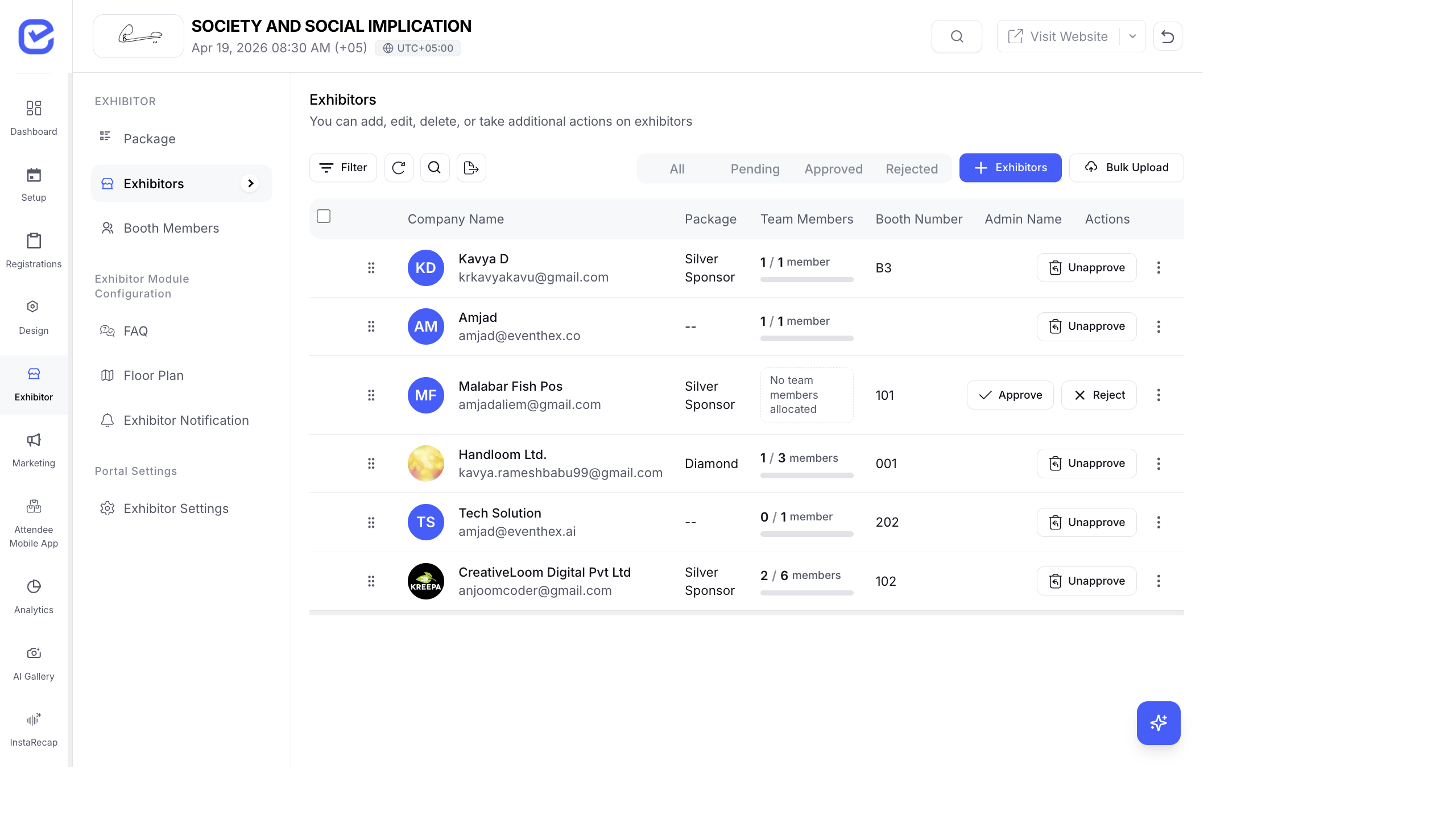
Lead capture lets exhibitors scan attendee badges at their booth to collect contact information. Exhibitors can then view, prioritize, and export their leads — turning event interactions into sales pipeline.
How Lead Capture Works
Section titled “How Lead Capture Works”- An attendee visits an exhibitor’s booth.
- The exhibitor’s team member scans the attendee’s badge QR code using the EventHex mobile app.
- The attendee’s registration data (name, email, phone, company, designation) is captured as a lead.
- The lead appears in the exhibitor’s Lead Management section of their portal.
- After the event, the exhibitor exports leads to their CRM.
Enable Lead Capture
Section titled “Enable Lead Capture”Lead capture must be enabled at two levels:
1. Per Package
Section titled “1. Per Package”- Go to Exhibitor → Exhibitor Packages.
- Edit the package.
- Toggle Enable Lead Capture to On.
- Click Save.
2. Per Event (Portal Module)
Section titled “2. Per Event (Portal Module)”- Go to Exhibitor → Exhibitor Settings.
- Toggle Lead Capture (enableLeads) to On.
- Click Save.
Both must be enabled for exhibitors to capture leads.
Scanning Attendee Badges
Section titled “Scanning Attendee Badges”Exhibitor booth staff scan badges using the EventHex mobile app:
- Download the EventHex app (iOS or Android).
- Log in with the team member’s credentials.
- Open the Lead Scanner feature.
- Point the camera at an attendee’s badge QR code.
- The scan confirms with the attendee’s name and details.
- The lead is saved automatically.
Viewing Captured Leads
Section titled “Viewing Captured Leads”As an Organizer
Section titled “As an Organizer”- Go to Exhibitor → Exhibitor Management.
- Click the Lead Management action on an exhibitor row.
- View all leads captured by that exhibitor.
As an Exhibitor (Portal)
Section titled “As an Exhibitor (Portal)”- Log in to the Exhibitor Portal.
- Click Lead Management.
- View all captured leads in a table.
Lead Information
Section titled “Lead Information”Each lead shows:
| Field | Source |
|---|---|
| Name | From the attendee’s registration |
| From the attendee’s registration | |
| Phone | From the attendee’s registration |
| Company | From the attendee’s registration |
| Designation | From the attendee’s registration |
| Nationality | From the attendee’s registration |
| Priority | Set by the exhibitor (High / Medium / Low) |
| Captured By | Which booth team member scanned the badge |
Prioritize Leads
Section titled “Prioritize Leads”Exhibitors can tag each lead with a priority level:
| Priority | Color | Use For |
|---|---|---|
| High | Red | Hot prospects — follow up immediately |
| Medium | Yellow | Interested — follow up within a week |
| Low | Green | Casual interest — add to newsletter |
This helps exhibitors focus their post-event follow-up on the most promising contacts first.
Export Leads
Section titled “Export Leads”Exhibitors can export their leads to CSV for import into their CRM:
- Go to Lead Management in the portal.
- Click Export.
- Download the CSV file with all lead data.
- Import into Salesforce, HubSpot, or any CRM.
Control What Data Exhibitors See
Section titled “Control What Data Exhibitors See”As an organizer, you control which attendee fields are visible to exhibitors:
- Go to Exhibitor → Exhibitor Settings.
- Under Lead Data Visibility, configure which registration fields exhibitors can see.
- For example, show name and email but hide phone number or custom fields.
Lead Capture Best Practices
Section titled “Lead Capture Best Practices”- Brief booth staff — make sure every team member knows how to use the scanner app before the event.
- Scan every visitor — encourage booth staff to scan every badge, not just “interested” visitors. You can prioritize later.
- Add notes immediately — tag leads with priority while the conversation is fresh.
- Export daily — don’t wait until after the event. Export leads each evening so sales can start following up.
Scanning in the Exhibitor Portal
Section titled “Scanning in the Exhibitor Portal”Exhibitors access the lead scanner from their portal at /exhibitor-portal/scan. The scanner provides:
- QR code scanning using the device camera
- Audio feedback — a confirmation sound on successful scan
- Instant lead capture — the scanned attendee’s information is immediately added to their lead list
- Notes and priority — add notes and set priority (Hot/Warm/Cold) immediately after scanning
Leads are also accessible from the Attendee Mobile App under the Leads tab, where booth staff can scan badges and manage leads on the go.
See Exhibitor Portal for the full portal guide.