

Watermark Settings
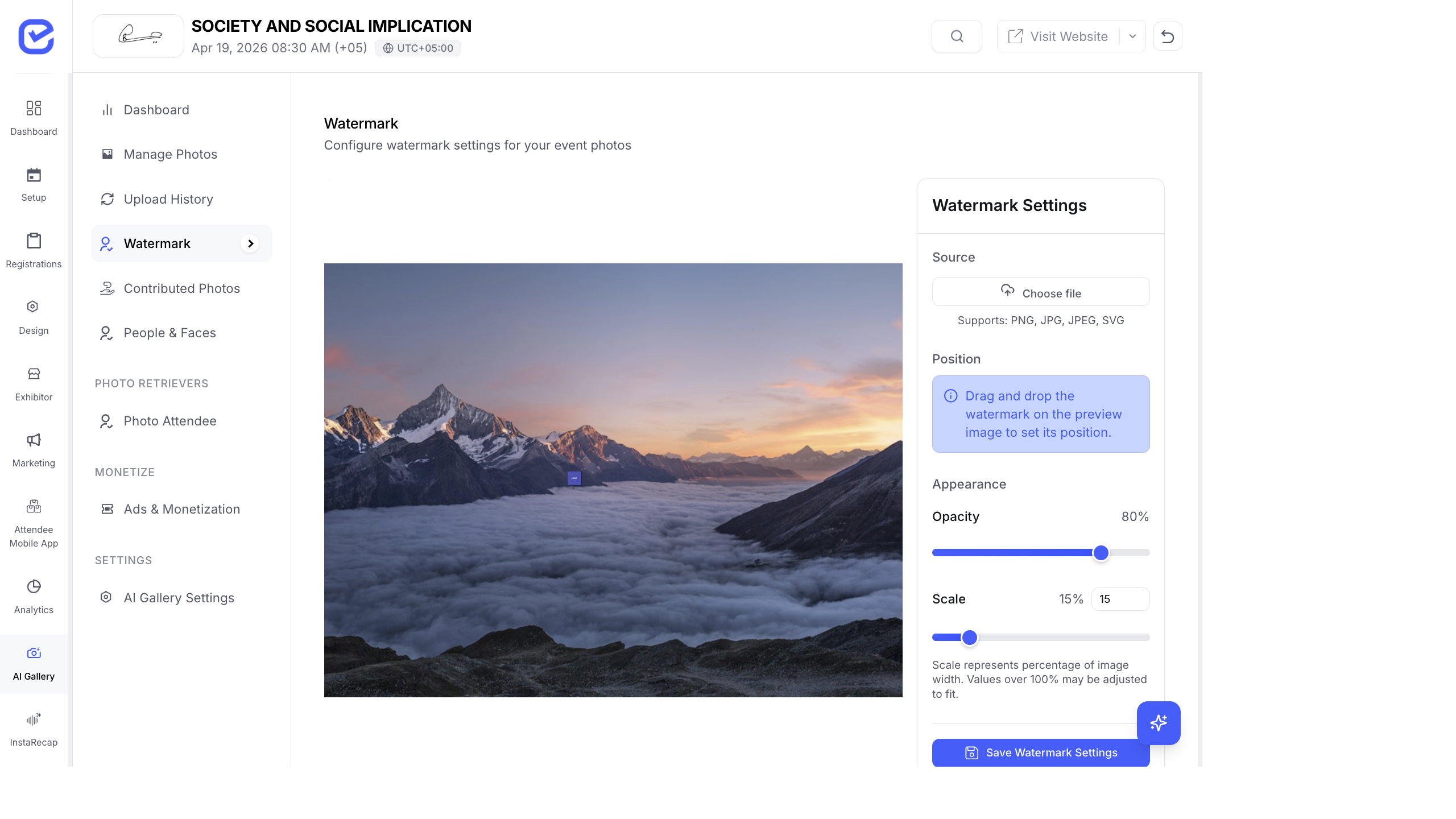
Watermarks protect your event photos from unauthorized use and promote your brand. Add your event logo or text overlay to every photo in the gallery.
Access Watermark Settings
Section titled “Access Watermark Settings”Go to AI Gallery → Settings → Watermark.
Set Up a Watermark
Section titled “Set Up a Watermark”- Go to AI Gallery → Settings.
- Open the Watermark section.
- Choose the watermark type:
- Image — upload your logo or brand mark
- Text — type a text watermark (e.g., ”© EventHex 2025”)
- Upload your watermark image (for image type).
- Adjust the settings:
- Position — drag the watermark on the preview to set X and Y coordinates
- Opacity — control transparency (0% invisible to 100% solid)
- Scale — resize the watermark relative to the photo
- Preview the watermark on a sample photo.
- Click Save.
Watermark Settings
Section titled “Watermark Settings”| Setting | What It Controls |
|---|---|
| Type | Image watermark or text watermark |
| Position (X, Y) | Where the watermark appears on the photo (drag to reposition) |
| Opacity | Transparency — lower values make it more subtle |
| Scale | Size relative to the photo — smaller values for a discrete logo, larger for prominent branding |
Positioning Tips
Section titled “Positioning Tips”The preview area lets you drag the watermark to any position on the photo:
| Position | Best For |
|---|---|
| Bottom-right corner | Standard logo placement — professional, non-intrusive |
| Bottom-center | Text watermarks with copyright notice |
| Center | Maximum protection — harder to crop out (but may obscure faces) |
| Top-left corner | Brand logo with event name |
Custom Preview Background
Section titled “Custom Preview Background”You can set a custom background for the watermark preview area to test how your watermark looks against different photo styles (dark backgrounds, light backgrounds, busy scenes).
When Watermarks Apply
Section titled “When Watermarks Apply”| Scenario | Watermark Applied? |
|---|---|
| Gallery preview (attendee browsing) | Yes — photos show with watermark |
| Downloaded photos | Depends on your settings — can be removed on download or kept |
| Social media shares | Yes — shared photos include the watermark |
| Organizer downloads | No watermark — organizers get original quality |
Best Practices
Section titled “Best Practices”- Use a transparent PNG logo — logos with transparent backgrounds blend naturally with any photo. Avoid logos with white or colored backgrounds.
- Keep it subtle — a watermark that ruins the photo defeats the purpose. Attendees should want to share the photo, watermark and all.
- Include your event name — even a small text watermark with your event name turns every shared photo into free marketing.
- Test with real photos — preview the watermark against actual event photos, not just the sample. Check that it’s visible against both light and dark backgrounds.
- Consider removing on download — some organizers add watermarks to preview photos but deliver unwatermarked photos when attendees download. This creates a premium feel while still protecting browsing photos from screenshots.