

Attendance Tracking & Analytics
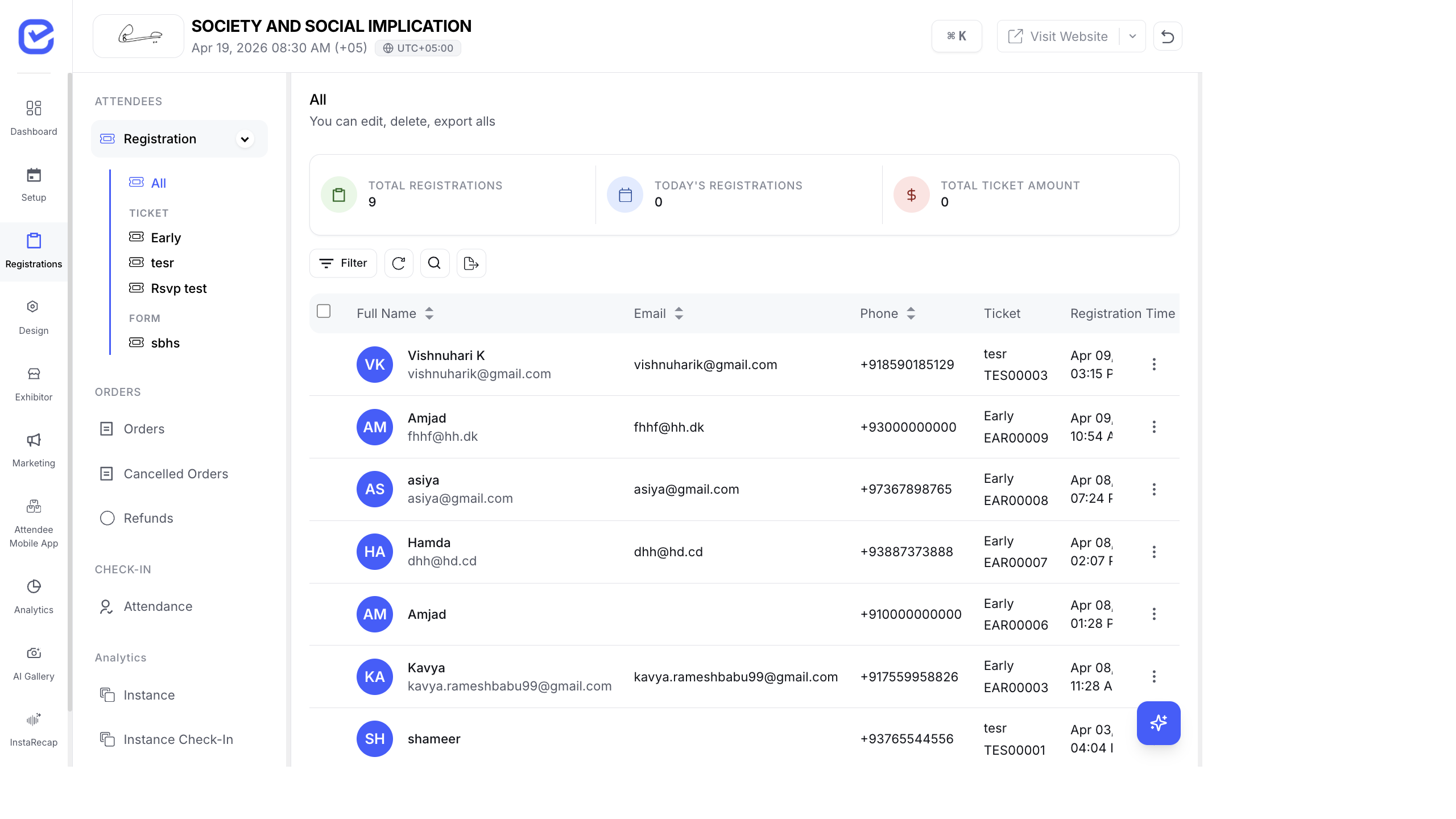
Track attendance in real time with live dashboards, KPIs, and attendee-level detail. Know who’s at your event, who’s missing, and how your check-in is progressing.
Attendance Dashboard
Section titled “Attendance Dashboard”Go to Attendance → Check-in to see the real-time attendance dashboard.
Key Performance Indicators
Section titled “Key Performance Indicators”The top of the page shows four KPIs:
| KPI | What It Shows |
|---|---|
| No. of Check-In | Total attendees who have checked in |
| Pending | Registered attendees who haven’t checked in yet |
| Check-In Rate | Percentage of registered attendees who checked in |
| No-Show Rate | Percentage of registered attendees who did not show up |
Attendee Check-In List
Section titled “Attendee Check-In List”Below the KPIs, the attendee list shows every registration with:
| Column | Description |
|---|---|
| Name | Attendee’s full name |
| Contact email | |
| Ticket Type | Which ticket they registered with |
| Check-In Status | Checked In (with timestamp) or Not Checked In |
| Check-In Instance | Which check-in point scanned them |
| Actions | Check In / Undo buttons |
Filtering the List
Section titled “Filtering the List”Filter the attendee list to find specific groups:
- By status: All, Checked In, Not Checked In
- By ticket type: Filter to see only VIP, General, Speaker tickets, etc.
- By check-in instance: Show only attendees scanned at a specific entry point
- Search: Find an attendee by name or email
Session-Level Attendance
Section titled “Session-Level Attendance”For events using session check-in, track attendance per session:
- Create a check-in instance for each session room.
- Assign the instance to the relevant ticket types.
- Scan attendees as they enter each session.
- View per-session attendance in the instance dashboard.
This gives you:
- Which sessions had the highest attendance
- Which sessions had high no-show rates
- Drop-off patterns across the day
Attendance Over Time
Section titled “Attendance Over Time”The analytics section shows attendance patterns:
- Check-in timeline: when attendees checked in throughout the day
- Peak arrival times: identify busy check-in periods
- Cumulative check-ins: running total of check-ins over time
Use this data to plan staffing for future events — more staff during peak arrival windows, fewer during slow periods.
Exporting Attendance Data
Section titled “Exporting Attendance Data”Export attendance records for reporting:
- Go to Attendance → Check-in.
- Click the Export button.
- Choose the format:
- CSV — spreadsheet with all attendee check-in data
- PDF — formatted attendance report
- The export includes: name, email, ticket type, check-in status, timestamp, and instance.
Missed Attendance Alerts
Section titled “Missed Attendance Alerts”Configure alerts for no-shows:
- Post-event report: automatically generated list of registered attendees who never checked in
- Follow-up campaigns: use the no-show list to send follow-up emails with session recordings or materials
The no-show list is available under Attendance → Check-in after your event ends, filtered by “Not Checked In” status.
Display Mode — Attendance Analytics
Section titled “Display Mode — Attendance Analytics”You can display real-time attendance analytics on venue screens using Display Mode → Analytics. This shows:
- A donut chart of checked-in vs. not-checked-in percentages
- Stat cards with total registered, checked in, and no-show counts
- A timeline chart of check-in activity throughout the day
See Display Mode Wall Types for setup instructions.