

Exhibitor Packages & Categories
Packages define what exhibitors get (booth size, passes, features) and how much they pay. Categories organize exhibitors into groups (industry, tier, type).
Exhibitor Packages
Section titled “Exhibitor Packages”Go to Exhibitor → Exhibitor Packages.
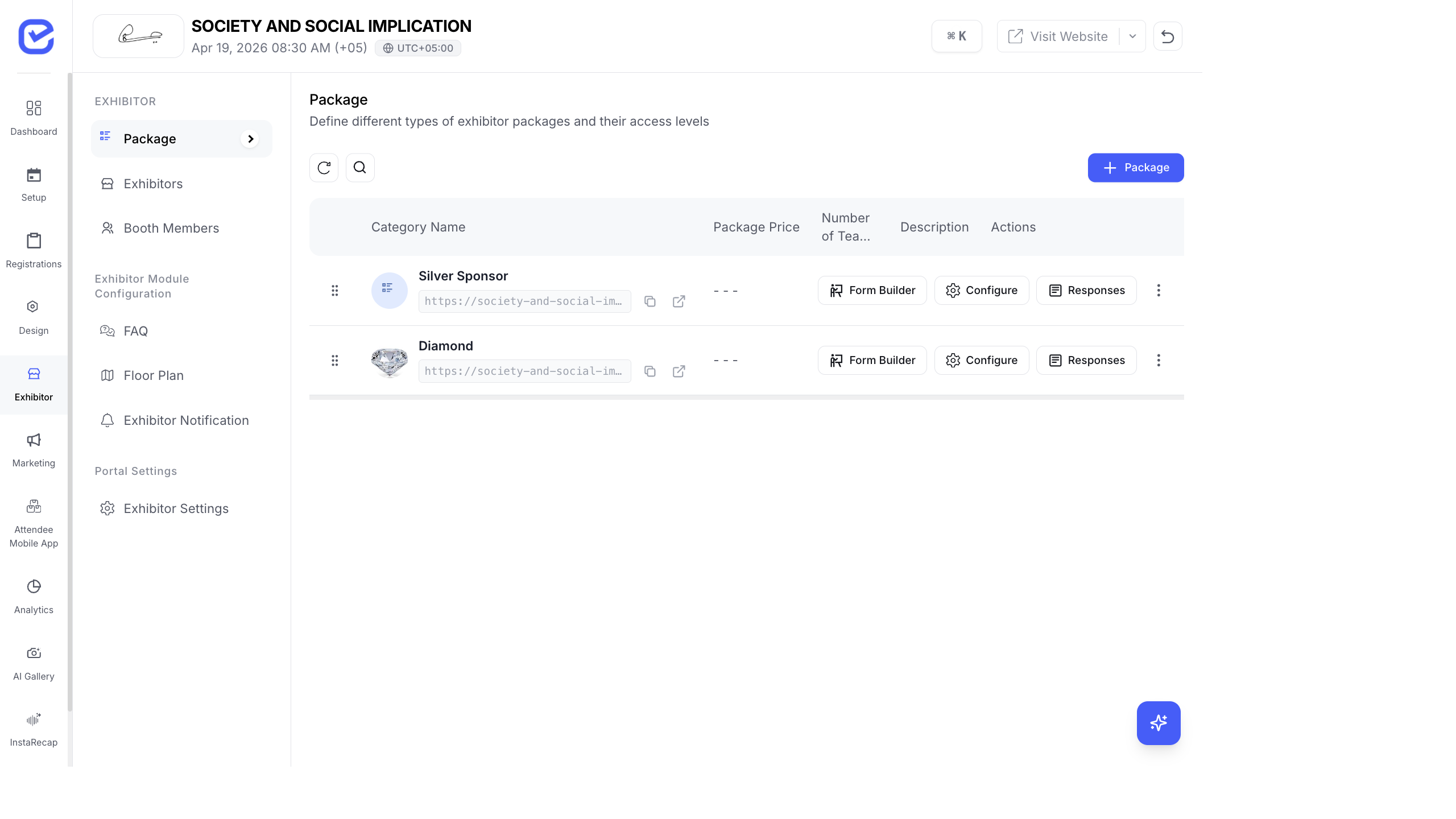
Create a Package
Section titled “Create a Package”- Go to Exhibitor → Exhibitor Packages.
- Click + Add New.
- Fill in:
- Package Title — e.g., “Platinum Sponsor”, “Gold Exhibitor”, “Startup Table”
- Description — what’s included (booth size, marketing, perks)
- Thumbnail — package image
- URL Slug — custom URL path for the exhibitor registration link
- Status — Open, Closed, or Sold Out
- Price Type — Free or Paid
- Price — package cost (if paid)
- Number of Exhibitor Passes — how many booth team members are included
- Maximum Registrations — cap on how many exhibitors can purchase this package
- Enable Lead Capture — whether exhibitors with this package can scan and capture leads
- Booth Details — description of the physical booth setup (size, included furniture, power, etc.)
- Registration Start Date — when the package becomes available
- Registration Deadline — cutoff date for exhibitor applications
- Click Save.
Package Registration URL
Section titled “Package Registration URL”Each package automatically gets a unique registration URL:
https://your-event.eventhex.ai/register/platinum-sponsorShare this URL with potential exhibitors. When they visit it, they see a registration form specific to that package.
Package Status
Section titled “Package Status”| Status | What It Means |
|---|---|
| Open | Exhibitors can register for this package |
| Closed | Registration is closed (manually disabled) |
| Sold Out | Maximum registrations reached |
Exhibitor Categories
Section titled “Exhibitor Categories”Categories are separate from packages. They organize exhibitors by type or industry for display purposes.
- Go to Exhibitor → Exhibitor Categories.
- Click + Add Category.
- Fill in:
- Category Name — e.g., “Technology”, “Healthcare”, “Food & Beverage”
- Price — optional pricing for the category
- Is Paid — toggle
- Lead Capture — enable/disable per category
- Exhibitor Passes — default pass count
- Is Active — toggle to show/hide the category
- Booth Details — default booth details for this category
- Click Save.
Packages vs Categories — What’s the Difference?
Section titled “Packages vs Categories — What’s the Difference?”| Packages | Categories | |
|---|---|---|
| Purpose | Define what exhibitors pay for and get | Organize exhibitors by type |
| Registration | Each package has its own registration URL | Assigned during or after registration |
| Pricing | Defines the exhibitor cost | Optional pricing |
| Booth allocation | Defines passes, lead capture | Defines defaults |
| Example | Platinum ($5,000), Gold ($3,000), Standard ($1,000) | Technology, Healthcare, Education |
Sponsor Categories
Section titled “Sponsor Categories”Exhibitor categories can be marked as sponsor categories:
- Edit a category.
- Enable Mark as Sponsor Category.
- Exhibitors assigned to this category appear as sponsors on the event website.
This lets you use the same exhibitor system for sponsors — no separate sponsor management needed. Sponsor logos appear in the Sponsors widget on your event website, organized by category (Platinum, Gold, Silver tiers).
Example Package Structure
Section titled “Example Package Structure”Here’s a common setup for a mid-size conference:
| Package | Price | Passes | Lead Capture | Booth |
|---|---|---|---|---|
| Platinum Sponsor | $10,000 | 10 | Yes | 6×6m with branding wall |
| Gold Exhibitor | $5,000 | 5 | Yes | 3×3m standard booth |
| Silver Exhibitor | $2,500 | 3 | Yes | 2×2m table display |
| Startup Table | $500 | 2 | No | 1×1m shared table |
| Community Partner | Free | 2 | No | Logo on website only |