

Cloning an Event
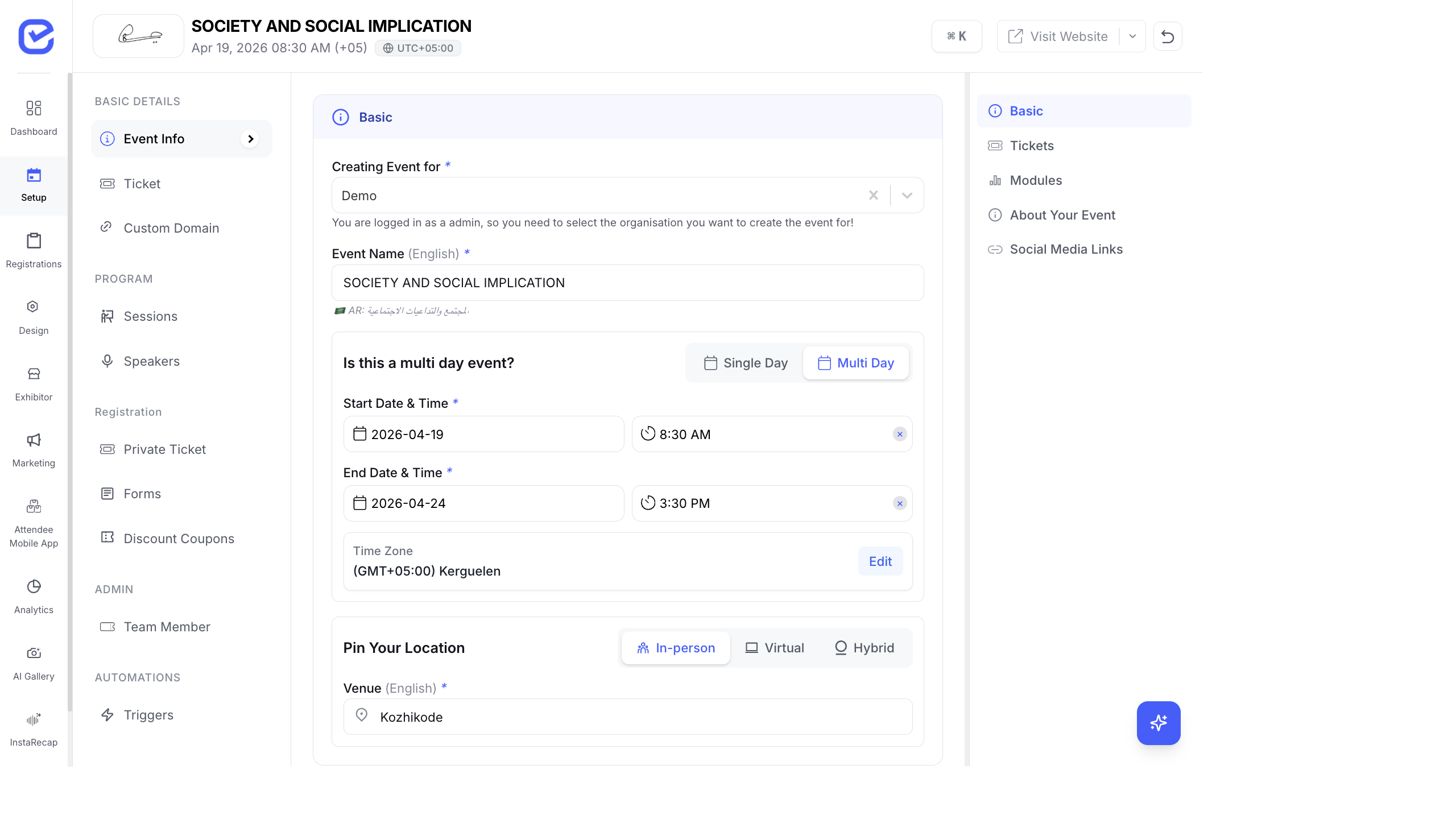
Cloning lets you create a new event based on an existing one — copying its configuration, tickets, modules, and settings. This saves time when running recurring or similar events.
How to Clone an Event
Section titled “How to Clone an Event”- Open the event you want to clone.
- Go to Settings in the left sidebar.
- Click Clone Event.
- Choose which elements to copy:
- Basic Details — event name, type, timezone
- Tickets — ticket types, pricing, quantities
- Forms — registration form fields
- Sessions & Speakers — agenda and speaker profiles
- Modules — enabled feature modules
- Design — website pages, badge, certificate templates
- Settings — notification settings, checkout configuration
- Enter a new event name and update the dates.
- Click Clone.
The cloned event is created as a Draft — it is not published until you review and activate it.
What Gets Copied
Section titled “What Gets Copied”| Copied | Not Copied |
|---|---|
| Event name and description | Registrations and attendee data |
| Ticket types and pricing | Orders and payments |
| Registration form fields | Check-in records |
| Session schedule and speakers | Analytics and reports |
| Module configuration | Campaign history |
| Badge and certificate templates | Notification logs |
| Website pages and design | Activity logs |
After Cloning
Section titled “After Cloning”- Review and update the event name to reflect the new instance.
- Set the correct start date, end date, and timezone.
- Update the venue or virtual link if the location has changed.
- Review ticket quantities and pricing.
- Upload a new logo and banner if needed.
- Activate the event when ready.
Use Cases
Section titled “Use Cases”- Recurring events — clone your annual conference each year
- Multi-city events — clone the base event and update the venue for each city
- Template events — create a well-configured “template” event and clone it for every new event