

Exhibitor Announcements, FAQ & Notifications
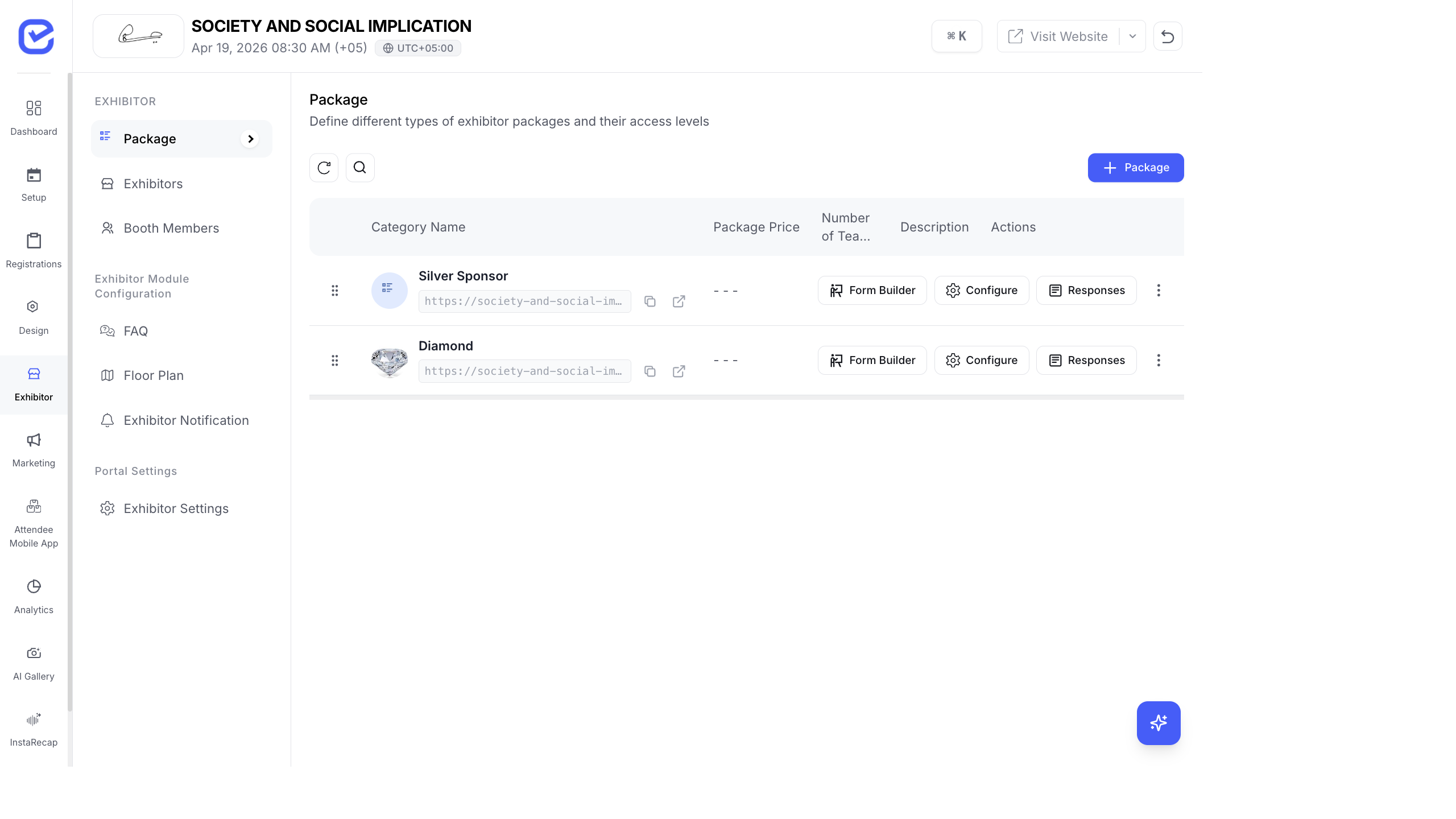
Keep exhibitors informed with announcements, answer common questions with FAQ, and ensure they receive the right notifications at the right time.
Announcements
Section titled “Announcements”Send messages to all exhibitors or specific ones through the Announcements feature.
Create an Announcement
Section titled “Create an Announcement”- Go to Exhibitor → Announcements.
- Click + Add Announcement.
- Fill in:
- Title — announcement headline
- Message — detailed message (rich text editor — supports bold, links, images)
- Priority — Urgent, Important, or Normal
- Target — All Exhibitors or Specific Exhibitors (select which ones)
- Click Save.
Announcements appear in the exhibitor portal. Exhibitors see them when they log in.
Priority Levels
Section titled “Priority Levels”| Priority | When to Use | Display |
|---|---|---|
| Urgent | Time-sensitive: venue change, emergency | Red indicator, shown prominently |
| Important | Key updates: schedule change, setup info | Orange indicator |
| Normal | General info: tips, reminders | Standard display |
FAQ Management
Section titled “FAQ Management”Create a FAQ section that exhibitors can browse in their portal.
Add FAQ Items
Section titled “Add FAQ Items”- Go to Exhibitor → FAQ.
- Click + Add FAQ.
- Enter the Question and Answer.
- Toggle Enabled to show or hide the FAQ item.
- Click Save.
Reorder FAQ Items
Section titled “Reorder FAQ Items”Drag FAQ items to reorder them. The most commonly asked questions should be at the top.
Common FAQ Topics for Exhibitors
Section titled “Common FAQ Topics for Exhibitors”Here are questions exhibitors typically ask — consider adding these:
| Question | Example Answer |
|---|---|
| What are the move-in and move-out times? | Move-in: April 18, 2–6 PM. Move-out: April 20, 5–8 PM. |
| What’s included in my booth? | A 3×3m space, 1 table, 2 chairs, 1 power outlet, and a backdrop wall. |
| Can I bring my own banner or signage? | Yes, up to 2m tall. Free-standing banners only, no wall attachments. |
| Is Wi-Fi provided? | Yes, network: “EventWiFi”, password will be shared on move-in day. |
| How does lead scanning work? | Download the EventHex app, log in with your credentials, and scan attendee badges. |
| Can I ship materials to the venue? | Yes, ship to [venue address] with “ATTN: [Your Company Name]” by April 16. |
| What’s the parking situation? | Exhibitor parking passes are included. Collect them at the registration desk. |
Welcome Notification
Section titled “Welcome Notification”When you add or approve an exhibitor with Send Welcome Notification enabled, they receive an email with:
- Event name and dates
- Their exhibitor portal login URL
- Login credentials (admin mobile number + generated password)
- Quick-start instructions
Notification Best Practices
Section titled “Notification Best Practices”- Announce early — send key logistics announcements at least 1 week before the event.
- Don’t over-announce — 3–5 announcements total is usually enough. Too many notifications and exhibitors stop reading them.
- Use targeted announcements — send booth-setup-specific info only to exhibitors who have physical booths, not to logo-only sponsors.
In the Exhibitor Portal
Section titled “In the Exhibitor Portal”Exhibitors view announcements and FAQ from their portal:
- Announcements — displayed at
/exhibitor-portal/announcementswith a list of all announcements from the organizer - FAQ — available at
/exhibitor-portal/faqas an expandable accordion - Dashboard — the latest announcement also appears on the portal dashboard as a notification card
See Exhibitor Portal for the full portal guide.
- Keep FAQ updated — add new questions as exhibitors ask them. If 3 exhibitors ask the same question by email, add it to the FAQ.
- Include contact info — make sure your support email and phone number are visible in the Exhibitor Settings so exhibitors can reach you directly for urgent issues.