

Review Workflow — Rubrics, Reviewers & Submissions
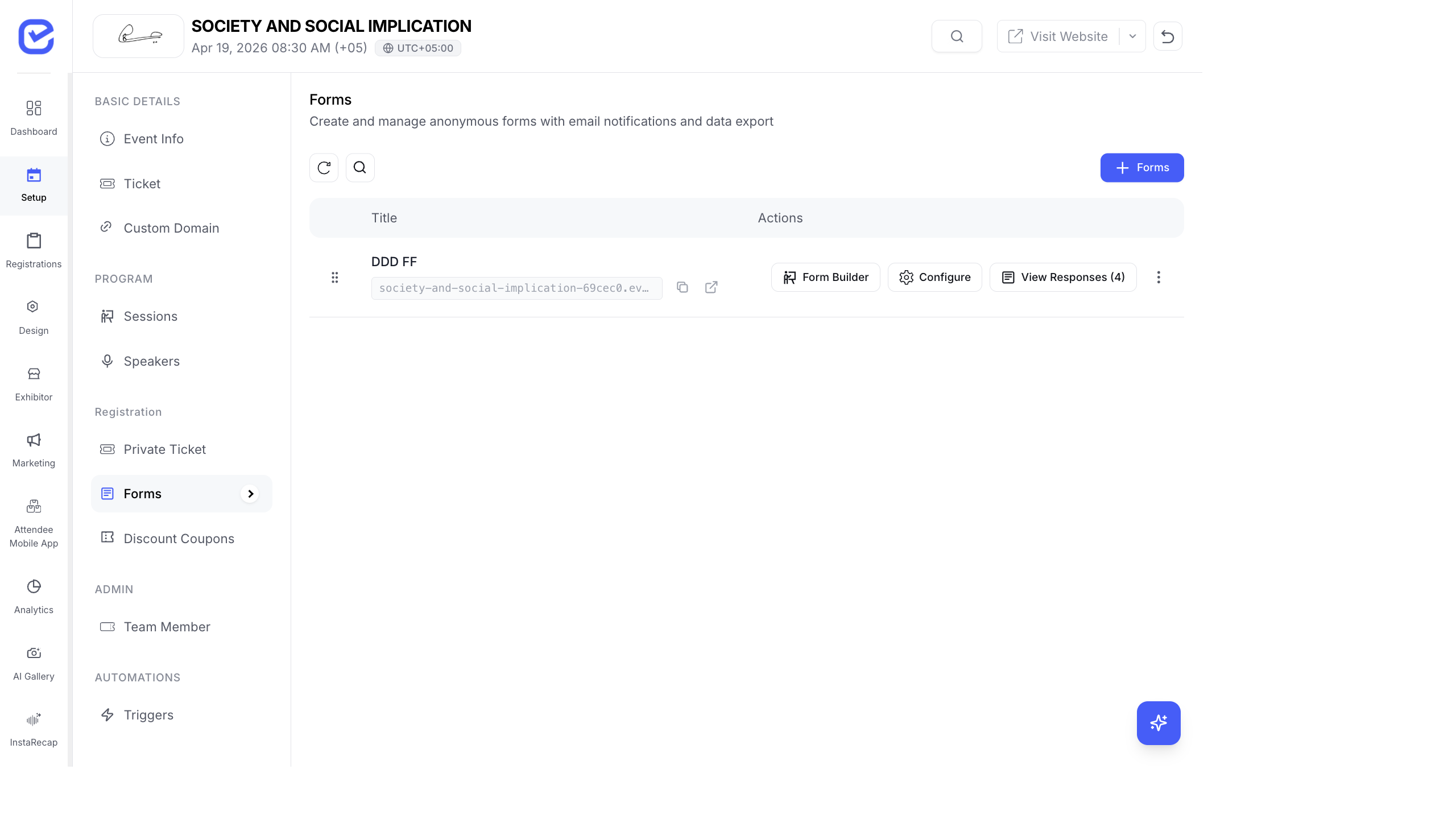
The review workflow ensures fair, structured evaluation of every abstract submission. Build rubrics with weighted criteria, assign reviewers, and track review progress.
Configure Rubrics
Section titled “Configure Rubrics”Go to Settings → Rubric to build your evaluation criteria.
Create Evaluation Criteria
Section titled “Create Evaluation Criteria”- Go to Settings → Rubric.
- Click + Add Criteria.
- Choose the criteria type:
- Scale — numeric rating (e.g., 1–5 or 1–10)
- Multiple Choice — select from predefined options
- Yes / No — binary evaluation
- Text — free-form text feedback
- Fill in:
- Title — criteria name (e.g., “Originality”, “Methodology”, “Relevance”)
- Description — what the reviewer should evaluate
- Weight — percentage weight in the final score (all weights should sum to 100%)
- Required — whether the reviewer must complete this criteria
- Configure type-specific settings:
- Scale: Min value, max value, min label (“Poor”), max label (“Excellent”)
- Multiple Choice: Define options list
- Yes/No: Points for Yes, points for No
- Click Save.
Example Rubric
Section titled “Example Rubric”| Criteria | Type | Weight | Scale |
|---|---|---|---|
| Originality | Scale | 25% | 1–10 (Poor → Exceptional) |
| Methodology | Scale | 25% | 1–10 (Weak → Rigorous) |
| Relevance to Theme | Scale | 20% | 1–10 (Off-topic → Highly Relevant) |
| Clarity of Writing | Scale | 15% | 1–10 (Unclear → Crystal Clear) |
| Potential Impact | Scale | 15% | 1–10 (Minimal → Transformative) |
Reorder Criteria
Section titled “Reorder Criteria”Drag criteria to reorder them. Reviewers see criteria in the order you set.
Preview Rubric
Section titled “Preview Rubric”Click Preview to see the rubric exactly as reviewers will see it. Verify that instructions are clear and the scoring makes sense.
Manage Reviewers
Section titled “Manage Reviewers”Go to Settings → Reviewers.
Add a Reviewer
Section titled “Add a Reviewer”- Click + Add Reviewer.
- Fill in:
- Name — reviewer’s full name
- Email — for sending review assignments and notifications
- Role — Reviewer, Lead Reviewer, Technical Reviewer, or Panel Reviewer
- Designation — job title
- Company — organization
- Description — expertise areas
- Photo — profile image
- Optionally enable Social Media links (LinkedIn, etc.).
- Click Save.
AI-Powered Reviewer Import
Section titled “AI-Powered Reviewer Import”Save time by importing reviewer profiles from LinkedIn:
- Click Fetch from LinkedIn.
- Paste the reviewer’s LinkedIn profile URL.
- The system auto-fills name, designation, company, description, and photo.
- Review and save.
Reviewer Roles
Section titled “Reviewer Roles”| Role | Responsibility |
|---|---|
| Reviewer | Evaluates assigned submissions using the rubric |
| Lead Reviewer | Senior reviewer — may have final say on borderline submissions |
| Technical Reviewer | Evaluates technical accuracy and methodology |
| Panel Reviewer | Reviews for specific tracks or panels |
Manage Submissions
Section titled “Manage Submissions”Go to Settings → Submissions to see all submitted abstracts.
Submission Status
Section titled “Submission Status”| Status | Meaning |
|---|---|
| Pending | Submitted, waiting for review assignment |
| Under Review | Reviewers assigned, evaluation in progress |
| Reviewed | All assigned reviewers have completed their evaluation |
| Approved | Accepted — submitter notified |
| Rejected | Declined — submitter notified |
| Revision Requested | Submitter asked to revise and resubmit |
Assign Reviewers to a Submission
Section titled “Assign Reviewers to a Submission”- Open a submission.
- Click Assign Reviewers.
- Select reviewers from your reviewer list.
- Each selected reviewer receives an email notification (if enabled).
- Reviewers log in to the reviewer portal to evaluate.
Conflict Detection
Section titled “Conflict Detection”If Flag Conflicts is enabled and two reviewers’ scores differ by more than the threshold (e.g., one gives 9/10, another gives 5/10), the system flags the submission for organizer review.
Best Practices
Section titled “Best Practices”- Weight criteria thoughtfully — originality and relevance should typically carry more weight than writing style for research conferences.
- Use blind review for fairness — especially for competitive academic conferences where reviewer bias could be an issue.
- Set a realistic review period — give reviewers 2–3 weeks to complete evaluations. Send reminders 3 days before the deadline.
- Assign odd number of reviewers — 3 reviewers per submission makes tie-breaking easier than 2.
- Test the full workflow — submit a test abstract, assign yourself as a reviewer, complete the evaluation, and verify the scoring and notification workflow.