

Connecting Third-Party Integrations
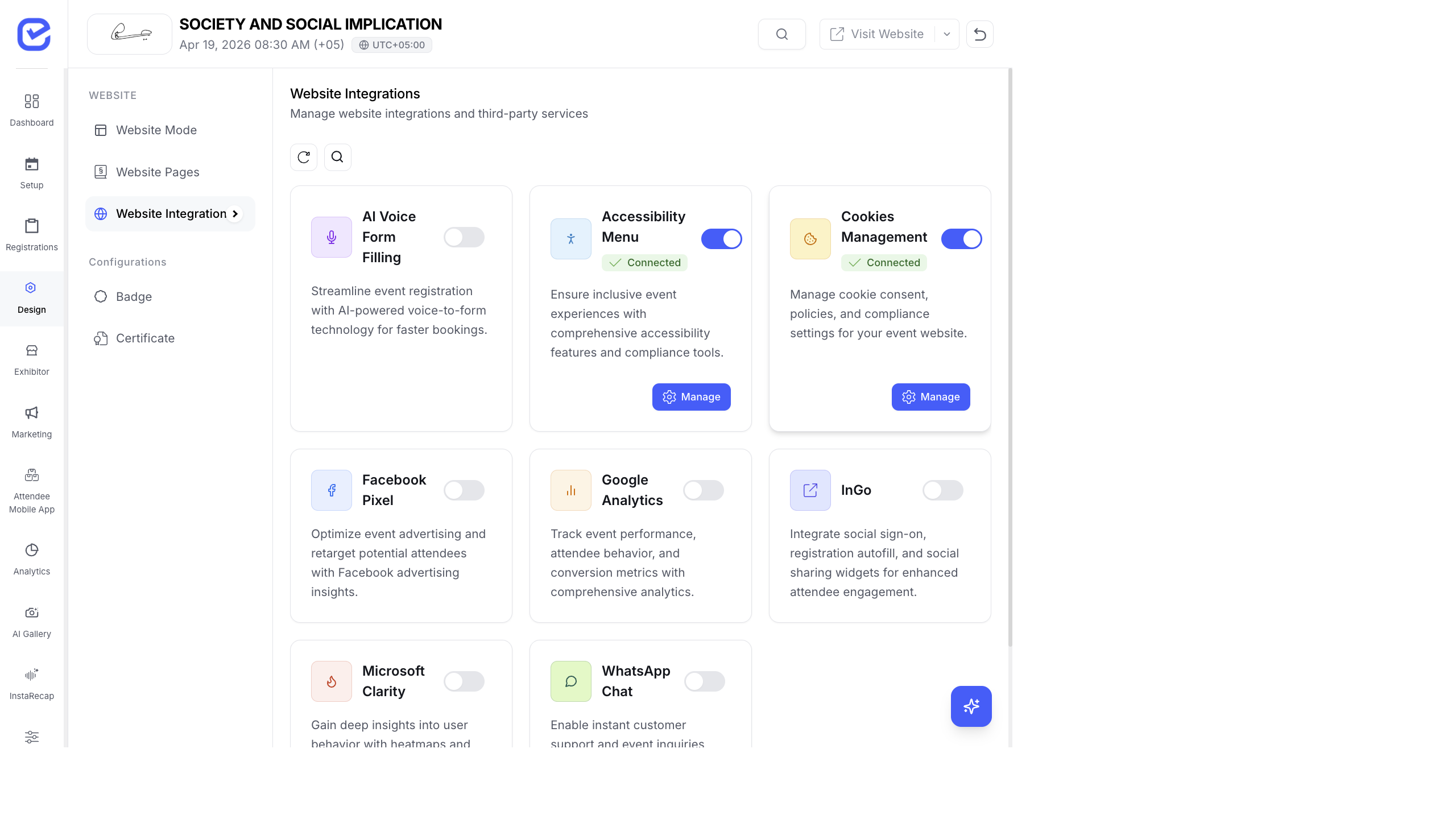
EventHex integrates with popular analytics, marketing, and communication platforms. Each integration has a simple toggle-and-configure setup.
Access Integrations
Section titled “Access Integrations”Go to Settings → Integrations in your event settings.
Each integration shows as a card with a toggle switch and a configure button.
Available Integrations
Section titled “Available Integrations”Google Analytics Analytics
Section titled “Google Analytics ”Track visitor behavior on your event website and registration pages.
- Toggle Google Analytics on.
- Enter your Tracking ID (e.g.,
UA-XXXXXXXXX-XorG-XXXXXXXXXX). - Enter your Property ID.
- Click Save.
Once enabled, Google Analytics tracking code is injected into all public event pages — registration, event website, and session listings.
Facebook Pixel Marketing
Section titled “Facebook Pixel ”Retarget visitors and track conversions from Facebook and Instagram ads.
- Toggle Facebook Pixel on.
- Enter your Pixel ID (from Facebook Events Manager).
- Optionally enter your Access Token for advanced conversion tracking.
- Click Save.
Events tracked automatically: page views, registration completions, and ticket purchases.
Microsoft Clarity Analytics
Section titled “Microsoft Clarity ”Free heatmaps and session recordings to understand how attendees interact with your event pages.
- Toggle Microsoft Clarity on.
- Enter your Clarity Project ID.
- Click Save.
WhatsApp Chat Communication
Section titled “WhatsApp Chat ”Add a WhatsApp chat button to your event website so attendees can reach your team directly.
- Toggle WhatsApp Chat on.
- Enter the WhatsApp number (with country code, e.g.,
+971501234567). - Click Save.
A floating WhatsApp button appears on your public event pages.
AI Voice Form Accessibility
Section titled “AI Voice Form ”Enable voice-based form filling for accessibility.
- Toggle AI Voice Form on.
- Enter your Project ID.
- Select the Language for voice recognition.
- Adjust Voice Sensitivity.
- Click Save.
Accessibility Menu
Section titled “Accessibility Menu”Add an accessibility toolbar to your event website with font size controls, contrast adjustments, and screen reader support.
Toggle Accessibility Menu on — no additional configuration needed.
Cookies Management
Section titled “Cookies Management”Enable a cookie consent banner on your event website to comply with GDPR and privacy regulations.
Toggle Cookies Management on. A consent banner appears to visitors on their first visit.
InGo Social
Section titled “InGo ”Social-powered event marketing. InGo lets registrants invite their network and see who else is attending.
- Toggle InGo on.
- Configure the widget iframe URLs provided by InGo.
- Click Save.
Best Practices
Section titled “Best Practices”- Enable Google Analytics from day one — start tracking from the moment your event page goes live. You need baseline data to measure campaign effectiveness.
- Use Facebook Pixel with ads — if you’re running Facebook/Instagram ads for ticket sales, the Pixel is essential for measuring conversions and building retargeting audiences.
- GDPR compliance — if your event targets European attendees, enable Cookies Management to show consent banners. This is legally required.
- Test integrations — after enabling, visit your event page in an incognito window and verify the tracking code loads (use browser developer tools → Network tab to check).
InGo Campaign Integration
Section titled “InGo Campaign Integration”EventHex also supports InGo campaign integration for peer-driven social proof and advocacy. InGo campaigns are rendered on the event website via dedicated campaign landing pages at /campaign/[slug].
See Campaign Landing Pages for details.