

Understanding Payment Failures & Troubleshooting
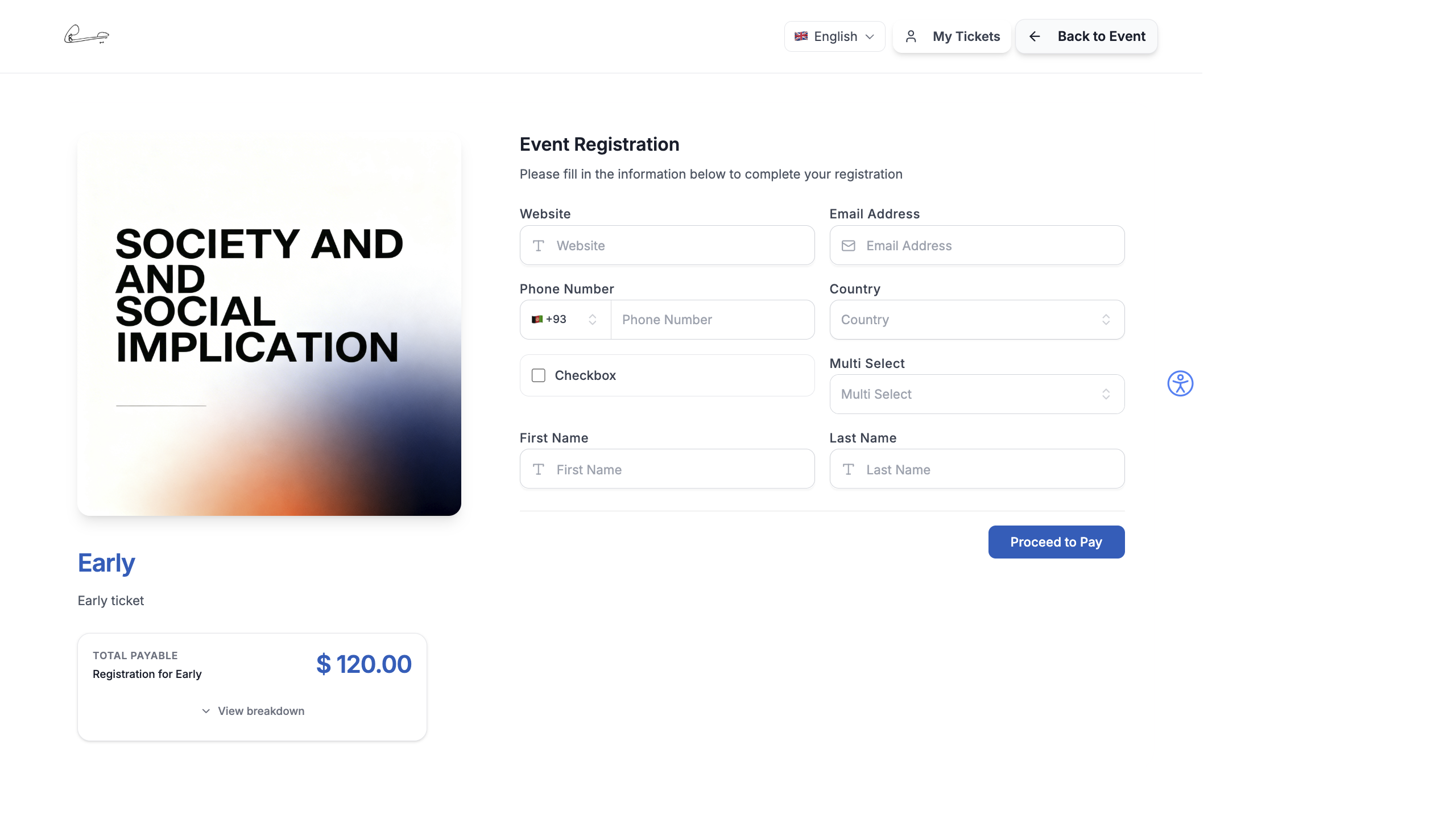
Payment failures happen when an attendee attempts to pay but the transaction doesn’t complete. EventHex logs all failed payments so you can diagnose issues and assist attendees.
View Payment Failures
Section titled “View Payment Failures”Payment failures are logged automatically. To view them:
- Go to Registrations → Orders in your event.
- Filter by Payment Status → Failed to see failed orders.
- Click on a failed order to see details including:
- Attendee name and email
- Ticket type and amount
- Error reason and error code
- Gateway transaction ID
- Timestamp
Common Failure Reasons
Section titled “Common Failure Reasons”| Error | Cause | Solution |
|---|---|---|
| Card declined | Insufficient funds, expired card, or bank block | Ask attendee to try a different card or contact their bank |
| Authentication failed | 3D Secure / OTP verification not completed | Attendee needs to complete the bank’s verification step |
| Payment timeout | Attendee took too long on the payment page | Ask them to retry — the session expired |
| Gateway error | Temporary issue with Razorpay/Stripe | Wait a few minutes and retry |
| Currency not supported | Gateway doesn’t support the event currency | Check gateway currency settings |
| International payment blocked | Gateway not configured for international cards | Enable international payments in gateway settings |
| Duplicate payment | Attendee clicked pay multiple times | Check if one attempt succeeded; refund duplicates |
What Happens After a Failure
Section titled “What Happens After a Failure”When a payment fails:
- The attendee sees an error message on the checkout page
- They can retry the payment immediately
- The failed attempt is logged in Orders with a Failed status
- No registration is created — the attendee is not confirmed
- No confirmation email or WhatsApp is sent
Helping an Attendee
Section titled “Helping an Attendee”If an attendee reports a payment issue:
- Go to Registrations → Orders and search for their email.
- Check if they have a Failed order — note the error reason.
- Based on the error:
- For card issues: ask them to try a different payment method
- For timeout: send them the ticket registration link to retry
- For gateway issues: verify your API keys are still valid
- If they paid but the order shows as failed (rare), check your gateway dashboard (Razorpay/Stripe) for the transaction status.
- If the payment was actually captured, manually add the registration and confirm.
Prevent Payment Failures
Section titled “Prevent Payment Failures”| Action | How It Helps |
|---|---|
| Enable multiple payment methods | Gives attendees alternatives if one method fails |
| Use test mode first | Catch configuration issues before going live |
| Keep API keys current | Expired or rotated keys cause all payments to fail |
| Enable international payments | Required for cross-border card transactions |
| Monitor gateway status | Check Razorpay/Stripe status pages during high-traffic periods |
Abandoned Checkouts
Section titled “Abandoned Checkouts”Some attendees start the checkout process but never complete payment. These show up as Pending orders. Common reasons include:
- Checkout form was too long
- Unexpected pricing or fees
- Technical issues with the payment method
- Attendee got distracted and forgot to return
Consider following up with attendees who have pending orders — a reminder email can recover lost registrations.
What Attendees See During Failures
Section titled “What Attendees See During Failures”On the event website, when a payment fails:
- The checkout page shows an inline error notification explaining the failure reason.
- If ticket inventory runs out during checkout, an Inventory Notification banner appears indicating the ticket is sold out.
- Attendees can retry payment without re-entering their registration details.
- If all tickets are sold out, the ticket card on the landing page shows a “Sold Out” badge.