

Badge Templates — Reusable Designs
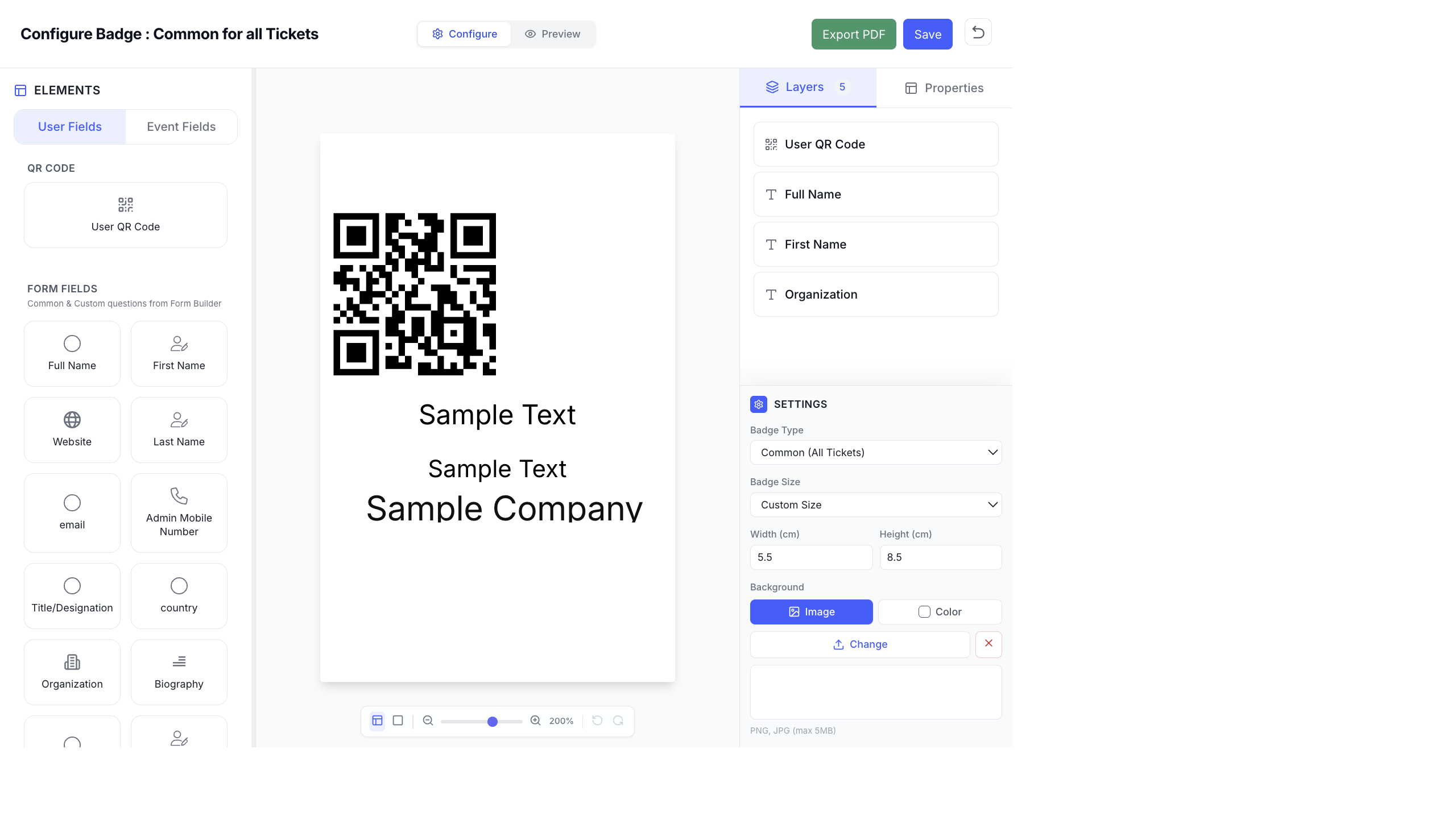
Badge templates let you reuse designs instead of building every badge from scratch. Import templates, clone designs across ticket types, and apply a single layout to multiple badges.
Why Use Templates?
Section titled “Why Use Templates?”Without templates, you’d need to redesign a badge from zero for every new ticket type or event. Templates solve this by letting you:
- Import a pre-built design and customize it
- Clone a badge design from one ticket type to another
- Apply the current design to other tickets in one click
Import a Badge Design
Section titled “Import a Badge Design”- Open the Badge Designer for a badge.
- In the Layers panel on the right sidebar, click Import.
- Browse the available templates.
- Select a template to load it onto your canvas.
- Customize the template — change text, swap images, adjust colors.
- Click Save.
Imported templates give you a starting point with professional layouts already set up. You just need to tweak the branding and field positions.
Clone a Badge Design from Another Ticket
Section titled “Clone a Badge Design from Another Ticket”If you already designed a badge for one ticket type and want the same layout for another:
- Open the Badge Designer for the target badge (the one you want to apply the design to).
- In the Layers panel, click Clone.
- Select the source badge (the one with the design you want to copy).
- The design is duplicated onto your current badge.
- Modify ticket-specific elements if needed (e.g., change the background color for VIP vs General).
- Click Save.
This is the fastest way to create consistent badges across ticket types with minor variations like color.
Apply Design to Other Tickets
Section titled “Apply Design to Other Tickets”If you designed a badge and want to push that exact design to multiple other tickets at once:
- Open the Badge Designer for the badge with the design you want to share.
- In the Layers panel, click Apply.
- Select which other ticket badges should receive this design.
- Confirm — the design is copied to all selected badges.
Badge Sizes as Templates
Section titled “Badge Sizes as Templates”EventHex provides preset badge sizes that match common printer stock:
| Size Name | Dimensions | Best For |
|---|---|---|
| Standard Conference | 8.5 × 5.5 cm | Landscape badges on standard lanyards |
| Compact Business | 5.5 × 8.5 cm | Portrait badges, name-tag style |
| Large Event | 10 × 15 cm | Detailed badges with photos and multiple fields |
| Custom | Any size | Match your specific printer stock |
When creating a new badge, the size you choose becomes the canvas size. You can change the size later in the Settings section of the right panel (Width/Height in cm).
Tips for Reusable Badge Designs
Section titled “Tips for Reusable Badge Designs”- Design one master badge first — get the layout, fonts, and positioning perfect on a single badge. Then clone or apply it to others.
- Use ticket-specific backgrounds — clone the design but change only the background image/color for each ticket type. This way the layout stays consistent but attendee categories are visually distinct.
- Keep dynamic fields flexible — position text fields with enough space to handle long names and company names without overflowing.
- Save your template — before modifying a template for a specific event, note the original layout so you can recreate it later.