

Session & Multi-Day Check-In
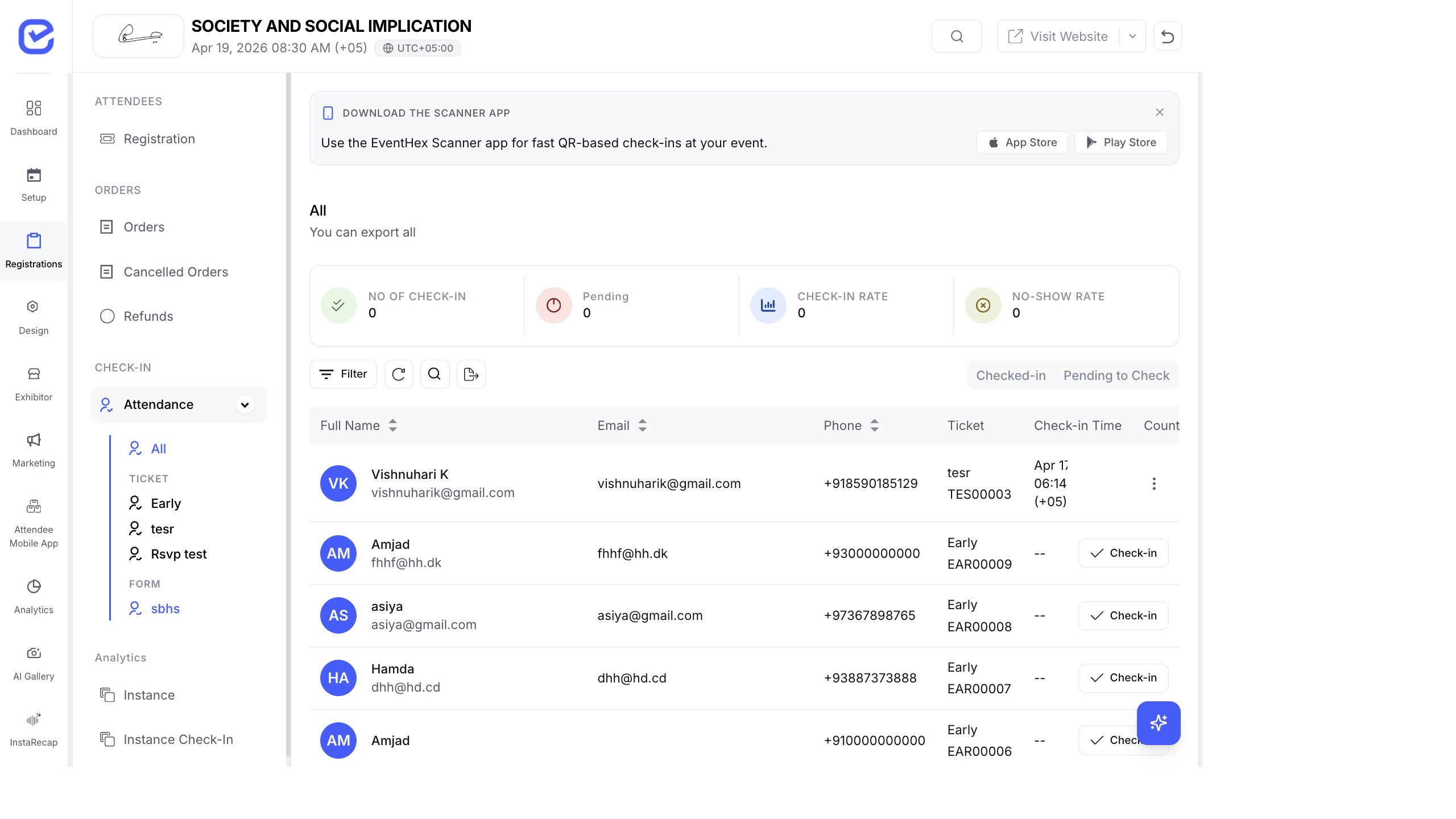
For multi-day events or events where session-level attendance matters, set up per-session and per-day check-in instances to track exactly who attended what.
Why Session Check-In?
Section titled “Why Session Check-In?”Event-level check-in tells you who came to the venue. Session check-in tells you:
- Which sessions had the highest attendance
- Which attendees attended which talks
- Session-level engagement data for speakers and sponsors
- CPD/CEU credit tracking (who attended the required sessions)
Set Up Session Check-In
Section titled “Set Up Session Check-In”- Go to Attendance → Check-in.
- Click Manage Instances.
- Create a check-in instance for each session room:
- Name: “Room A — Morning Sessions”
- Assign relevant ticket types
- Deploy a scanner device at each session room entrance.
- Scan attendees as they enter each session.
Example: 3-Track Conference
Section titled “Example: 3-Track Conference”| Instance | Location | Covers |
|---|---|---|
| Main Entrance | Venue lobby | Initial event check-in |
| Main Stage | Main hall entry | Keynotes and plenaries |
| Track A | Room 201 | Technical sessions |
| Track B | Room 202 | Business sessions |
| Workshop Room | Room 105 | Hands-on workshops |
Each instance records check-ins independently, giving you a complete picture of attendee movement.
Multi-Day Check-In
Section titled “Multi-Day Check-In”For multi-day events, track attendance per day:
- Create check-in instances for each day:
- “Day 1 — Main Entrance”
- “Day 2 — Main Entrance”
- “Day 3 — Main Entrance”
- Activate the correct instance each morning.
- Attendees scan in again each day.
- View per-day attendance in the dashboard.
Multi-Day Analytics
Section titled “Multi-Day Analytics”The analytics dashboard shows:
| Metric | Day 1 | Day 2 | Day 3 |
|---|---|---|---|
| Checked In | 850 | 720 | 680 |
| No-Show | 150 | 280 | 320 |
| Check-In Rate | 85% | 72% | 68% |
Per-Session Reports
Section titled “Per-Session Reports”After your event, generate per-session attendance reports:
- Go to Attendance → Check-in.
- Filter by the session’s check-in instance.
- Export the filtered list to CSV.
The export includes:
- Attendee name and email
- Check-in timestamp
- Ticket type
- Instance name (which session/room)
This data is valuable for:
- Speaker feedback: tell speakers exactly how many people attended their talk
- Sponsor ROI: show sponsors how many people visited their session or booth
- Compliance: prove attendance for certification, CPD credits, or accreditation
Capacity Monitoring
Section titled “Capacity Monitoring”When sessions have limited capacity:
- Set the capacity on the session (in session settings).
- Create a check-in instance for that session room.
- As attendees check in, the system shows the current count vs. capacity.
- When capacity is reached, staff can manage the queue.
Check-In Data Across Instances
Section titled “Check-In Data Across Instances”The main Attendance → Check-in page aggregates data across all instances:
- Total check-ins — sum across all instances
- Unique attendees — deduplicated count (an attendee checking into 3 sessions counts as 1 unique)
- Per-instance breakdown — how many check-ins at each point
Best Practices
Section titled “Best Practices”- Brief staff on which instance to use at each location — scanning on the wrong instance creates inaccurate data
- Test instances before the event — scan test badges at each location to verify the correct instance is active
- Label devices — put a sticker on each scanner device with the instance name (e.g., “Room 201 — Track A”)
- Session transitions — allow a few minutes between sessions for check-in scanning at room entrances