

Notification Logs
Notification Logs give you a complete record of every email and WhatsApp message sent from your event — campaign messages, registration confirmations, ticket emails, and system notifications.
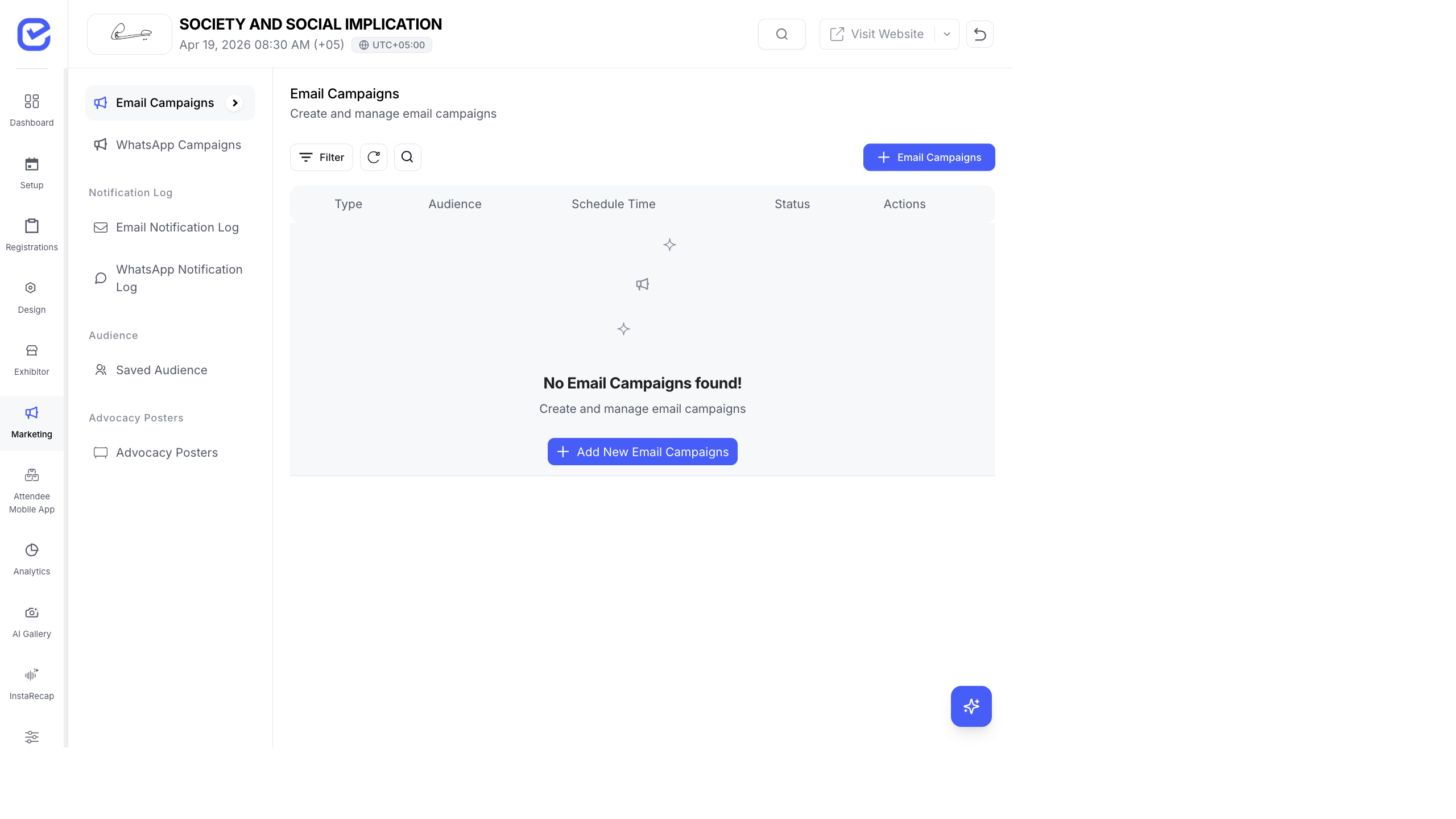
Access Notification Logs
Section titled “Access Notification Logs”Go to Marketing → Notification Logs.
Email Logs
Section titled “Email Logs”The email log table shows:
| Column | Description |
|---|---|
| Recipient | Email address the message was sent to |
| Notification Type | What triggered the email (see types below) |
| Subject | Email subject line |
| Status | Current delivery status |
| Provider | Which email service sent it (SES, Mailercloud, SMTP) |
| Sent At | Timestamp when the email was queued |
Email Notification Types
Section titled “Email Notification Types”| Type | Triggered By |
|---|---|
| send | Registration confirmation email |
| approval | Exhibitor/registration approval |
| rejection | Exhibitor/registration rejection |
| resend | Manual resend of a confirmation |
| bulk_resend | Bulk resend to multiple recipients |
| ai_gallery_marketing | AI Photo Gallery notification to attendees |
| instarecap_marketing | InstaRecap notification to attendees |
| certificate_send | Certificate delivery email |
| campaign | Marketing campaign email |
Email Delivery Status
Section titled “Email Delivery Status”| Status | Color | Meaning |
|---|---|---|
| Pending | Gray | Queued, not yet sent |
| Processing | Blue | Being sent right now |
| Completed | Green | Successfully delivered |
| Failed | Red | Delivery failed |
| Cancelled | Gray | Cancelled before sending |
Webhook Status (Post-Delivery Tracking)
Section titled “Webhook Status (Post-Delivery Tracking)”If your email provider supports webhooks (SES, Mailercloud), you get detailed post-delivery tracking:
| Webhook Status | Meaning |
|---|---|
| Sent | Email left the provider’s server |
| Delivered | Email reached the recipient’s inbox |
| Opened | Recipient opened the email |
| Clicked | Recipient clicked a link |
| Bounced | Recipient’s address doesn’t exist or mailbox is full |
| Failed | Technical delivery failure |
| Spam | Recipient’s email provider flagged it as spam |
WhatsApp Logs
Section titled “WhatsApp Logs”WhatsApp logs show:
| Column | Description |
|---|---|
| Recipient | Phone number the message was sent to |
| Template | Which WhatsApp template was used |
| Status | Delivery status with WhatsApp checkmarks |
| Sent At | Timestamp |
WhatsApp delivery status uses the familiar checkmark system:
| Status | Meaning |
|---|---|
| ✓ (single) | Sent from server |
| ✓✓ (double gray) | Delivered to phone |
| ✓✓ (double blue) | Read by recipient |
| ✗ (failed) | Delivery failed |
Filtering & Search
Section titled “Filtering & Search”Use filters to narrow down the logs:
- Date Range — filter by sent date
- Status — show only failed, delivered, opened, etc.
- Notification Type — filter by type (campaign, confirmation, certificate, etc.)
- Search — search by recipient email or phone number
Troubleshooting Common Issues
Section titled “Troubleshooting Common Issues”High Bounce Rate
Section titled “High Bounce Rate”Bounced emails mean the email address doesn’t exist or the mailbox is full. Common causes:
- Attendees mistyped their email during registration (e.g., “gmial.com”)
- Corporate email servers blocking external senders
- Temporary mailbox full conditions
Fix: Enable email validation on your registration form to catch typos at registration time.
Emails Going to Spam
Section titled “Emails Going to Spam”If emails are being flagged as spam:
- Make sure your sending domain has proper SPF, DKIM, and DMARC records
- Avoid spam trigger words in subject lines (FREE, URGENT, CLICK NOW)
- Include an unsubscribe link (the default email wrapper adds this automatically)
- Don’t send too many emails in a short period
WhatsApp Failures
Section titled “WhatsApp Failures”WhatsApp messages can fail due to:
- Invalid phone number (wrong format, missing country code)
- Recipient hasn’t opted in to WhatsApp Business messages
- WhatsApp Business API rate limits exceeded
- Template rejected or paused by Meta
Best Practices
Section titled “Best Practices”- Monitor after every campaign — check the notification logs within 1 hour of sending a campaign. If you see a high failure rate, investigate before sending more.
- Track open rates — if your open rate drops below 15%, revisit your subject lines and send times.
- Clean bounced addresses — if the same email bounces repeatedly, it’s permanently invalid. Consider excluding it from future campaigns.
- Export logs — download notification logs for reporting. Share delivery stats with stakeholders to demonstrate reach.