

Community Contributions
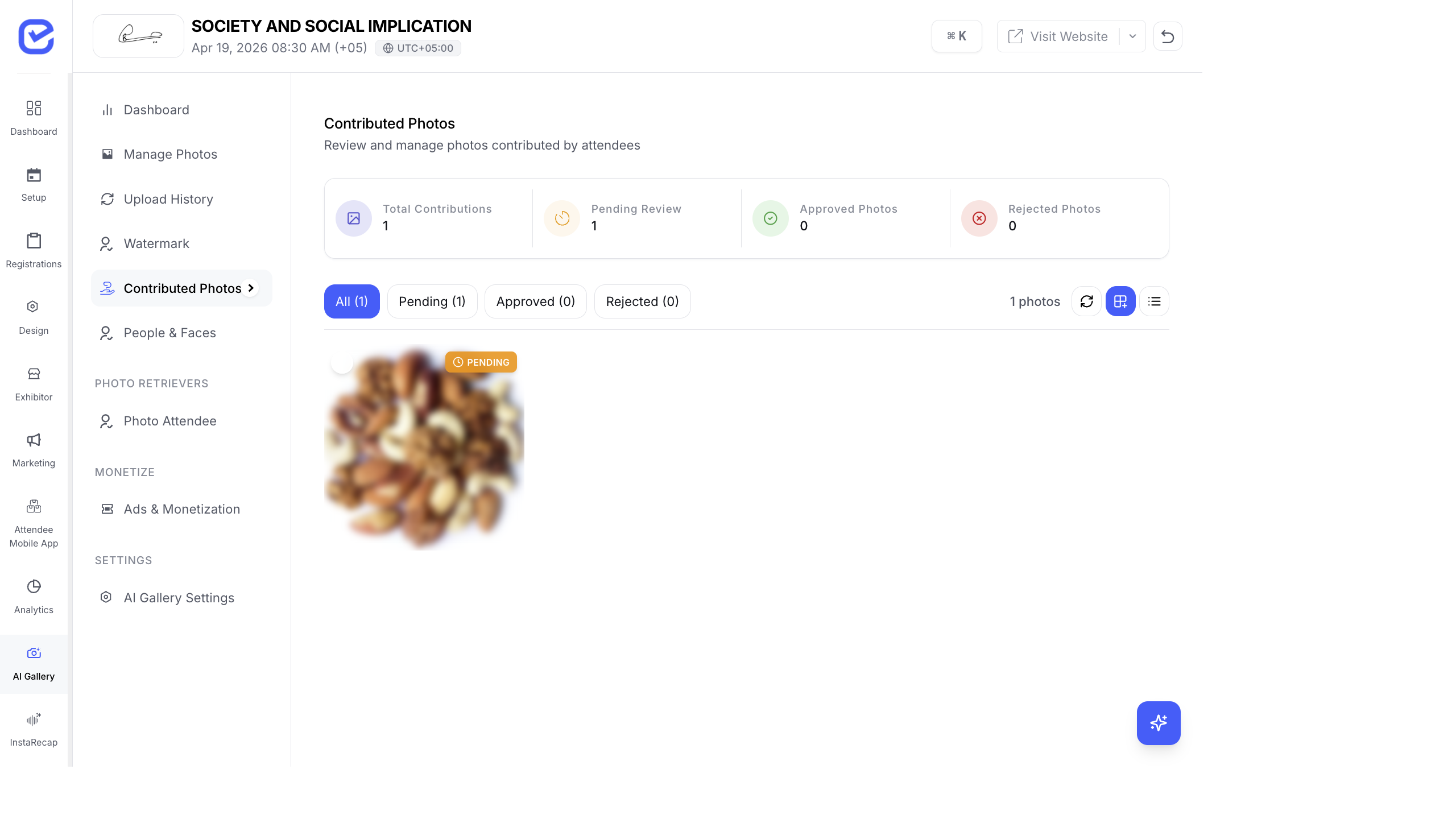
Community Contributions let attendees upload their own event photos to the gallery. This turns your attendees into photographers — capturing moments, angles, and candid shots that your official photographers might miss.
Enable Community Contributions
Section titled “Enable Community Contributions”- Go to AI Gallery → Settings.
- Toggle Community Contributions to On.
- Attendees now see an Upload button when they visit the gallery.
How Attendees Contribute
Section titled “How Attendees Contribute”- An attendee opens the AI Photo Gallery link.
- They click Upload Photos or Contribute.
- They select photos from their phone or camera roll.
- The photos are submitted for review.
- Once approved, the photos appear in the gallery and go through face processing.
Review & Approve Contributions
Section titled “Review & Approve Contributions”As an organizer, you control which contributed photos appear in the gallery:
- Go to AI Gallery → Contributions (or the community section).
- Review submitted photos.
- For each photo, choose:
- Approve — the photo is added to the gallery and processed for face detection
- Reject — the photo is removed and not shown
- Use bulk actions to approve or reject multiple photos at once.
Contribution Status
Section titled “Contribution Status”| Status | Meaning |
|---|---|
| Pending | Submitted by attendee, waiting for review |
| Approved | Accepted and visible in the gallery |
| Rejected | Declined and hidden from the gallery |
What Happens After Approval
Section titled “What Happens After Approval”When you approve a contributed photo:
- It appears in the main gallery alongside organizer-uploaded photos.
- Face detection runs on it automatically.
- Detected faces are matched to existing face groups.
- Other attendees can now find themselves in this photo using selfie matching.
- The contribution counts toward the “Contributed” metric on the dashboard.
Contribution Tracking
Section titled “Contribution Tracking”The dashboard tracks community contribution metrics:
| Metric | Where to Find |
|---|---|
| Total Contributed | Dashboard KPI card |
| Recent Contributors | Dashboard widget showing latest contributors |
| Contribution Rate | Percentage of total photos that came from attendees |
Best Practices
Section titled “Best Practices”- Announce it during the event — tell attendees they can upload photos. Include it in session breaks, on screens, and in your event app.
- Share the upload link — send a WhatsApp or email after the event: “Share your event photos — upload to the AI Gallery and find your photos instantly!”
- Review promptly — don’t let a backlog of pending photos pile up. Review contributions daily (or twice daily during the event).
- Set expectations — let attendees know that photos are reviewed before publishing. This discourages inappropriate uploads.
- Celebrate contributors — the “Recent Contributors” widget on the dashboard shows who’s uploading. Consider giving shoutouts to active contributors on social media.
- Quality thresholds — only approve well-lit, clear photos that add value to the gallery. It’s okay to reject blurry or dark photos — attendees won’t be notified of rejections.
How Attendees Contribute
Section titled “How Attendees Contribute”Attendees access the upload page at /ai-gallery/contribute on the event website. The upload flow includes:
- Drag-and-drop or tap-to-upload photo selection
- Progress indicator during upload
- Confirmation message after submission
See AI Gallery — The Attendee Experience for the full attendee view.