

Setting Up the Attendee Mobile App
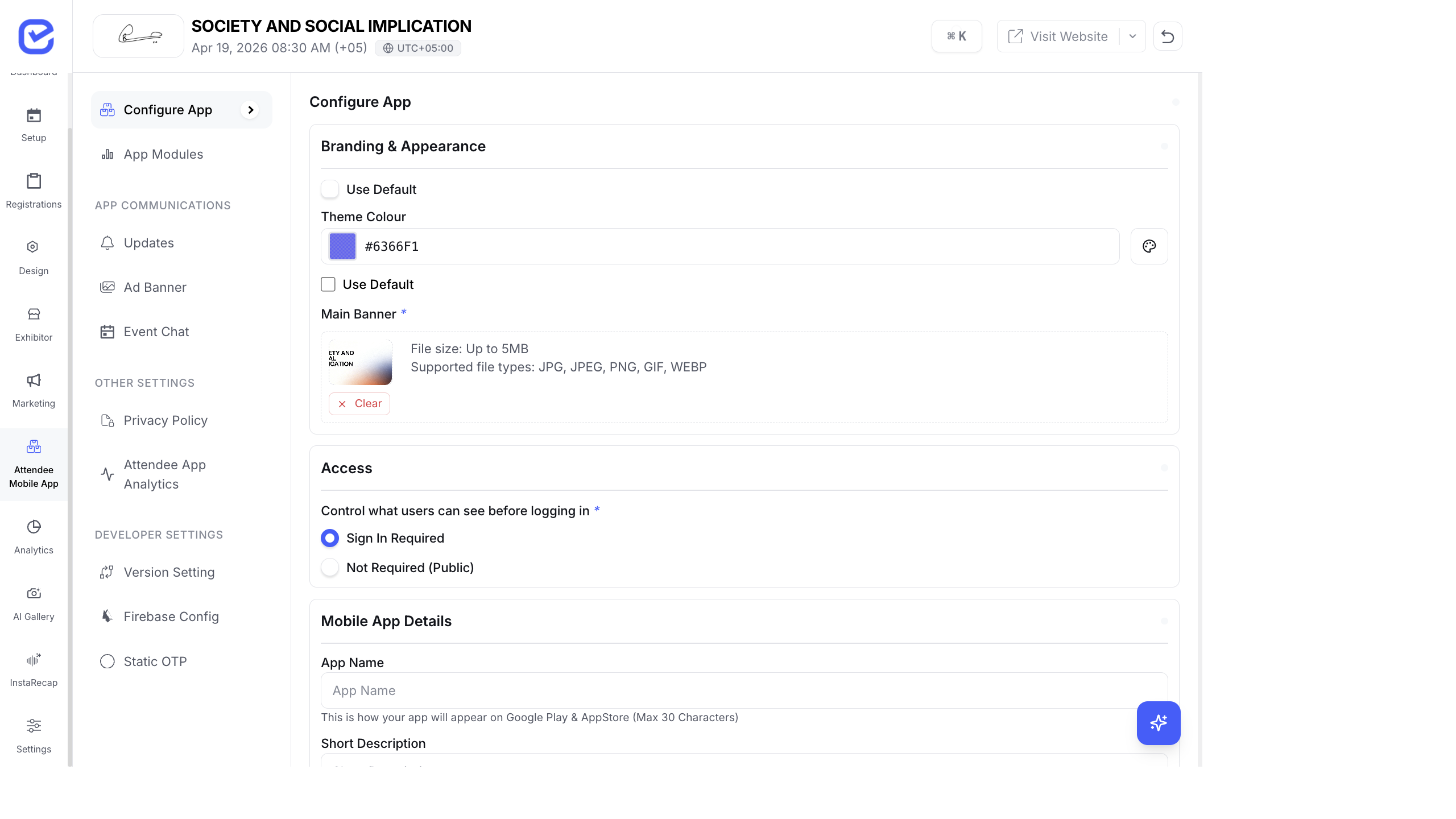
The EventHex mobile app gives attendees a native experience — sessions, speakers, networking, AI Gallery, gamification, and more — all branded to your event.
Access App Configuration
Section titled “Access App Configuration”Go to Attendee Mobile App → Configure App.
The page has a split layout: the configuration form on the left, and a live phone preview on the right that updates in real-time as you make changes.
Configure Branding & Appearance
Section titled “Configure Branding & Appearance”- Go to Attendee Mobile App → Configure App.
- Set the visual identity:
- Theme Colour — pick a color using the color picker, or toggle Use Default Theme Color to use your event’s primary color
- Main Banner — upload a banner image, or toggle Use Default Main Banner to use your event banner
- The phone preview on the right updates immediately.
Set Access Controls
Section titled “Set Access Controls”Choose who can access the app:
| Option | Behavior |
|---|---|
| Sign In Required | Attendees must log in with their registration credentials |
| Not Required (Public) | Anyone can browse the app without signing in |
App Store Publishing Details
Section titled “App Store Publishing Details”If your event needs a custom app listing on Google Play or the App Store, fill in:
| Field | Description | Limit |
|---|---|---|
| App Name | How the app appears on app stores | 30 characters |
| Short Description | Brief description for store listing | 80 chars (Play) / 30 chars (App Store) |
| Subtitle | App Store subtitle | 30 characters |
| Full Description | Detailed description with features | 4,000 characters |
| Contact Email | Shown to users on Google Play | — |
| App Logo | App icon (1024×1024 or 512×512, PNG/JPEG, up to 1MB) | — |
| Feature Graphic / Banner | Play Store feature graphic (1024×500, PNG/JPEG) | — |
- Fill in the app name and descriptions.
- Toggle Use Event Logo to auto-fill the logo from your event, or upload a custom one.
- Toggle Use Event Description to auto-fill from your event description.
- Upload the feature graphic for app store listings.
- Click Save.
You can download the uploaded logo and banner using the Download buttons.
Live Phone Preview
Section titled “Live Phone Preview”The preview shows exactly what attendees will see:
- Status bar with time, signal, and battery icons
- User profile header with gradient using your theme color
- Welcome message with avatar
- Main banner image
- Module grid — showing enabled modules (Programs, Speakers, Exhibitor, Sponsor, Products, Gamification, Meetings, etc.)
The preview updates in real-time as you adjust colors, banner, and settings.
Color Customization
Section titled “Color Customization”Go to the color settings to fine-tune your app’s color palette:
- Automatic extraction — the system uses ColorThief to extract colors from your event banner and suggest a palette
- Custom picker — use the color picker or enter hex codes
- Eyedropper — pick colors from anywhere on your screen
- Color shades — the system generates a full shade palette: Darker, Dark, Base, Lighter, Lightest
Next Steps
Section titled “Next Steps”After configuring branding:
- Configure App Modules — choose which features appear in the app
- Set Up Push Notifications — send updates to attendees
- Enable Networking — let attendees chat and schedule meetings