

Creating a WhatsApp Campaign
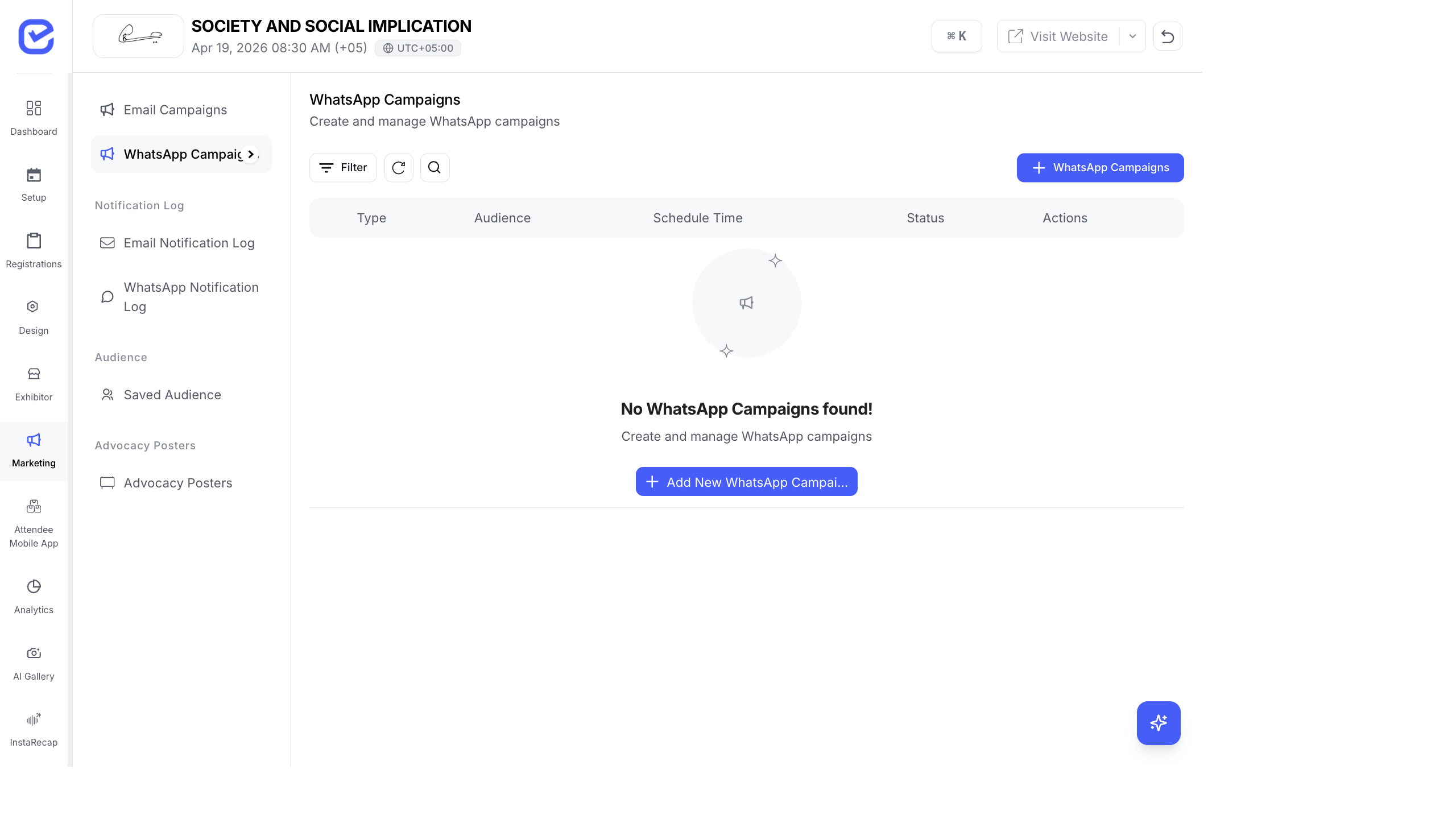
WhatsApp campaigns deliver messages directly to attendees’ phones with high open rates. Unlike email, WhatsApp requires pre-approved message templates — you select a template and map variables to your attendee data.
Prerequisites
Section titled “Prerequisites”Before creating a WhatsApp campaign, make sure:
- WhatsApp Business API is connected in your organization settings
- You have approved message templates (either Global templates provided by EventHex or your organization’s custom templates)
- Your event attendees have valid mobile numbers in their registration data
Create a WhatsApp Campaign
Section titled “Create a WhatsApp Campaign”The wizard follows the same 3-step flow as email campaigns.
Step 1: Select Your Audience
Section titled “Step 1: Select Your Audience”- Go to Marketing → Campaigns.
- Click + New Campaign.
- Build or select your audience (same as email campaigns — saved audiences, inline builder, ticket selection).
- The system shows the unique phone count for this segment.
- Click Next.
Step 2: Channel & Template
Section titled “Step 2: Channel & Template”- Select WhatsApp as the channel.
- Enter a Campaign Name — internal name for tracking.
- Select a Message Template from the list:
- Global Templates — pre-approved templates provided by EventHex (available to all events)
- Organization Templates — custom templates your organization has submitted and got approved
- Map template variables to attendee fields:
- Template variables appear as
{{1}},{{2}},{{3}}, etc. - Map each variable to an attendee field: first name, last name, event name, ticket name, etc.
- Template variables appear as
- Configure the Header (if the template has one):
- Text — plain text header
- Image — upload or select an image
- Video — upload a video
- Document — attach a PDF or document
- Click Next.
Template Types
Section titled “Template Types”WhatsApp templates are categorized by purpose:
| Type | Use For |
|---|---|
| General | Event announcements, reminders, thank-you messages |
| Session Specific | Session reminders, speaker announcements |
| Speaker Announcement | Notify attendees about newly confirmed speakers |
Step 3: Review & Schedule
Section titled “Step 3: Review & Schedule”- Review:
- Audience count (unique phone numbers)
- Template preview with mapped variables
- Header media (if any)
- Choose Send Now or Schedule for Later.
- Click Send or Schedule.
Campaign Tracking
Section titled “Campaign Tracking”WhatsApp delivery tracking uses the standard WhatsApp checkmark system:
| Status | Icon | Meaning |
|---|---|---|
| Sent | ✓ | Message left the server |
| Delivered | ✓✓ | Message reached the recipient’s phone |
| Read | ✓✓ (blue) | Recipient opened the message |
| Failed | ✗ | Message could not be delivered (invalid number, blocked, etc.) |
WhatsApp vs Email — When to Use Which
Section titled “WhatsApp vs Email — When to Use Which”| Open rate | 20–30% | 85–95% |
| Best for | Long content, attachments, newsletters | Short alerts, reminders, time-sensitive updates |
| Templates | Freeform HTML | Pre-approved templates only |
| Cost | Low (email provider fees) | Per-message fee (WhatsApp Business API pricing) |
| Personalization | Full HTML + variables | Template variables only |
| Timing | Any time | Respect local business hours |
Best Practices
Section titled “Best Practices”- Use for time-sensitive messages — WhatsApp is ideal for “Session starts in 30 minutes” or “Your check-in QR code” — not for long newsletters.
- Keep templates short — WhatsApp messages should be 2–3 lines. Save the details for email.
- Map variables carefully — double-check that
{{1}}maps to first name,{{2}}to event name, etc. Wrong mappings produce confusing messages. - Test with your own number — always test a WhatsApp campaign with your own phone number before sending to the full audience.
- Respect opt-out — if attendees reply “STOP”, honor the request. WhatsApp enforces this at the API level.
- Combine with email — send the detailed information by email, then send a short WhatsApp reminder with a link. Don’t duplicate the same content on both channels.